> For the complete documentation index, see [llms.txt](https://docs.rewst.help/llms.txt). Markdown versions of documentation pages are available by appending `.md` to page URLs; this page is available as [Markdown](https://docs.rewst.help/documentation/crates/existing-crate-documentation/windows-11-compatibility-checker-crate.md).
# Windows 11 Compatibility Checker Crate
{% hint style="info" %}
If you’re new to Crates, read through our introductory Crate documentation [here](https://docs.rewst.help/prebuilt-automations/crates). Find the Crate in our Crate Marketplace.
{% endhint %}
## What does the Windows 11 Compatibility Checker Crate do?
Our Windows 11 Compatibility Checker Crate checks all devices for Windows 11 compatibility and sends a detailed report for incompatible devices through tickets and email reports. The Crate does not automatically upgrade your devices to Windows 11.
The Crate workflow is triggered after completing a form that takes in details on where and how to send the report. The workflow then detects the default RMM and PSA of the organization the workflow is running on, and uses them in generating the list of devices and sending reports respectively.
{% hint style="warning" %}
This workflow must be run once at your top level organization to create the required organization variables needed to run this workflow.
{% endhint %}
### Workflow breakdown
1. The workflow begins with the **START** task using the **noop** action, which serves as the entry point and immediately transitions to the next step.
2. The **get\_organization\_computers** task executes the **List Computers** action to retrieve all computers from the organization using the default RMM system, with retry logic implemented for N-able connections to handle temporary connectivity issues.
3. The **filter\_windows\_devices** task uses the **Filter List** action to remove non-Windows computers from the device list, specifically excluding devices like Macs and focusing only on Windows-based systems.
4. The **collect\_hardware\_information** task runs the **Run PowerShell via RMM** action with items iteration, executing a PowerShell script on each Windows device to gather hardware specifications including CPU, RAM, TPM status, and storage information.
5. The **check\_compatibility\_requirements** task uses the **Set Variable** action to evaluate each device's hardware specifications against Windows 11 minimum requirements, determining compatibility status for each system.
6. The **compile\_compatibility\_data** task executes the **Transform Data** action to organize the collected information into a structured format, including device names, last login information, and compatibility status.
7. The **generate\_csv\_report** task uses the **Create CSV** action to compile all compatibility data into a comprehensive CSV report with columns for device name, last login, compatibility status, and hardware details.
8. The **send\_compatibility\_report** task executes the **Send Email with Attachment** action using the configured cron\_email settings to distribute the CSV report to designated recipients.
9. The workflow concludes with the **END** task using the **noop** action, marking the successful completion of the Windows 11 compatibility assessment and reporting process.
## Crate prerequisites
Your [PSA must be successfully integrated](/documentation/integrations/top-5-integration-types-get-started-with-integrations-in-rewst.md#psa-integrations) with Rewst.
## Unpack the Windows 11 Compatibility Checker Crate
1. Navigate to **Marketplace > Crates** in the left side menu of the Rewst platform.
2. Search for `Windows 11 Compatibility Checker`.\
\

3. Click on the Crate tile to begin unpacking.
4. Click **Unpack Crate**.
5. Click **Continue**.
6. Ensure that **Enabled** is toggled on for both **Webhook** triggers, **Cron Job**, and **Form Submission**. By default, both the **Webhook** triggers and **Cron Job** are disabled. Note that you have the option under the accordion menu of the trigger to activate the Crate for all future organizations in addition to the current one. You may also set the [trigger criteria](/documentation/automations/intro-to-triggers/trigger-criteria.md) or [integration overrides](/documentation/automations/intro-to-triggers.md).
7. Click **Unpack**.
### Use the Crate
1. Navigate to **Automations > Assets > Forms** in the left side menu of your Rewst platform.
2. Search for `[REWST] Windows 11 Compatibility Report`.
3. Click **⋮ > Usages > View Direct URLs.**
4. Click on the link for the organization, which contains the user you wish to manage. This will launch the form in a new tab.
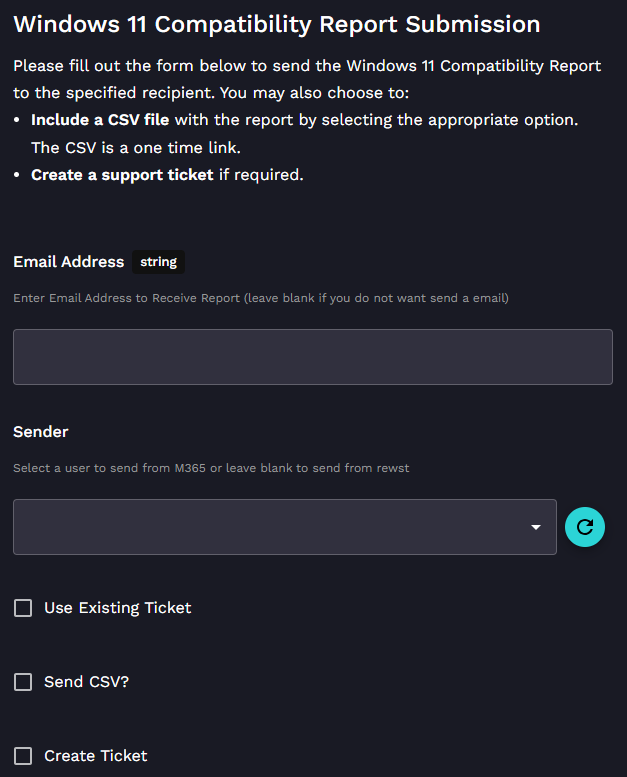
5. Choose or enter the applicable options from the following field, drop-down selector, and checkboxes:
* **Email address -** Enter the email address that will receive the report on the field. Leave this blank if you don't want to send an email.
* **Sender -** Select a user if you want to send from Microsoft 365. Leave the drop-down selector blank if you want to send from the Rewst platform.
* **Use Existing Ticket -** Choose this option if you want to use an existing ticket.
* **Send CSV -** Choose this option if you want to include a CSV file with the report. The CSV is a one-time link.
* **Create Ticket -** Choose this option if you want to create a support ticket.
6. Click **Submit**. You'll see message at the top of your screen indicating the form is submitted successfully.
## Organization variables associated with this Crate
{% hint style="info" %}
For more on organization variables and how to use them, see our org variable documentation [here](https://docs.rewst.help/documentation/configuration/organization-variables).
Organization variables not found in our standard organization variables documentation, such as the ones listed below. are typically system variables that are handled by integration mappings.
If you haven't done so already, we recommended that you run the [Configure Organization Variables Crate](https://docs.rewst.help/documentation/crates/existing-crate-documentation/configure-organization-variables), which will help you set org variables that are relevant to you and your customer's environments.
{% endhint %}
There is no required variable, but if none is set, the Crate will not report anything.
* `vars.cron_email`: This is the email address that will receive the report.
* `vars.cron_report_csv`: This will include a CSV file if set to true.
* `vars.cron_m365_send_as_guid`: If you would like to use Microsoft 365 to send the email, this will require the GUID of a Microsoft 365 user. This isn't required and will use Rewst to send the email if left blank or if it fails.
* `vars.cron_ticket`: This is required if you would like to create a ticket. This can be either true or false.
* `vars.cron_board_id`: This will require a board ID. This will default to `ORG.VARIABLES.default_psa` if you do not set anything.
* `vars.cron_status`: This will require the ticket status ID. This requires **board\_id** and will default to `ORG.VARIABLES.psa_default_ticket_status` if not set.
The variables below may not be supported based on your PSA and may not be required.
* `vars.cron_type_id`: This will require a ticket **type\_id**. If left blank, it will not set a type.
* `vars.cron_subtype_id`: This will require a ticket subtype ID. This requires a **type\_id** and if left blank, it will just not set a subtype.
* `vars.cron_item_id`: This will require a ticket item ID. This requires **type\_id** and **subtype\_id**. If left blank, it will not set an item.
{% hint style="info" %}
Got an idea for a new Crate? Rewst is constantly adding new Crates to our Crate Marketplace. Submit your idea or upvote existing ideas here in our [Canny feedback collector](https://rewst.canny.io/crates).
{% endhint %}
---
# Agent Instructions
This documentation is published with GitBook. GitBook is the documentation platform designed so that both humans and AI agents can read, navigate, and reason over technical content effectively. Learn more at gitbook.com.
## Querying This Documentation
If you need additional information that is not directly available in this page, you can query the documentation by asking a question.
Perform an HTTP GET request on the following URL with the `ask` and `goal` query parameters:
```
GET https://docs.rewst.help/documentation/crates/existing-crate-documentation/windows-11-compatibility-checker-crate.md?ask=&goal=
```
`ask` is the immediate question: it should be specific, self-contained, and written in natural language.
`goal` is what the user is ultimately trying to achieve, the reason they need the answer. Sharing it helps GitBook give you a better, more relevant answer. A goal is most helpful when it describes the outcome the user wants rather than restating the question. For example, with `ask=how do I create an API token`, a goal like `automate deployments from our CI pipeline` lets GitBook tailor the answer to that use case.
The response will contain a direct answer to the question and relevant excerpts and sources from the documentation.
Use this mechanism when the answer is not explicitly present in the current page, you need clarification or additional context, or you want to retrieve related documentation sections.