> For the complete documentation index, see [llms.txt](https://docs.rewst.help/llms.txt). Markdown versions of documentation pages are available by appending `.md` to page URLs; this page is available as [Markdown](https://docs.rewst.help/documentation/crates/existing-crate-documentation/traveling-employee-ca-policy-crate.md).
# Traveling Employee CA Policy Crate
{% hint style="info" %}
If you’re new to Crates, read through our introductory Crate documentation [here](https://docs.rewst.help/prebuilt-automations/crates). Find the Crate in our Crate Marketplace.
{% endhint %}
## What does the Traveling Employee CA Policy Crate do?
This Crate allows MSPs to easily manage traveling employees and their access via a form to adjust conditional access policies automatically upon their departure and return dates. Technicians and customers can self-serve, reducing tickets and time spent on these types of requests.
This Crate doesn't permanently modify existing conditional access policies, manage trusted locations, or approve or deny travel requests.
### How the Crate works
This Crate contains three separate forms.
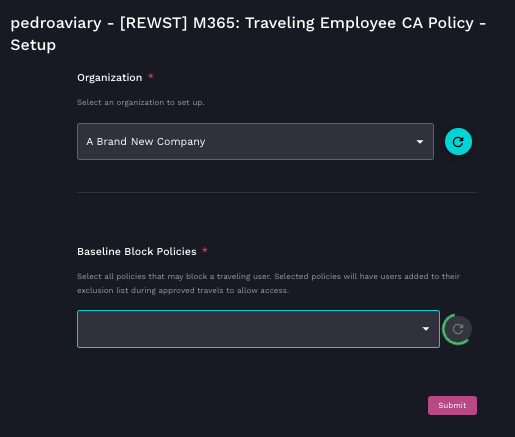
1. **\[REWST] M365: Traveling Employee CA Policy - Setup** is used once or rarely to set your base level of conditional access policy.
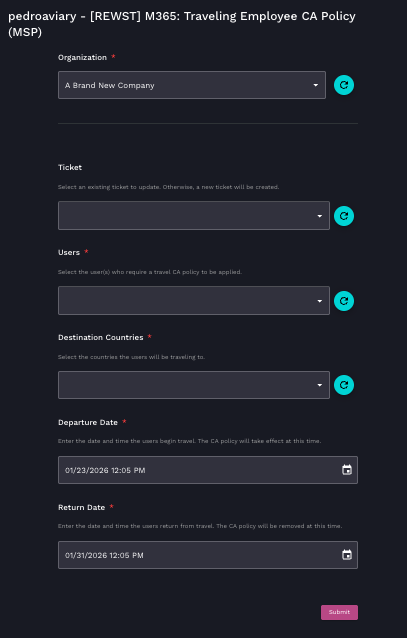
2. **\[REWST] M365: Traveling Employee CA Policy (MSP)** is used any time you want to prepare for a traveling employee or bucketed group of traveling employees. This form inherits the policies set with the first form.
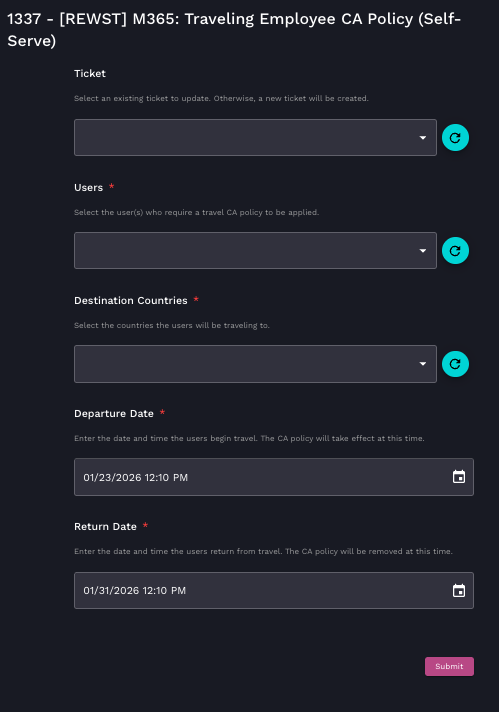
3. **\[REWST] M365: Traveling Employee CA Policy (Self-Serve)** is meant to be sent to individual users to have them fill out the travel plans for themselves or their group of employees.
The Crate's workflow runs on a cron trigger. It checks once daily for users indicated by the form, and adds them to an exclusion list. Access is granted only for the approved travel window and revoked automatically. Only configured baseline block policies are bypassed during travel. All other active CA policies, such as MFA requirements, remain. Temporary resources are automatically deleted after use.
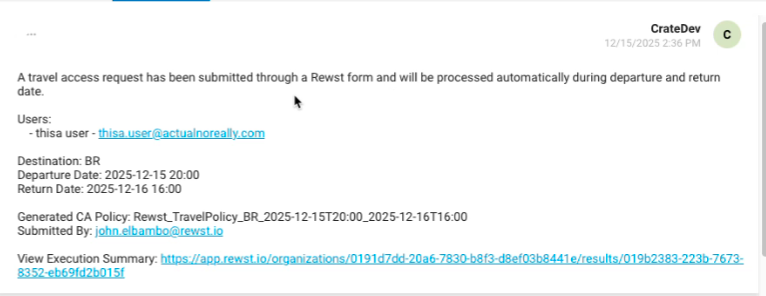
PSA tickets are created and updated any time the MSP or Self-Serve forms are submitted.
An example of the information included in the text of the created PSA ticket
{% hint style="info" %}
In the event of travel delays, such as rescheduled flights or weather-related incidents that move the initially indicated end date to further in the future, there is no way to adjust the existing policy. Instead, delete the policy. Then, use the **\[REWST] M365: Traveling Employee CA Policy (MSP)** form to create a new one with the new, further-in-the-future date.
{% endhint %}
## Crate prerequisites
Before unpacking this Crate, you must first have:
* Your [PSA](/documentation/integrations/top-5-integration-types-get-started-with-integrations-in-rewst.md#psa-integrations) successfully integrated with Rewst
* Our [Microsoft Cloud integration bundle](/documentation/integrations/integration-guides/microsoft-cloud-integration-bundle.md) successfully integrated with Rewst
## Unpack the Traveling Employee CA Policy Crate
1. Navigate to **Marketplace > Crates** in the left side menu of the Rewst platform.
2. Search for `Traveling Employee CA Policy`.\
\

3. Click on the Crate tile to begin unpacking.
4. Click **Unpack Crate.**
5. Click **Continue**.
6. Ensure that all triggers are set to **Enabled**.
7. Click **Unpack**.
### Use the Crate
#### Set your conditional access policy guidelines with the **\[REWST] M365: Traveling Employee CA Policy - Setup form**
1. Navigate to **Automations > Assets > Forms**.
2. Search for `[REWST] M365: Traveling Employee CA Policy - Setup`.
3. Click **⋮ > Usages > View Direct URLs**.
4. Click on the relevant link to launch it for your desired organization.
5. Select an organization to set the policy for from the **Organization** drop-down selector.
6. Use the **Baseline Block Policies** drop-down to select all policies that may block a traveling user. Selected policies will have users added to their exclusion list during the approved travel time window to allow access.
7. Click **Submit**.
#### As needed, prepare for employee travel with the **\[REWST] M365: Traveling Employee CA Policy (MSP) form**
{% hint style="success" %}
We recommend filling out one test of the form after you first set your policy guidelines to ensure that the ticket is properly created in your PSA.
{% endhint %}
1. Navigate to **Automations > Assets > Forms**.
2. Search for `[REWST] M365: Traveling Employee CA Policy (MSP)`.
3. Click **⋮ > Usages > View Direct URLs**.
4. Click on the relevant link to launch it for your desired organization.
5. Select an organization to set the policy for from the **Organization** drop-down selector.
6. Use the following fields to enter information about the travel plan:
1. **Ticket** - Select an existing ticket to update, otherwise a new ticket will be created in your PSA at the time of submission
2. **Users** - Select the user or users who require a travel conditional access policy to be applied
3. **Destination Countries** - Select the countries the user or users will be traveling to
4. **Departure Date** - Enter the date and time the user or users will begin travel, which is when the conditional access policy will take effect
5. **Return Date** - Enter the date and time the user or users will return from travel, which is when the conditional access policy will be removed
7. Click **Submit**.
#### As needed, prepare for employee travel with the **\[REWST] M365: Traveling Employee CA Policy (Self-Serve) form**
1. Navigate to **Automations > Assets > Forms**.
2. Search for `[REWST] M365: Traveling Employee CA Policy (Self-Serve)`.
3. Click **⋮ > Usages > View Direct URLs**.
4. Click on the relevant link to launch it for your desired organization.
5. Use the following fields to enter information about the travel plan:
1. **Ticket** - Select an existing ticket to update, otherwise a new ticket will be created in your PSA at the time of submission
2. **Users** - Select the user or users who require a travel conditional access policy to be applied
3. **Destination Countries** - Select the countries the user or users will be traveling to
4. **Departure Date** - Enter the date and time the user or users will begin travel, which is when the conditional access policy will take effect
5. **Return Date** - Enter the date and time the user or users will return from travel, which is when the conditional access policy will be removed
6. Click **Submit**.
## Organization variables associated with this Crate
{% hint style="info" %}
For more on organization variables and how to use them, see our org variable documentation [here](https://docs.rewst.help/documentation/configuration/organization-variables).
Organization variables not found in our standard organization variables documentation, such as the ones listed below. are typically system variables that are handled by integration mappings.
If you haven't done so already, we recommended that you run the [Configure Organization Variables Crate](https://docs.rewst.help/documentation/crates/existing-crate-documentation/configure-organization-variables), which will help you set org variables that are relevant to you and your customer's environments.
{% endhint %}
These variables are system-managed and must not be modified manually. All configuration should be done via the setup form unpacked with this Crate.
* `traveling_employee_users_group`: Reference to the traveling users group used for CA policy exclusions
* `traveling_employee_block_policies`: References to baseline blocking CA policies from which traveling users are excluded during travel
* `traveling_employee_policy_tickets`: Links travel-specific CA policies to tickets for automated updates throughout the travel lifecycle
* `traveling_employee_policy_prefix`: Allows for the customization of the prefixes for CA locations
* `traveling_employee_location_prefix`: Allows for the customization of the policy name
{% hint style="info" %}
Got an idea for a new Crate? Rewst is constantly adding new Crates to our Crate Marketplace. Submit your idea or upvote existing ideas here in our [Canny feedback collector](https://rewst.canny.io/crates).
{% endhint %}
---
# Agent Instructions
This documentation is published with GitBook. GitBook is the documentation platform designed so that both humans and AI agents can read, navigate, and reason over technical content effectively. Learn more at gitbook.com.
## Querying This Documentation
If you need additional information that is not directly available in this page, you can query the documentation by asking a question.
Perform an HTTP GET request on the following URL with the `ask` and `goal` query parameters:
```
GET https://docs.rewst.help/documentation/crates/existing-crate-documentation/traveling-employee-ca-policy-crate.md?ask=&goal=
```
`ask` is the immediate question: it should be specific, self-contained, and written in natural language.
`goal` is what the user is ultimately trying to achieve, the reason they need the answer. Sharing it helps GitBook give you a better, more relevant answer. A goal is most helpful when it describes the outcome the user wants rather than restating the question. For example, with `ask=how do I create an API token`, a goal like `automate deployments from our CI pipeline` lets GitBook tailor the answer to that use case.
The response will contain a direct answer to the question and relevant excerpts and sources from the documentation.
Use this mechanism when the answer is not explicitly present in the current page, you need clarification or additional context, or you want to retrieve related documentation sections.