> For the complete documentation index, see [llms.txt](https://docs.rewst.help/llms.txt). Markdown versions of documentation pages are available by appending `.md` to page URLs; this page is available as [Markdown](https://docs.rewst.help/documentation/crates/existing-crate-documentation/alert-on-onboard-offboard-execution-crate.md).
# Alert on Onboard/Offboard Execution Crate
{% hint style="info" %}
If you’re new to Crates, read through our introductory Crate documentation [here](https://docs.rewst.help/prebuilt-automations/crates). Find the Crate in our Crate Marketplace.
{% endhint %}
## What does the Alert on Onboard/Offboard Execution Crate do?
Our Alert on Onboard/Offboard Execution Crate ensures that your security protocols are upheld during critical transitions like onboarding or offboarding. This Crate sends automated notifications to a specified email address whenever an onboarding or offboarding automation is run, letting you know if the execution was successful or unsuccessful. The Crate enables you to perform the following:
* Automatically send an email to the designated address, a great way to notify a point of contact at your customer's company when a user has been onboarded or offboarded
* Enhance security measures during sensitive operations like onboarding and offboarding
* Work seamlessly with any existing onboarding or offboarding workflows you may have
### How the Crate works
* The system recognizes when an onboarding or offboarding automation is initiated.
* An automated email is dispatched to the specified security email address, detailing the action taken.
{% hint style="info" %}
Note that this Crate has no triggers. Its workflow is meant to be set up using a workflow [completion handler](broken://pages/fm8eIBTHO3CnDr23CZjX), which will run after the onboarding or offboarding workflows execute. You'll need to manually connect it to your desired workflow— either the workflow unpacked from the Microsoft: User Onboarding Crate or the workflow unpacked from the Microsoft: User Offboarding Crate.
{% endhint %}
## Crate prerequisite
To choose the email where the notification will be sent, you must set the [organization variable ](/documentation/integrations/organization-variables.md#manually-add-a-new-organization-variable)`onboard_offboard_notification_email` before unpacking this Crate.
## Unpack the Alert on Onboard/Offboard Execution Crate
1. Navigate to **Marketplace** **> Crates** in the left side menu Rewst platform.
2. Search for `Alert on Onboard/Offboard Execution`.
\

3. Click on the Crate tile to begin unpacking.
4. Click **Unpack Crate**.
5. Click **Continue**.
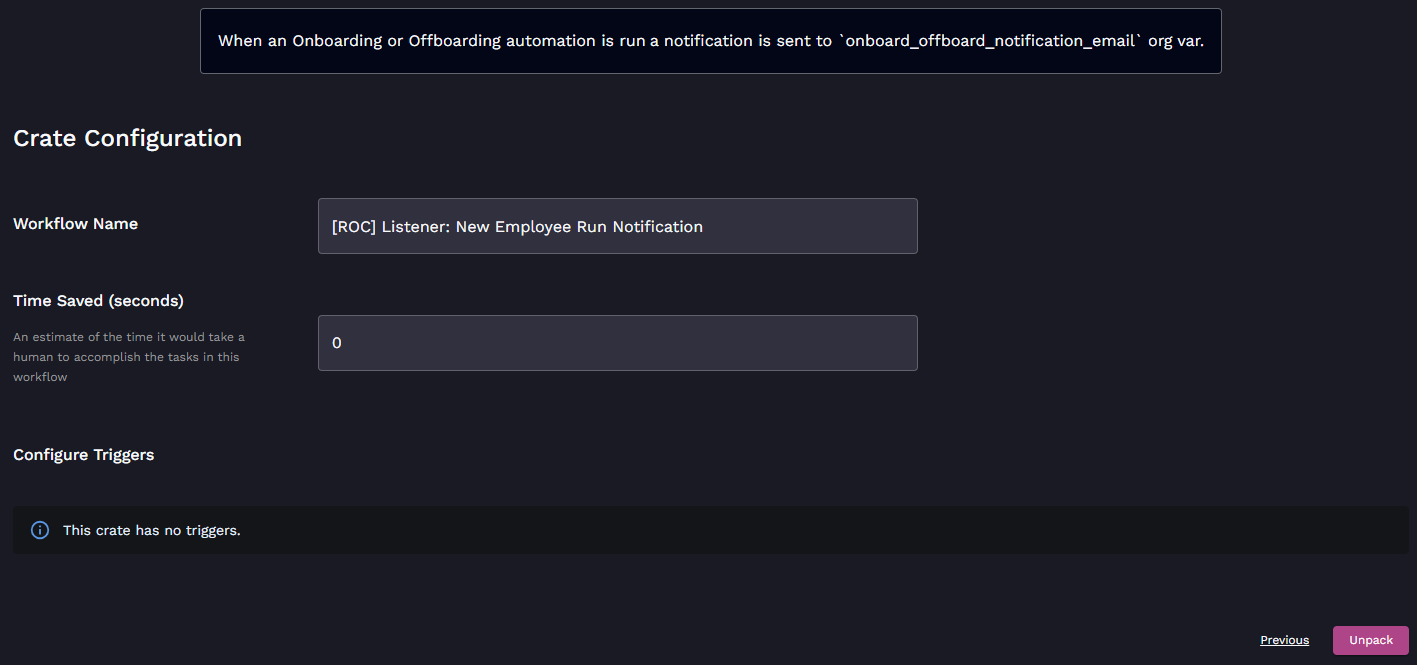
6. Enter **Time Saved** under **Crate Configuration**.
7. Click **Unpack**.
### Additional setup steps: Make the completion handler
Follow [steps here](https://docs.rewst.help/documentation/automations/workflows/completion-handlers-and-workflow-wrappers) to set up the completion handler for the workflow unpacked from the Crate. You want to add the completion handler so that the workflow unpacked with the Crate,`[ROC] Listener: New Employee Run Notification`, would trigger when the initial workflow completes. This initial workflow would be either the [Microsoft: User Onboarding workflow](/documentation/crates/existing-crate-documentation/microsoft-user-onboarding-crate-v2.md) or the [Microsoft: User Offboarding workflow](/documentation/crates/existing-crate-documentation/microsoft-user-offboarding-crate.md), depending on how you want to use the Crate.
1. Navigate to the desired Microsoft: User workflow.
2. Choose the **When this workflow completes** tab.
3. Set the **Trigger On Statuses** section to run the workflow as all possible statuses: **succeeded**, **failed**, **timeout**, and **canceled**.
4. If desired, set specific organizations for this completion handler to apply to. Click **Add All** to apply the completion handler to all organizations.
5. Ensure that **Enabled** is toggled on.
6. Click **Submit**.
Be sure to add all statuses, which will send an email for all possible initial workflow execution results.
### Update the cron trigger
1. Navigate to **Automations > Workflows** in the left side menu of your Rewst platform.
2. Search for the workflow you used as the initial workflow in your completion handler.
3. Click on that workflow to open it in the Workflow Builder.
4. Click **Test** to run that workflow.
5. Check the email address indicated in your set organization variable to ensure that an email was sent.
{% hint style="info" %}
To test this Crate, you'll need to adjust the cron trigger's schedule to a few minutes in the future, then adjust it back to your regular schedule after the test. Alternatively, you could wait until the regularly scheduled run occurs and check your result, which would not require you to update the cron trigger schedule.
{% endhint %}
The Crate runs on a cron trigger, and will execute the workflow to generate the ticket at the same time each day. You can adjust the chosen time for execution in the workflow itself.
1. Navigate to **Automations > Workflows**.
2. Search for `[ROC] Listener: New Employee Run Notification`.
3. Click on the workflow to open it in the Workflow Builder.
4. Click on the trigger to open its settings in the right side menu.
5. Update the timing of the cron trigger as desired. Note that when entering the time into the **Cron Schedule** field, the correct format is minutes followed by hour. For example, 18 3, not 3 18.
6. If necessary, enable [Critical Timing](/documentation/automations/intro-to-triggers.md#critical-timing).
7. Click **Save Trigger**.
{% hint style="info" %}
Got an idea for a new Crate? Rewst is constantly adding new Crates to our Crate Marketplace. Submit your idea or upvote existing ideas here in our [Canny feedback collector](https://rewst.canny.io/crates).
{% endhint %}
---
# Agent Instructions
This documentation is published with GitBook. GitBook is the documentation platform designed so that both humans and AI agents can read, navigate, and reason over technical content effectively. Learn more at gitbook.com.
## Querying This Documentation
If you need additional information that is not directly available in this page, you can query the documentation by asking a question.
Perform an HTTP GET request on the following URL with the `ask` and `goal` query parameters:
```
GET https://docs.rewst.help/documentation/crates/existing-crate-documentation/alert-on-onboard-offboard-execution-crate.md?ask=&goal=
```
`ask` is the immediate question: it should be specific, self-contained, and written in natural language.
`goal` is what the user is ultimately trying to achieve, the reason they need the answer. Sharing it helps GitBook give you a better, more relevant answer. A goal is most helpful when it describes the outcome the user wants rather than restating the question. For example, with `ask=how do I create an API token`, a goal like `automate deployments from our CI pipeline` lets GitBook tailor the answer to that use case.
The response will contain a direct answer to the question and relevant excerpts and sources from the documentation.
Use this mechanism when the answer is not explicitly present in the current page, you need clarification or additional context, or you want to retrieve related documentation sections.