githubEdit

Rewst Microsoft GDAP Assistant Crate

circle-info

If you’re new to Crates, read through our introductory Crate documentation herearrow-up-right. Find the Crate in our Crate Marketplace.

What does the Rewst Microsoft GDAP Assistant Crate do?

This Crate enables you to configure or review your existing Rewst GDAP setup for all Microsoft CSP customers. It is specifically meant to be used during the set up of our Microsoft Cloud integration bundle. See our complete documentation for Microsoft Cloud integration bundle setup here.

How the Crate works

circle-exclamation

The [REWST] GDAP Assistant form unpacked with this Crate is used to kick off the workflow upon submission. Depending on how you fill out the form, it can be used to complete three different goals.

  1. Create provides an email containing, for each selected customer:

    1. A link to approve the Rewst GDAP relationship.

    2. A second link to automatically create the required access groups. If multiple customers are selected, you will receive multiple sets of links.

  2. View allows you to, for all selected customers:

    1. Send a webhook link via email that displays Rewst GDAP compliance issues in an HTML table.

    2. Optionally upload a CSV to an existing ticket.

    3. View a report of the current validation status of all relationships, sent to an email address of your choice.

  3. Clear allows you to remove any data that is being listed on the webhook.

Crate prerequisites

  • Microsoft Cloud Bundle Integration

  • Your PSA Integration - required only if you want to upload a CSV to an existing ticket

Unpack the Rewst Microsoft GDAP Assistant Crate

  1. Navigate to Crates > Crate Marketplace in the left side menu of the Rewst platform.

  2. Search for Rewst Microsoft GDAP Assistant.

  1. Click on the Crate tile to begin unpacking.

  2. Click Continue.

  3. Ensure that all three of the triggers under Configure Triggers have Enabled toggled on.

  4. Click Unpack.

Use the Crate

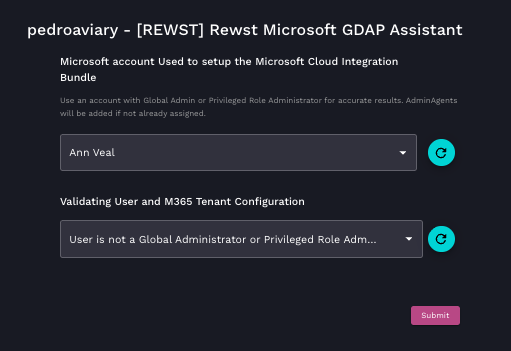
You'll use the same [REWST] GDAP Assistant form for each of the following purposes. Note that if you choose a user from the Microsoft account Used to setup the Microsoft Cloud Integration Bundle drop-down selector who is not a Global Admin or Privileged Role Administrator, the further options to choose your purpose from the form will not appear, and a message about this role deficiency will be shown.

Screenshot of the Rewst Microsoft GDAP Assistant interface showing user selection and M365 tenant validation steps on the integrations setup page. The background is navy blue. Each drop-down field is lighter blue. The text is white. The button to submit is pink. The buttons to refresh options  for the drop-down fields are teal with circular arrows on them.
An example of the error message shown when the chosen user does not have the required role
Create

  1. Open the form [REWST] GDAP Assistant.

  2. Select the Rewst Microsoft account used during setup of the Microsoft Cloud Integration Bundle. This account must be a Global Admin or Privileged Role Administrator. The syncing in Rewst once this account is chosen may take a moment.

  3. Choose Create Admin Relationships for Non-Compliant Tenants.

  4. Select your non-compliant CSP customers. These should auto-populate.

  5. Enter a Prefix for GDAP Groups.

    • The workflow creates parent-level groups named Prefix – Role Name for each of the 12 Rewst roles.

  6. Enter a Relationship Name.

    • The workflow creates a relationship for each selected CSP customer named Relationship Name – Customer Name – GDAP – Year.

  7. Enter one or more email addresses in Send Email To - example: [email protected]envelope, [email protected]envelope.

  8. Click Submit.

circle-exclamation

View

  1. Open the form [REWST] GDAP Assistant.

  2. Select the Rewst Microsoft account used during setup of the Microsoft Cloud Integration Bundle. This account must be a Global Admin or Privileged Role Administrator. The syncing in Rewst once this account is chosen may take a moment.

  3. Choose View GDAP Data for All CSP Customers.

  4. Select the CSP customers you want to view for Rewst GDAP compliance.

  5. Optional: If you want to attach a CSV to an existing ticket, select the ticket.

    • This CSV shows your current Rewst GDAP compliance and identifies what is missing.

  6. Enter one or more email addresses in Send Email To (example: [email protected]envelope, [email protected]envelope).

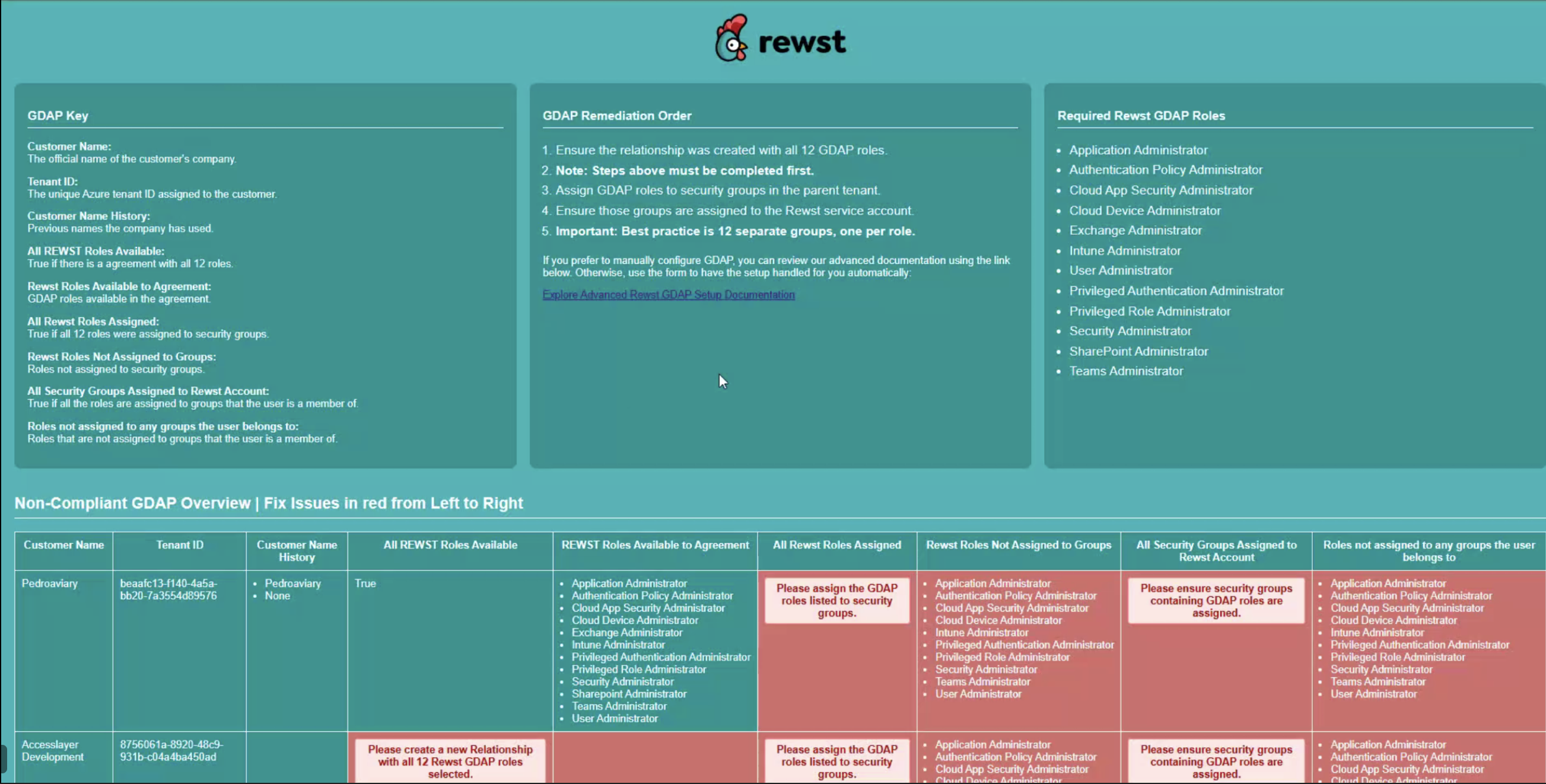
    • This email will include a link to a webhook that provides a very detailed overview of your current Rewst GDAP compliance for all of the selected customers.

    An example report, viewed from the clickable link in the email sent after form submission
  7. Click Submit.

  8. Navigate to your email inbox and click the link to view the report. Follow steps in the report as needed. Green fields indicate that your setup is correct. Red fields need attention.

Clear

  1. Open the form [REWST] GDAP Assistant.

  2. Select the Rewst Microsoft account used during setup of the Microsoft Cloud Integration Bundle. This account must be a Global Admin or Privileged Role Administrator. The syncing in Rewst once this account is chosen may take a moment.

  3. Select Clear All HTML Data. This will remove any data that is being listed on the webhook.

  4. Click Submit.

circle-info

Got an idea for a new Crate? Rewst is constantly adding new Crates to our Crate Marketplace. Submit your idea or upvote existing ideas here in our Canny feedback collectorarrow-up-right.

Last updated

Was this helpful?