> For the complete documentation index, see [llms.txt](https://docs.rewst.help/llms.txt). Markdown versions of documentation pages are available by appending `.md` to page URLs; this page is available as [Markdown](https://docs.rewst.help/documentation/crates/existing-crate-documentation/configure-connectwise-psa-agreement-for-duo-sync-crate.md).
# Configure ConnectWise PSA Agreement for Duo Sync Crate
{% hint style="info" %}
If you’re new to Crates, read through our introductory Crate documentation [here](https://docs.rewst.help/prebuilt-automations/crates). Find the Crate in our Crate Marketplace.
{% endhint %}
## What does the Configure ConnectWise PSA Agreement for Duo Sync Crate do?
Our Configure ConnectWise PSA Agreement for Duo Sync Crate provides a simple form-based interface for easy variable configuration. It prepares your system for the Duo-CWM User Sync Crate and ensures secure and accurate input of API keys and other sensitive data. You'll only need to perform the setup once and you're good to go for future syncs.
This Crate only deals with configuring variables and does not perform the actual sync operation. Use this as a preparatory step before running the [Sync Duo User Counts with ConnectWise PSA Agreement Crate](/documentation/crates/existing-crate-documentation/sync-duo-user-counts-with-connectwise-psa-agreement-crate.md).
### How the Crate works
* The Crate sets up the necessary organization variables for ConnectWise PSA integration
* You can use forms to add, modify, or remove agreement mappings
* The system automatically syncs users based on your mapping configuration
* A scheduled process ensures that mappings stay current
The Crate workflow is triggered by the Duo Agreement Mapping Form.
## Crate prerequisites
The following integrations must be set up before unpacking this Crate:
* [ConnectWise PSA integration](/documentation/integrations/integration-guides/connectwise-integration-setup.md)
* [Duo integration](/documentation/integrations/integration-guides/duo-integration-setup.md)
## Unpack the Configure ConnectWise PSA Agreement for Duo Sync Crate
1. Navigate to **Marketplace > Crates** in the left side menu Rewst platform.
2. Search for `Configure ConnectWise PSA Agreement for Duo Sync Crate`.
3. Click on the Crate tile to begin unpacking.
4. Click **Unpack Crate**.
5. Click **Continue**.
6. Ensure that **Enabled** is toggled on under **Configure Triggers**. Note that you have the option under the **Form Submission** accordion menu to activate the Crate for all future organizations in addition to the current one. You may also set activation to certain [tags](/documentation/settings/tags-in-rewst.md), and set [trigger criteria](/documentation/automations/intro-to-triggers/trigger-criteria.md) or [integration overrides](/documentation/automations/intro-to-triggers.md).
7. Click **Unpack**.
### Use the Crate
1. Navigate to **Automations > Assets > Forms** in the left side menu of your Rewst platform.
2. Search for `[ROC] ConnectWise Manage - Map & Sync Duo Users w/ Agreement`.
3. Click **⋮ > Usages > View Direct URLs.**
4. Click on the link for the organization that contains the user you wish to manage. This will launch the form in a new tab.
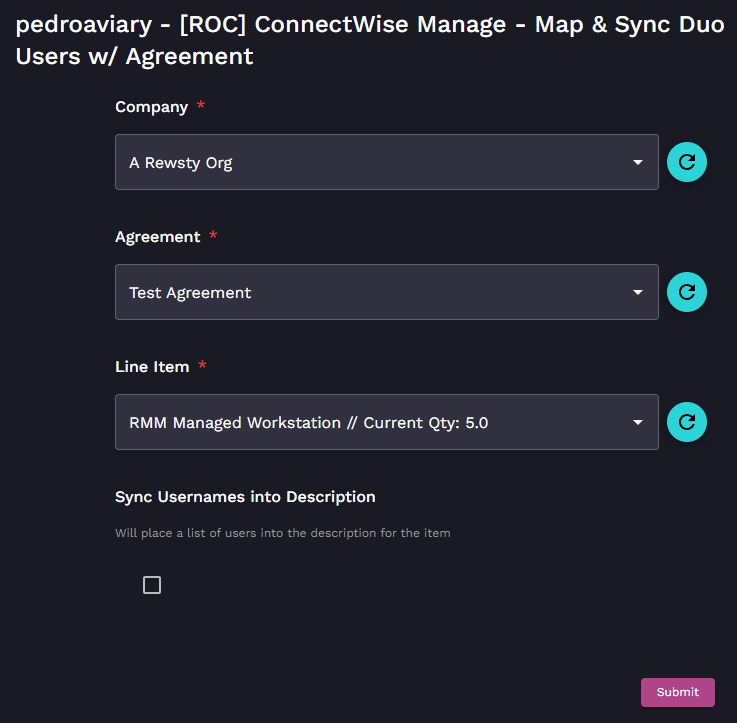
5. Choose the applicable options from the following drop-down selectors:
* **Company** - Organization that contains the user you wish to manage
* **Agreement** - PSA Agreement which we will be mapping users to.
6. Click **Submit** to run the workflow. The workflow will run and automatically add notes to your PSA with the results of the software operation.
### Test the Crate
1. Navigate to **Automations > Workflows**.
2. Search for `[ROC] ConnectWise Manage - Duo Agreement Mapping - Set Org Variables.`
3. Click on the workflow to view it in the Workflow Builder.
4. Click on the trigger in the workflow to open its settings in the right side menu.
5. Click **Copy URL**.
6. Copy the form URL for the organization you'd like to use to test the form and paste it in a different browser window.
7. Fill out the form accordingly. See the below section for information on what each selection does. Once the form is fully filled out, click **Submit**.
{% hint style="warning" %}
Note: Once an agreement has been added, a cron trigger runs daily to sync users for each company that has been mapped.
{% endhint %}
## **Map Organization Users to Manage Agreement form information**
From the MSP organization, use this form to modify a mapping configuration. When modifying a mapping, you'll make the following choices:
* **Company**: This will be from the list of PSA clients.
* **Agreement**: This is the PSA Agreement, which we will be mapping users to.
* **Line Item**: Also known as the Agreement Addition, this is the item which will have its quantity determined by the collection process.
* **Sync User Names into Description**: If you enable this, the actual names of the users will be put into the **Description** field of each addition.
---
# Agent Instructions
This documentation is published with GitBook. GitBook is the documentation platform designed so that both humans and AI agents can read, navigate, and reason over technical content effectively. Learn more at gitbook.com.
## Querying This Documentation
If you need additional information that is not directly available in this page, you can query the documentation by asking a question.
Perform an HTTP GET request on the following URL with the `ask` and `goal` query parameters:
```
GET https://docs.rewst.help/documentation/crates/existing-crate-documentation/configure-connectwise-psa-agreement-for-duo-sync-crate.md?ask=&goal=
```
`ask` is the immediate question: it should be specific, self-contained, and written in natural language.
`goal` is what the user is ultimately trying to achieve, the reason they need the answer. Sharing it helps GitBook give you a better, more relevant answer. A goal is most helpful when it describes the outcome the user wants rather than restating the question. For example, with `ask=how do I create an API token`, a goal like `automate deployments from our CI pipeline` lets GitBook tailor the answer to that use case.
The response will contain a direct answer to the question and relevant excerpts and sources from the documentation.
Use this mechanism when the answer is not explicitly present in the current page, you need clarification or additional context, or you want to retrieve related documentation sections.