> For the complete documentation index, see [llms.txt](https://docs.rewst.help/llms.txt). Markdown versions of documentation pages are available by appending `.md` to page URLs; this page is available as [Markdown](https://docs.rewst.help/documentation/automations/intro-to-triggers/trigger-criteria.md).

# Trigger criteria

*Trigger criteria* are a set of conditions that determine whether a workflow should start. A condition can be a simple comparison of two values, a complex set of conditions, or even a Jinja-based query. In simple terms, you're setting up the automation to only trigger when certain conditions are met or values are present. This can be helpful to customize when you want a workflow to run. For example, rather than having it run for all incoming tickets, you would use trigger criteria to set a workflow to run for just tickets related to password reset requests.

The trigger criteria tab of the trigger menu will only appear if you've chosen a trigger type that works with criteria. This includes [core webhook](/documentation/automations/intro-to-triggers.md#core-webhook) triggers and any integration-type triggers.

<figure><img src="/files/wtaloTOlcMRHHPkioJXD" alt="An animated image of the user choosing a trigger typed ConnectWise PSA. As the user clicks, a new section of the menu appears titled &#x27;Trigger Criteria.&#x27; The test is white on a dark blue screen."><figcaption><p>Scroll down to the bottom of the trigger menu once you've chosen your trigger type to see the trigger criteria submenu.</p></figcaption></figure>

## Trigger criteria submenu

<figure><img src="/files/d78JzgNBPJ5cEs25Ik9o" alt=""><figcaption></figcaption></figure>

1. Click **+Add Criterion** to add new trigger criteria. This will reveal a new set of fields. You can only add one set at a time, but may add multiple criterion.
2. Click **Test Criteria** at the bottom of the right side menu to open the trigger criteria test dialog. This option will only appear after you've saved both your trigger and your trigger criteria. The dialog allows you to use past events in your relevant tool to test out conditions for future events.  From this dialog, you can also add new trigger criteria. Note that the trigger must be set to **enabled** for this dialog to work. Learn more about this dialog in the [Trigger criteria test dialog](#trigger-criteria-test-dialog) section of this document.
3. The **Key** field is used to access the trigger context. A trigger context is a dictionary of key-value pairs that contain the data of the event that triggered the workflow.&#x20;
4. Click <img src="/files/yRhzrk2xPyH045czZ3PH" alt="" data-size="line"> to open a Monaco editor dialog.
5. The **Operator** drop-down is used to compare the value of the Key field with the **Value** field. Click the arrow to open the drop-down list of all possible operators.&#x20;
   1. Equals
   2. Equals (case sensitive)
   3. Not Equals
   4. Contains
   5. Starts With
   6. Ends With
   7. Greater Than
   8. Less Than
   9. Exists
   10. Does Not Exist
   11. In - be sure to press the `Enter` key to convert the value into a list
   12. Not In - be sure to press the `Enter` key to convert the value into a list
   13. Jinja Evaluation
6. The **Value** field contains the text parameter of the **Key** field to compare with the value of the trigger context. Note that only string values are supported in this field. If you need to evaluate non-string values, you can use Jinja Evaluation to do so.&#x20;
7. Click **Delete Condition** to remove the related trigger criteria.

<figure><img src="/files/weJTX8Dv83PV5SGAHmhZ" alt=""><figcaption></figcaption></figure>

## Trigger criteria test dialog

The dialog can be viewed in the right side menu in condensed form, or via a full dialog that appears in the center of your screen by clicking <img src="/files/UMBAisxwIISgGIV2JVfK" alt="" data-size="line">.&#x20;

<figure><img src="/files/eYQTbgK4aEtEh6w8Mm70" alt="" width="239"><figcaption><p>The condensed view</p></figcaption></figure>

The full dialog is made up of two panels. The right panel shows all prior triggering events in a list, with the most recent events displayed at the top. You must enable the trigger to receive trigger events, and also slide the **Test Trigger Criteria** toggle to play, not pause. The system will approximately log the latest 10 events for one day. There is no throttling on the logging system.&#x20;

<figure><img src="/files/Ab7Y3KKhQNRafwdqbQJo" alt=""><figcaption><p>The full dialog</p></figcaption></figure>

Click on the value of the trigger context for any of these events to generate and display its criteria in the left panel. This will automatically map the field accessor and the selected value of the trigger context. Note that the events in the right panel list have color coded headers at the top of each, with the color denoting a different status for that event. Each trigger type may have different trigger context data or formatting.

| Status                                             | Meaning                                                                                                                                                                                                                                                                                                                                                   |
| -------------------------------------------------- | --------------------------------------------------------------------------------------------------------------------------------------------------------------------------------------------------------------------------------------------------------------------------------------------------------------------------------------------------------- |
| VALID  - Blue![](/files/zBgaSmwq0MF9j784yDbI)      | A valid trigger criteria means the triggered event satisfies all possible conditions and will start the workflow. A criteria is satisfied when all specified conditions are satisfied by logical means against the trigger context. All valid trigger events should have a corresponding workflow execution.                                              |
| FILTERED  - Yellow![](/files/BWOHlTMAxkrNJKNFSMkC) | A filtered trigger will not start the workflow, typically for one of the following reasons: a condition is logically unmet by design, a condition is malformed and unparseable, or the trigger request itself is malformed and rejected by the system. A filtered trigger event may show warnings if errors are found while processing the trigger event. |

{% hint style="warning" %}
If no criteria are set, anything will be considered a valid triggering event.
{% endhint %}

Alternatively, click **+ Add Criteria** to create a new set of fields for a new criteria.&#x20;

{% hint style="success" %}
You can’t set more than one condition on the same field. Rewst will adopt the first condition and destroy any future conditions without giving a warning message.

Though you can only have one condition on specific field at a time, you can have as many conditions as you wish, as long as they are each on a different field.
{% endhint %}

## Trigger context examples

<details>

<summary>Basic example: Apple, orange, banana</summary>

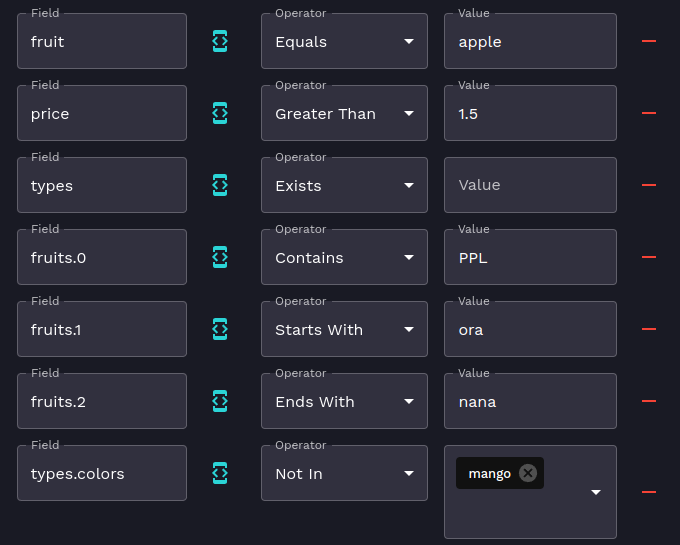
In plain speak, we want to set the criteria to be that a fruit is an apple, where all possible fruits are apple, orange and banana. The price of the apple is $1.99. The colors corresponding to each type of the fruits are red, orange, and yellow respectively.

Now let's look at it in Rewst. Given the following trigger context:

```javascript
{
    fruit: "apple",
    fruits: ["APPLE", "orange", "banana"],
    price: 1.99,
    types: {
        colors: ["red", "orange", "yellow"],
    }
}
```

The following trigger criteria will be valid, and match our statement:

<figure><img src="/files/0jQJEI5kuOpIiDNaObMM" alt=""><figcaption></figcaption></figure>

* For this example, note that while you could have each of the types of fruits with an operator of Equals and the value set to the entire text name of each fruit, using the alternative operators such as contains, Starts With and Ends With allow you to pull in more results for your criteria. If you only know that the domain you want to act as a trigger ends in co.uk, you could use an operator other than Equals, to pull in results that contain those few letters rather than requiring it to match an entire address' exact text.
* The field accessor uses dot notation to access the value in the trigger context: apple = fruits,0, orange = fruits.1, banana = fruits.2, etc.
* If you are making use of the In or Not In operator, be sure to press the **Enter** key to convert the value into a list.
* You can't have identical field accessors in the same trigger criteria, with the exception of Jinja criteria.
* We make use of simple Python operators to compare the values of the trigger context and the field value. For more information, please refer to the [Python Operators](https://www.w3schools.com/python/python_operators.asp)
* Default conditions are And conditions. If you want to use Or conditions, you can use the Jinja criteria. Please see the advanced examples below.

</details>

<details>

<summary>Advanced example: Jinja evaluation</summary>

Given the following trigger context:

```javascript
{
    fruit: "apple",
    fruits: ["APPLE", "orange", "banana"],
    price: 1.99,
    types: {
        colors: ["red", "orange", "yellow"],
    }
}
```

The following Jinja evaluation will be valid:

```jinja2
{{ CTX.fruit == 'apple' or CTX.price < 2 }}
```

Jinja evaulations do not require a field accessor, and the entire trigger context is available under the CTX variable.

</details>

## Save trigger criteria

You'll need to save your updates for the trigger criteria to take effect. How you do this will depend on if you are adding criteria directly under the **Trigger Criteria** submenu or within the Trigger Criteria Test dialog.

Click **Save Trigger** under the Trigger Criteria submenu to save your added or updated trigger criteria. <br>

<figure><img src="/files/OEAaLb9b2vMuJ58y7aW1" alt=""><figcaption></figcaption></figure>

Click **Save Trigger Criteria** in the Trigger Criteria Test dialog to save and close the dialog.&#x20;

{% hint style="success" %}
While the Trigger Criteria Test dialog is open, you can press the **`F8`** key to save the trigger.
{% endhint %}


---

# Agent Instructions
This documentation is published with GitBook. GitBook is the documentation platform designed so that both humans and AI agents can read, navigate, and reason over technical content effectively. Learn more at gitbook.com.

## Querying This Documentation
If you need additional information that is not directly available in this page, you can query the documentation dynamically by asking a question.

Perform an HTTP GET request on the current page URL with the `ask` query parameter:

```
GET https://docs.rewst.help/documentation/automations/intro-to-triggers/trigger-criteria.md?ask=<question>
```

The question should be specific, self-contained, and written in natural language.
The response will contain a direct answer to the question and relevant excerpts and sources from the documentation.

Use this mechanism when the answer is not explicitly present in the current page, you need clarification or additional context, or you want to retrieve related documentation sections.