Microsoft Cloud Integration Bundle
Rewst's previous setup for Microsoft was separate integrations for each Microsoft app. If you are an older Rewst customer and have not yet migrated from our individual integration to bundle configuration, please see the below section for how to Migrate to the Microsoft Cloud Integration Bundle.
What is the Microsoft Cloud Integration Bundle?
The Microsoft Cloud Integration Bundle is Rewst’s solution for integrating your most common Microsoft tools. It’s a little different from our other integrations in that we group multiple integrations together, by brand, to allow for easier and more custom integration options during setup.
Though you’ll be working from one integration menu tile to set up all integrations, each integration will appear as its own section with its own actions in the actions list of the workflow builder.
For detailed permission breakdown for all Microsoft integrations in the bundle, see our separate documentation here.
Why use the Microsoft Cloud Integration Bundle?
Customize permissions tailored to your organization’s needs.
Centralize the management of all Microsoft integrations through the Rewst platform.
Protect your data with enhanced security measures.
Keep your integrations current with continuous updates and enhancements.
What integrations are in the Microsoft Cloud Integration Bundle?
You'll be prompted to check off any or all of the following integrations to be included in your setup process. The Microsoft Cloud Integration Bundle contains integrations for:

Microsoft Graph: A unified API that provides a single endpoint for accessing and managing data and intelligence across Microsoft 365, Windows, and Enterprise Mobility and Security. 👉 You should check this box to install the integration to allow Rewst to make API calls. This is necessary for the bundle to work.
Microsoft Exchange Online: The cloud-hosted version of the traditional Microsoft Exchange Server, offering similar functionalities but without the need for on-premises server infrastructure. 👉 You should check this box to install the integration to allow you to send Exchange Online PowerShell commands.
Microsoft Cloud Solution Provider (CSP): This allows for the resale of Microsoft cloud services like Azure, Microsoft 365, and Dynamics 365 to businesses, often with added value services. It's a subscription-based model where MSPs can bill customers. 👉 You should check this box if you use the Microsoft Partner Center and want to run Rewst actions against your customer tenants.
Microsoft Azure: A cloud computing platform, Azure offers a range of cloud infrastructure services, including computing, analytics, storage, networking, and AI. Note that Microsoft formerly called a different tool Azure, and renamed that tool Microsoft Entra. 👉 You should check this box to install the integration if you are already an Azure user and have an existing Azure key vault set up with Microsoft. If you don't have a key vault, you'll need to create an empty one to complete bundle setup, then check this box. Instructions for how to do this can be found here.
Set up the Microsoft Cloud Integration Bundle
We've broken down instructions into three larger steps, each with its own section. Read through the entire process before starting step 1 to familiarize yourself with what will be needed.
Click each expander to open and view that substep's instructions and information.
Step 1: Create a Microsoft service account in Microsoft Entra
To set up Rewst integration, you'll need a new service account that has Global Admin settings. Once the integration has been completed, this can be removed. If you need to uninstall and re-integrate the integration, however, and you've removed the Global Admin settings, you'll need to recreate this before reintegrating.
Create a user in Microsoft Entra to use as your Rewst service account.
Navigate to Overview > +Add > User > Create new user in Microsoft Entra.

Name the user
Rewst.Check the box derive from user principal name.
Enter a display name of
Rewst Service Account.Auto generate a password.
Document all the user's information within your documentation platform. Be sure to note the user principal name.

Click the Properties tab. Leave all the options on this screen as default.
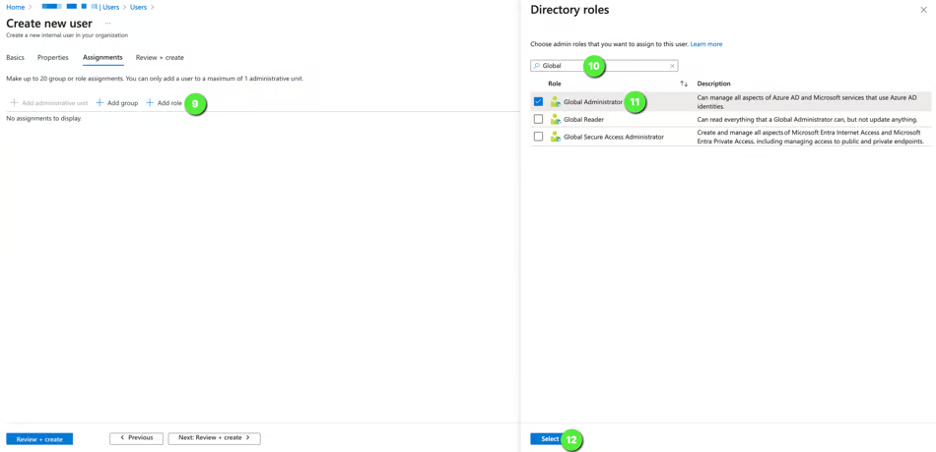
Click Assignments > Add Role.
Search for
Global Administratorin the role selection. Select the role.Click Select. Verify that the role is now listed in the main pane.

Make sure the service account is part of the admin agents group in Microsoft Entra.


Click Review + Create, then Create.
Turn on MFA requirement for the user
Log in to the Microsoft 365 Admin Center.
Navigate to Users > Active Users > Multifactor Authentication.
Locate and select your Rewst service account user in the list that appears.
Click Enable under the Quick Steps menu.
Select the Rewst service account user again.
Click Enforce under the Quick Steps menu.
Click Enforce multi-factor.
Only Microsoft authentication is permissible. Providers like Duo are incompatible. For more information, see Microsoft's page on Supported MFA options.
Modify conditional access policy in Microsoft Azure
Set up your MSP's policies
This step is unnecessary if the tenant is under Microsoft default security settings. If you have no conditional access policies and are operating under security defaults, which already require MFA, skip to the next section.
Navigate to the Conditional Access Policies blade in Azure.
Remove the Rewst service account from any existing policies which may have been inherited at the time of its creation. If there are no existing policies, move on to the next step.
Create a New Policy.
Include Rewst User: Add the Rewst user to the policy
Enforce MFA: Mandate Azure Multi-factor Authentication for each login and application if you have not done so already
Policy Name: Save this policy under the name
Rewst Conditional Access Policy
Set up your Client's policies
Granular access is influenced by your clients' conditional access policies. To ensure seamless access to your clients using your Rewst integration user, follow these steps
Navigate to your client's Conditional Access Policies blade in Azure.
For each policy listed, add an exclusion to Users and Groups with these settings:
Guest or external users
Service Provider Users
Tenant ID: Enter your tenant ID. If unknown, find it at What Is My Tenant ID.
Note: Excluding the MSP from the Conditional Access Policy is recommended as per Microsoft's GDAP Documentation.
Post-modification behavior
Propagation time: Changes may take up to an hour to become active in the Rewst environment.
Quick refresh: Click the blue shield icon next to the client's name on the Microsoft Cloud Integration Bundle page in Rewst to expedite propagation.
Step 2: Register the enterprise app and authorize the Rewst integration
Register the enterprise app
Choose how to register the app.

Most users should select the Rewst-created enterprise app. It simplifies setup, includes the required permissions, and is secure. Unless you’re absolutely sure you need your own, choose the default option.
If you are absolutely certain that you must bring your own app rather than using the Rewst-created one, choose this registration option. Owned app registration instructions can be found here: https://docs.rewst.help/documentation/configuration/integrations/integration-guides/microsoft-cloud-integration-bundle/owned-app-registration
Click Next.
Set permissions for Microsoft Graph.

You can pick and choose from a set of pre-selected Graph permissions, or edit based on your org’s security preferences.
These permissions are carefully chosen to support Crates without authentication issues.
If you modify permissions from the stock ones suggested by Rewst, it’s your responsibility to verify that your custom permissions don’t interfere with Rewst’s functionality.
For more detail, consult Microsoft Graph’s official permissions documentation.
Microsoft can take up to 48 hours for all scopes to appear in the Rewst integration. If scopes are not appearing for you, pause integration setup, and return later to allow time for Microsoft to update.
Grant additional access for other Microsoft integrations
Exchange, CSP, and Azure, if needed, are simpler and allow you to toggle access as desired.
Microsoft Graph includes ~177 APIs, and gives you broad access to users, groups, and licensing from one endpoint.
Click Next.
Authorize Rewst
Review your configuration decisions in the Authorize Integrations screen. Click Back f you wish to make updates. Click Authorize when satisfied with your choices.

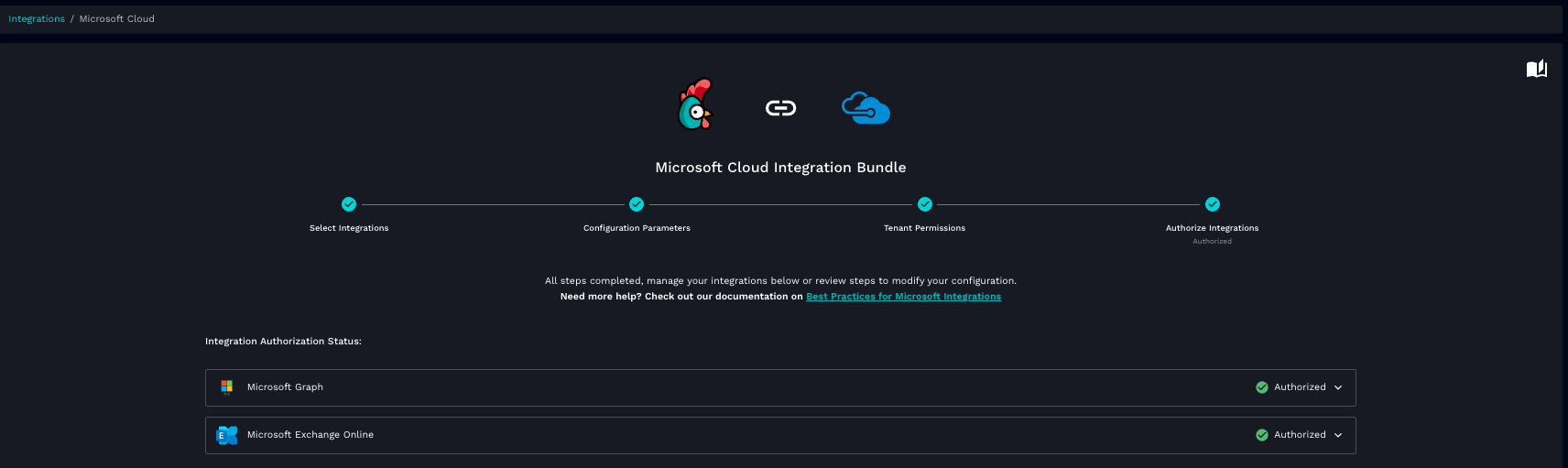
After authorizing, you’ll see:
What authorized successfully
Which user was used
The tenant ID
A corresponding Enterprise App created in Entra
Step 3: Link your customers to Rewst child organizations
This section covers the different ways you can set up your child organizations. Please read through the entire section before beginning, to determine which of the situational steps are right for you. How you complete this step will depend on the way you choose to use Rewst: If you're unsure of which of these situations apply to you, contact Rewst Support for assistance. If you are part of the Microsoft Cloud Solution Provider (CSP) program and have access to GDAP, follow the instructions below to configure GDAP before linking customers.
What is GDAP and why is it important to the setup process?
In 2024, Microsoft moved away from regular user-based access, where users logged into Microsoft Entra with an individually permissioned account. Instead, they now operate via delegated admin permissions, where permissions are assigned from the top level down, for more secure access management. This is known as Granulated Delegated Admin Permissions, or GDAP.
As part of the bundle setup process, you were asked to create a dedicated user to act as your Microsoft service account. The way this is done and the roles you adopt are important, as GDAP dictates that this will now have a direct effect on how Rewst interacts with Microsoft.
For example, let’s say that 12 roles map to 177 permissions.
Rewst will try to make an API call.
The enterprise app will look for permissions.
The enterprise app will ask if it is making the call at customer level, and if there are roles at the customer level.
Click to expand instructions and choose your situation from these three methods
Link customers using GDAP - CSP Partners: Rewst-recommended option for setting up GDAP
If you are part of the Microsoft Cloud Solution Provider (CSP) program and have access to GDAP, follow the instructions below to configure GDAP before linking customers.
Unpack the Rewst Microsoft GDAP Assistant Crate. This will create the relationship and generate a link for your customer to accept the relationship. Once the customer manually accepts, you'll be given a second link to kick off another workflow that adds all groups to the relationship, and maps them to the relevant roles.
Return to your Rewst platform. Navigate to Configuration > Integrations > Microsoft Cloud Bundle.
Use the organization mapping menu that appears at the bottom of the screen to choose the customer organizations you wish to map the bundle to.

Click consent next to your organization to consent for just that customer. Alternatively, click
to consent to delegated admin permissions for all linked customers. If you haven't completed GDAP set up for all customers, this button will fail on the uncompleted customers.Check for each of your organizations to ensure that the consent process was successful.
A green shield to the right of the integration name means the GDAP relationship is working and API access is valid.
A blue shield or error means setup failed, and permissions are missing or incorrectly configured.
Link customers using GDAP without using the Rewst Microsoft GDAP Assistant Crate
Follow these instructions to set up GDAP relationships without the Rewst Microsoft GDAP Assistant Crate. Note that Rewst recommends using the Crate if possible, for a better setup experience.
Assign the security group to the service account user you created previously
Navigate to Manage > Groups. Click +New Group.
Choose security group as the group type.
Name the group
Rewst GDAP-[ROLE NAME].Enter
for SCP GDAP role assignmentas the description.Choose Yes for Microsoft Entra roles can be assigned to the group.
Add the Rewst user you created in the previous steps as a member of the group.
Click Create.
Click Yes in the dialog that appears.
You will need to complete step 1 a total of 12 times, to create 12 security groups, each named differently to indicate the role it is associated with. For example,
Rewst GDAP-[NEXT ROLE NAME], etc.Wait for the status to change to Active. Note that this can take anywhere from a few minutes to 24 hours depending on Microsoft's response time.
Assign recommended roles for GDAP
Navigate to partner.microsoft.com and sign in.
Click Partner Center > Customers > Customer List.

Click on the name of the customer you would like to create the admin relationship for once the customer list loads.

Click Admin Relationships > Request a New Relationship.
Name the relationship, keeping in mind that this name must be unique for each customer or relationship. We suggest the
customer's initials, followed byGDAP. For example,ABC-GDAP.Enter the maximum duration of
730days in the Duration in Days field.Click Select Microsoft Entra roles.

Add the 12 roles explained in this list by checking off the boxes. Note that the total list of roles is not alphabetized. Use control + F or command + F to search for your relevant roles.
Application Administrator - Can create and manage all applications, service principals, app registration, enterprise apps, consent requests. Cannot manage directory roles, security groups.
Authentication Policy Administrator - Configures authentication methods policy, MFA settings, manages Password Protection settings, creates/manages verifiable credentials, Azure support tickets. Restrictions on updating sensitive properties, deleting/restoring users, legacy MFA settings.
Cloud App Security Administrator - Manages all aspects of the Defender for Cloud App Security in Azure AD, including policies, alerts, and related configurations.
Cloud Device Administrator - Enables, disables, deletes devices in Azure AD, reads Windows 10 BitLocker keys. Does not grant permissions to manage other properties on the device.
Exchange Administrator - Manages all aspects of Exchange Online, including mailboxes, permissions, connectivity, and related settings. Limited access to related Exchange settings in Azure AD.
Intune Administrator - Manages all aspects of Intune, including all related resources, policies, configurations, and tasks.
User Administrator - Manages all aspects of users, groups, registration, and resets passwords for limited admins. Cannot manage security-related policies or other configuration objects.
Privileged Authentication Administrator - Sets and resets authentication methods for all users (admin or non-admin), deletes/restores any users. Manages support tickets in Azure and Microsoft 365. Restrictions on managing per-user MFA in legacy MFA portal.
Privileged Role Administrator - Manages role assignments in Azure AD, Azure AD Privileged Identity Management, creates/manages groups, manages all aspects of Privileged Identity Management, administrative units. Allows managing assignments for all Azure AD roles including Global Administrator.
Security Administrator - Can read security information and reports, and manages security-related features, including identity protection, security policies, device management, and threat management in Azure AD and Office 365.
SharePoint Administrator - Manages all aspects of SharePoint Online, Microsoft 365 groups, support tickets, service health. Scoped permissions for Microsoft Intune, SharePoint, and OneDrive resources.
Teams Administrator - Manages all aspects of Microsoft Teams, including telephony, messaging, meetings, teams, Microsoft 365 groups, support tickets, and service health.
Click Save.
Review your selection and click Finalize Request.

You'll be redirected to a page that shows the request. Copy the link in that page.
Email the link to your customer. They will need to accept the request to continue your bundle set up steps. Once approved, the relationship will show as Active in the Admin Relationships list. You may also approve on the customer's behalf since you have Global Administrative privileges. To do this, choose to send the email to yourself. Note that if you choose this option, it will still send an email to your customer. You may want to notify them that they can disregard the email.
Return to your Rewst platform. Navigate to Configuration > Integrations > Microsoft Cloud Bundle.
Use the organization mapping menu that appears at the bottom of the screen to choose the customer organizations you wish to map the bundle to.
Click consent next to your organization to consent for just that customer. Alternatively, click
to consent to delegated admin permissions for all linked customers. If you haven't completed GDAP set up for all customers, this button will fail on the uncompleted customers.Check for each of your organizations to ensure that the consent process was successful.
A green shield to the right of the integration name means the GDAP relationship is working and API access is valid.
A blue shield or error means setup failed, and permissions are missing or incorrectly configured.
Link customers using an enterprise application - you do not have a CSP or do not wish to use GDAP
Follow these instructions to link customers if you don't have a CSP or want to use a Global Admin account instead of GDAP. Please note that this should be a Global Admin account in your customer's Microsoft 365 tenant. This not the service account created in step 1 of this integration setup process, used for linking up to Rewst. If you would like to create a new service account for your customer, you can follow the process in step 1 in your customer's Microsoft 365 account.
Return to your Rewst platform.
Use the drop-down organization selector at the top left of your screen to choose your relevant child organization for your customer.
Complete the authorization process as prompted on the screen.
Check off all boxes in the Select Integrations screen. If you don't use a CSP, you can uncheck this box, and check all other boxes as desired.
Choose Rewst Microsoft Cloud Connector.

Click Next.
Choose your tenant permissions. Click the Microsoft Graph Permissions accordion menu to expand and view the total permission list. Unless you have specific, verified reasons for unchecking any of these boxes, we recommend leaving our stock settings checked.
Click Next.
Double check your choices and click Authorize.

Once Rewst has received the successful authorization callback from Microsoft, a background process will be initiated to authorize each of the integrations you installed for the bundle. Once that is complete, the permissions that you previously selected will be assigned to the Enterprise App installed in your tenant for the Rewst MS Cloud Connector.
This process may take a few moments to complete. Don't navigate away from this page until the process is finished.
Repeat these delegated admin permission consent steps for each customer organization you where wish to set up the Microsoft Cloud integration bundle.
Check for each of your organizations to ensure that the consent process was successful.
A green shield to the right of the integration name means the GDAP relationship is working and API access is valid.
A blue shield or error means setup failed, and permissions are missing or incorrectly configured.

Once you have completed the integration under your child organization, you can remove the Global Admin permission and add these 12 roles the Rewst Service account you have created for your customer.
Application Administrator - Can create and manage all applications, service principals, app registration, enterprise apps, consent requests. Cannot manage directory roles, security groups.
Authentication Policy Administrator - Configures authentication methods policy, MFA settings, manages Password Protection settings, creates/manages verifiable credentials, Azure support tickets. Restrictions on updating sensitive properties, deleting/restoring users, legacy MFA settings.
Cloud App Security Administrator - Manages all aspects of the Defender for Cloud App Security in Azure AD, including policies, alerts, and related configurations.
Cloud Device Administrator - Enables, disables, deletes devices in Azure AD, reads Windows 10 BitLocker keys. Does not grant permissions to manage other properties on the device.
Exchange Administrator - Manages all aspects of Exchange Online, including mailboxes, permissions, connectivity, and related settings. Limited access to related Exchange settings in Azure AD.
Intune Administrator - Manages all aspects of Intune, including all related resources, policies, configurations, and tasks.
User Administrator - Manages all aspects of users, groups, registration, and resets passwords for limited admins. Cannot manage security-related policies or other configuration objects.
Privileged Authentication Administrator - Sets and resets authentication methods for all users (admin or non-admin), deletes/restores any users. Manages support tickets in Azure and Microsoft 365. Restrictions on managing per-user MFA in legacy MFA portal.
Privileged Role Administrator - Manages role assignments in Azure AD, Azure AD Privileged Identity Management, creates/manages groups, manages all aspects of Privileged Identity Management, administrative units. Allows managing assignments for all Azure AD roles including Global Administrator.
Security Administrator - Can read security information and reports, and manages security-related features, including identity protection, security policies, device management, and threat management in Azure AD and Office 365.
SharePoint Administrator - Manages all aspects of SharePoint Online, Microsoft 365 groups, support tickets, service health. Scoped permissions for Microsoft Intune, SharePoint, and OneDrive resources.
Teams Administrator - Manages all aspects of Microsoft Teams, including telephony, messaging, meetings, teams, Microsoft 365 groups, support tickets, and service health.
Manage your organizations that have been registered with enterprise apps in Rewst
If you’d like to manage your internal organization with Rewst and enable it to run automations, you’ll need to assign specific roles to your Rewst service account. If you don't want to manage your internal MSP, you can remove the Global Administrator Role now. If you wish to continue managing your MSP organization, add the 12 roles indicated below to the Rewst service account. Then, remove the Global Administrator Role. Removing the role will not remove the 12 added roles.
If you used the Rewst Microsoft GDAP Assistant Crate to set up your GDAP roles, you'll still need to manually add these roles to your Rewst service account. The Crate does not add them at the MSP parent organization level for you.
If you chose to set up the GDAP roles manually without using the Crate, you'll also need to manually add these roles to your Rewst service account. Note that they're the same 12 roles that you used previously.
Once this has been completed, you can remove the Global Administrator Role from your Service account
Important: Review your internal processes before proceeding, as Rewst will be able to make changes to your organization once these roles are applied.
12 roles to add to Rewst Service account at the MSP level organization
Click to read more
Application Administrator - Can create and manage all applications, service principals, app registration, enterprise apps, consent requests. Cannot manage directory roles, security groups.
Authentication Policy Administrator - Configures authentication methods policy, MFA settings, manages Password Protection settings, creates/manages verifiable credentials, Azure support tickets. Restrictions on updating sensitive properties, deleting/restoring users, legacy MFA settings.
Cloud App Security Administrator - Manages all aspects of the Defender for Cloud App Security in Azure AD, including policies, alerts, and related configurations.
Cloud Device Administrator - Enables, disables, deletes devices in Azure AD, reads Windows 10 BitLocker keys. Does not grant permissions to manage other properties on the device.
Exchange Administrator - Manages all aspects of Exchange Online, including mailboxes, permissions, connectivity, and related settings. Limited access to related Exchange settings in Azure AD.
Intune Administrator - Manages all aspects of Intune, including all related resources, policies, configurations, and tasks.
User Administrator - Manages all aspects of users, groups, registration, and resets passwords for limited admins. Cannot manage security-related policies or other configuration objects.
Privileged Authentication Administrator - Sets and resets authentication methods for all users (admin or non-admin), deletes/restores any users. Manages support tickets in Azure and Microsoft 365. Restrictions on managing per-user MFA in legacy MFA portal.
Privileged Role Administrator - Manages role assignments in Azure AD, Azure AD Privileged Identity Management, creates/manages groups, manages all aspects of Privileged Identity Management, administrative units. Allows managing assignments for all Azure AD roles including Global Administrator.
Security Administrator - Can read security information and reports, and manages security-related features, including identity protection, security policies, device management, and threat management in Azure AD and Office 365.
SharePoint Administrator - Manages all aspects of SharePoint Online, Microsoft 365 groups, support tickets, service health. Scoped permissions for Microsoft Intune, SharePoint, and OneDrive resources.
Teams Administrator - Manages all aspects of Microsoft Teams, including telephony, messaging, meetings, teams, Microsoft 365 groups, support tickets, and service health.
Migrate legacy Microsoft integrations to the new Microsoft Cloud Integration Bundle
For users of the legacy setup, it's important to note that the static permissions associated with the legacy App Registration cannot be modified during this transition. Transitioning to the new bundle is highly recommended for continued functionality and security.
Migrate to new integration setup
Navigate to Configuration > Integrations in the left side menu of your Rewst platform.
Search for the
Microsoft Cloud Bundle.Click on the integration tile.
Select the Microsoft services you wish to integrate.
Enter the necessary details to establish a connection.
Modify permissions as needed for enhanced control.
Complete the setup by authorizing the selected integrations.
Post-transition configuration
After migrating, you'll configure each integration according to your needs, including setting up OAuth configurations and mapping CSP customers to Rewst organizations.
Use CSP Delegated Admin permissions: Manage permissions for Cloud Solution Provider integrations, ensuring they align with delegated admin roles.
Microsoft Graph OAuth configuration: Set up OAuth configurations for Microsoft Graph to ensure seamless integration and data access.
CSP Customer to Rewst organization mapping: Map CSP customers to Rewst organizations for streamlined management and reporting.
Microsoft Exchange Online OAuth configuration: Configure OAuth for Exchange Online, enabling advanced email and calendar integration functionalities.
Troubleshoot the Microsoft Cloud integration bundle setup
We have a separate guide with all bundle troubleshooting information. View that page here.
Last updated
Was this helpful?