> For the complete documentation index, see [llms.txt](https://docs.rewst.help/llms.txt). Markdown versions of documentation pages are available by appending `.md` to page URLs; this page is available as [Markdown](https://docs.rewst.help/documentation/integrations/integration-guides/anthropic-integration.md).
# Anthropic integration
{% hint style="info" %}
If you’re new to integrations in Rewst, read through our introductory integration documentation [here](https://docs.rewst.help/documentation/integrations).
{% endhint %}
## What does the Anthropic integration do?
Our Anthropic integration enables automation of Anthropic LLMs. Use the Anthropic API within Rewst workflows to automate text analysis, sentiment analysis, and more.
### Why use the Anthropic integration?
Leverage conversational AI and content intelligence as a service to automate text analysis, sentiment analysis, and more.
## Set up the Anthropic integration
### Set up steps in Anthropic
1. Log in to Anthropic.
2. Navigate to **Settings > API Keys**.
3. Click **Create Key**.
4. Enter a name for your key. We recommend making it something that's easy to identify as being used in Rewst.
5. Copy your API key. You'll need this to continue your integration setup in Rewst.
### Set up steps in Rewst
1. Navigate to **Marketplace > Integrations** in the left side menu of your Rewst platform.
2. In the Integrations page, search for the Anthropic integration.\
\

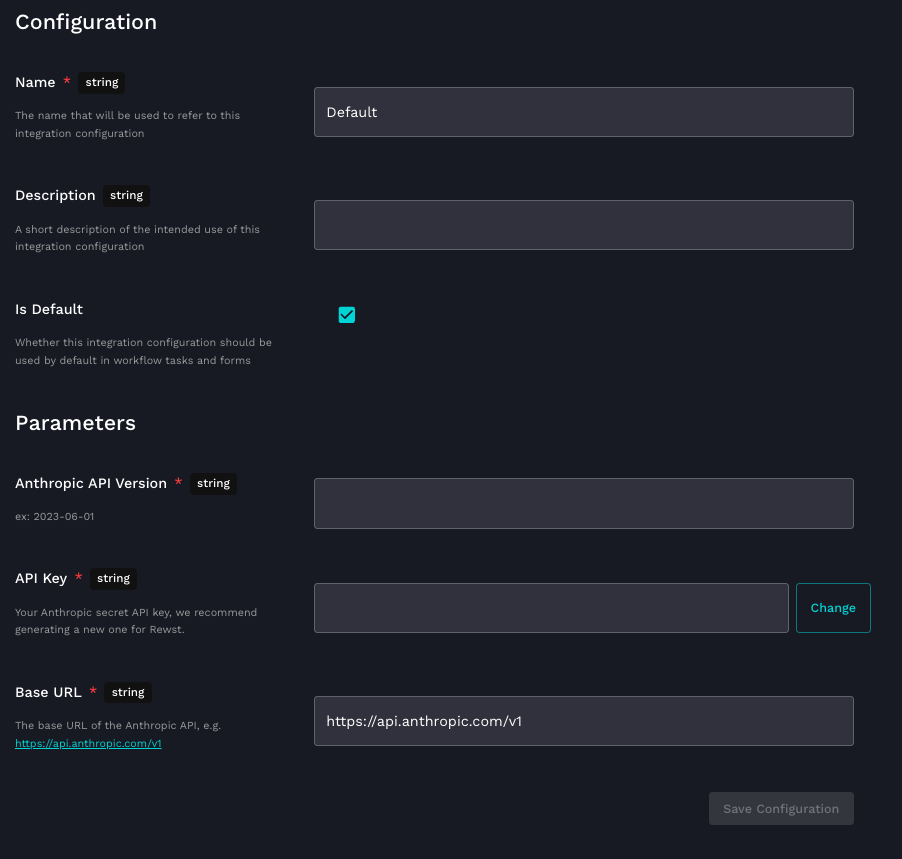
3. Click on the integration tile to launch the **Configuration** setup page.\
4. Under **Configuration**:
1. Edit the **Name**
2. Add an optional **Description** for your configuration.
3. Check on **Is Default**.
5. Under **Parameters**:
1. Enter your API version in the **Anthropic API Version** field.
2. Enter your copied API key in the **API Key** field.
3. The base URL of the Anthropic API in the **Base URL** field will automatically populate into the form when you begin integration setup.
6. Click **Save Configuration.**
{% hint style="info" %}
The Anthropic integration does not require you to complete the organization mapping process.
{% endhint %}
## Test the integration
Saving your configuration during integration setup automatically triggers a test API call to verify that your setup is correct. If something is wrong with your credentials and the integration fails, you'll receive an error message in the Rewst platform.
{% hint style="success" %}
Got an idea for a new Integration? Rewst is constantly adding new integrations to our integrations page. Submit your idea or upvote existing ideas here in our [Canny feedback collector](https://rewst.canny.io/integrations).
{% endhint %}
## Anthropic integration actions and endpoints
{% hint style="info" %}
For more on how actions work in Rewst, check out our [introductory actions documentation here](https://docs.rewst.help/documentation/workflows/actions-in-rewst).
{% endhint %}
| Category | Action | Description |
| ------------------- | ------------------------- | ------------------------------------------------------------------------------------------------------------------------------------------------------------------------------------------------------------------------------ |
| **Generic Request** | Anthropic API Request | Generic action for making authenticated requests against the Anthropic API |
| **Message Batches** | Cancel Message Batch | Batches can be canceled any time before processing ends. Once cancellation is initiated, the batch enters a canceling state, during which in-progress, non-interruptible requests may complete before finalizing cancellation. |
| **Message Batches** | Create Message Batch | Send a batch of Message creation requests. |
| **Message Batches** | Delete Message Batch | Message Batches can only be deleted once finished processing. If you'd like to delete an in-progress batch, you must first cancel it. |
| **Message Batches** | Get Message Batch | This endpoint is idempotent and can be used to poll for Message Batch completion |
| **Message Batches** | Get Message Batch Results | Retrieve the results of a Message Batch |
| **Message Batches** | List Message Batches | List all Message Batches within a Workspace, returning the most recently created batches first. |
| **Messages** | Count message tokens | The Token Count API can be used to count the number of tokens in a Message (including tools, images, and documents) without creating it. |
| **Messages** | Create Messages | Sends a structured list of input messages (text and/or images). The model will generate the next message in the conversation. |
| **Models** | Get Model | Retrieves information about a specific model, or resolves a model alias to a model ID. |
| **Models** | List Models | Determines which models are available for use in the API. More recently released models are listed first. |
---
# Agent Instructions
This documentation is published with GitBook. GitBook is the documentation platform designed so that both humans and AI agents can read, navigate, and reason over technical content effectively. Learn more at gitbook.com.
## Querying This Documentation
If you need additional information that is not directly available in this page, you can query the documentation by asking a question.
Perform an HTTP GET request on the following URL with the `ask` and `goal` query parameters:
```
GET https://docs.rewst.help/documentation/integrations/integration-guides/anthropic-integration.md?ask=&goal=
```
`ask` is the immediate question: it should be specific, self-contained, and written in natural language.
`goal` is what the user is ultimately trying to achieve, the reason they need the answer. Sharing it helps GitBook give you a better, more relevant answer. A goal is most helpful when it describes the outcome the user wants rather than restating the question. For example, with `ask=how do I create an API token`, a goal like `automate deployments from our CI pipeline` lets GitBook tailor the answer to that use case.
The response will contain a direct answer to the question and relevant excerpts and sources from the documentation.
Use this mechanism when the answer is not explicitly present in the current page, you need clarification or additional context, or you want to retrieve related documentation sections.