> For the complete documentation index, see [llms.txt](https://docs.rewst.help/llms.txt). Markdown versions of documentation pages are available by appending `.md` to page URLs; this page is available as [Markdown](https://docs.rewst.help/documentation/integrations/integration-guides/notion-integration.md).
# Notion integration
{% hint style="info" %}
If you’re new to integrations in Rewst, read through our introductory integration documentation [here](https://docs.rewst.help/documentation/integrations).
Notion's documentation for how to create Notion integrations may also be helpful, and can be found [here](https://developers.notion.com/docs/create-a-notion-integration) and [here](https://developers.notion.com/docs/create-a-notion-integration#give-your-integration-page-permissions).
{% endhint %}
## What does the Notion integration do?
Our Notion integration enables teams to automate document creation, database management, and collaboration workflows directly within Rewst. By connecting to Notion, users can programmatically create and update pages, manage content blocks, and interact with databases as part of larger automated processes. This makes it easy to centralize information, keep documentation in sync, and enhance team communication without manual work.
## Why use the Notion integration?
* Turn emails into formatted Notion pages with attachments
* Log form submissions, such as customer feedback, directly into databases
* Generate daily standups from calendar events and enable team comments
* Monitor databases for high-priority items and trigger alerts
* Auto-generate client onboarding docs from templates
* Sync task statuses between Notion and other project tools
* Capture meeting minutes and distribute them automatically
* Manage a blog content calendar as writers submit drafts
* Use Notion databases as structured storage within broader automation flows
## Set up the Notion integration
### Set up steps in Notion
1. Log in to your Notion account.
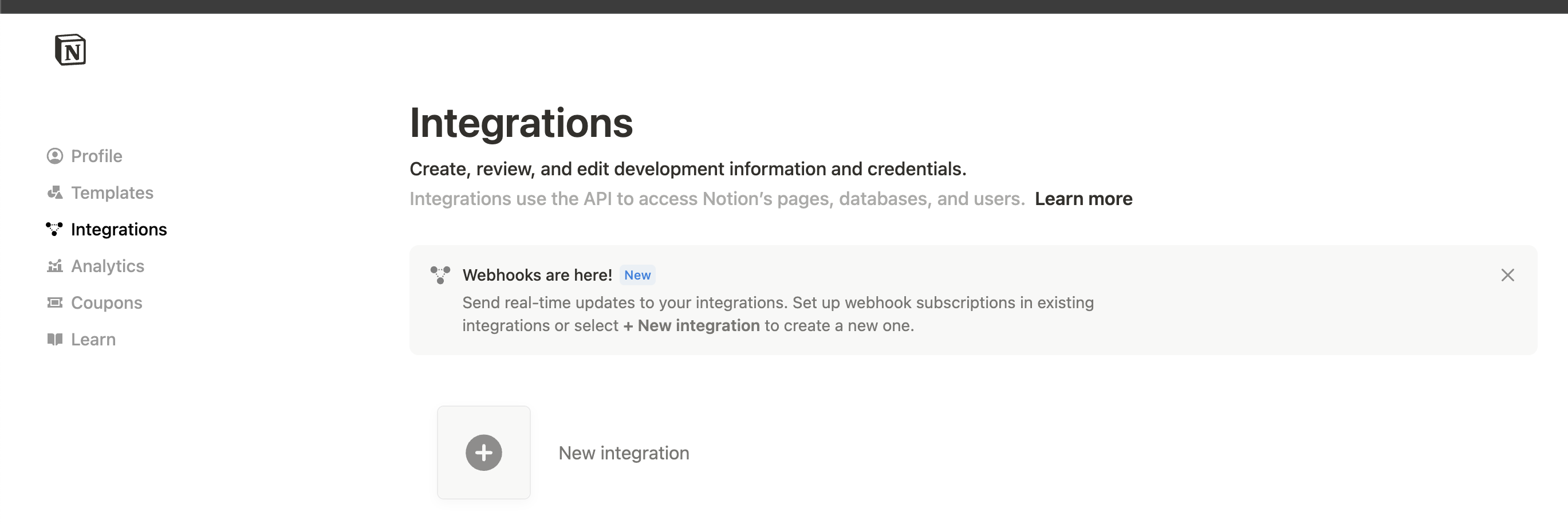
2. Navigate to the [Notion integration settings page](https://www.notion.so/profile/integrations)
3. Click **New Integration**.
4. Select a workspace to install the integration to from the **Associated Workspace** drop-down selector.
5. Keep the **Type** set to **internal**.
6. Click **Save.**
7. Click into your new integration in the integrations list.
8. Click into the **Configuration** tab.\
9. Copy the **Internal Integration Secret.**
10. Set settings for the **Capabilities** menu as follows:
1. Check off all check boxes
2. Set **User Capabilities** to **Read user information including email addresses**.
11. Click **Save**.
### Set up steps in Rewst
1. Navigate to **Marketplace > Integrations** in the left side menu of your Rewst platform.
2. In the integrations page, search for `Notion`.\
\

3. Click on the integration tile to launch the configuration setup page.
4. Enter the key copied from Notion into the **Internal Integration Secret** field.
5. Click **Save Configuration**.
{% hint style="info" %}
The Notion integration does not require you to complete the organization mapping process.
{% endhint %}
## Test the integration
Saving your configuration during integration setup automatically triggers a test API call to verify that your setup is correct. If something is wrong with your credentials and the integration fails, you'll receive an error message in the Rewst platform.
## How to use the Notion integration
Notion grants access for the integration on a page-by-page basis. Add each desired page as a connection within Notion by completing the following steps.
1. Navigate to your desired page in Notion. Alternatively, create a new page for your intended purpose.
2. Click **...** to open the actions menu.
3. Click + **Add Connections**.
4. Search for the Rewst integration and select it.
5. Confirm that the integration can access the page and all of its child pages.
The view of the actions menu and all related submenus, once the page has been set up to use the integration
{% hint style="success" %}
Got an idea for a new Integration? Rewst is constantly adding new integrations to our integrations page. Submit your idea or upvote existing ideas here in our [Canny feedback collector](https://rewst.canny.io/integrations).
{% endhint %}
## Notion actions and endpoints
{% hint style="info" %}
For more on how actions work in Rewst, check out our [introductory actions documentation here](https://docs.rewst.help/documentation/workflows/actions-in-rewst).
{% endhint %}
Notion's complete API documentation can be found [here](https://developers.notion.com/reference/intro).
| Category | Action | Description |
| ------------------- | ------------------------- | --------------------------------------------------------------------------------------------------------------------------------------------------------------- |
| **Blocks** | List Child Content Blocks | Returns an array of child block objects contained in the block using the ID specified. You may also supply a page ID to retrieve the children blocks of a page. |
| **Blocks** | Add Child Content Blocks | Creates and appends new children blocks to the parent block\_id specified. Blocks can be parented by other blocks, pages, or databases. |
| **Blocks** | Get Content Block | Gets the content block with the specified ID. If the block has children blocks, the List Child Content Blocks action should be used to retrieve them. |
| **Blocks** | Delete Content Block | Moves a content block to the "Trash" in Notion. |
| **Blocks** | Update Content Block | Updates the content for the specified block based on the block type. Supported fields based on the block object type. |
| **Comments** | List Comments | Returns a list of un-resolved comments from a page or block. |
| **Comments** | Create Comment | Creates a comment in a page or existing discussion thread. |
| **Databases** | Query Database | Get a list of pages and/or databases contained in the database. |
| **Databases** | Get Database | Retrieves a database object which contains information about the structure and columns of the database. |
| **Databases** | Create Database | Creates a database as a subpage in the specified parent page, with the specified properties schema. |
| **Databases** | Update Database | Updates the title, description or properties of a database. |
| **Generic Request** | Notion API Request | Generic action for making authenticated requests against the Notion API |
| **Pages** | Get Page Properties | Returns page properties for the page with the specified ID. To fetch page content the List Child Content Blocks action should be used. |
| **Pages** | Get Page Property Item | Returns a page property item for the page with the specified ID. |
| **Pages** | Create Page | Creates a new page that is a child of an existing page or database. |
| **Pages** | Update Page Properties | Updates the properties of a page. |
| **Search** | Search Pages | Searches all parent or child pages that have been shared with the Rewst integration. |
| **Search** | Search Databases | Searches all databases that have been shared with the Rewst integration. |
| **Users** | List Users | Retrieve a list of users in the workspace, guests are not included. |
| **Users** | Get User | Retrieves a user for a given ID. The user can be a person or a bot. |
| **Users** | Get Bot User | Retrieve the bot user information associated with the provided integration secret. |
---
# Agent Instructions
This documentation is published with GitBook. GitBook is the documentation platform designed so that both humans and AI agents can read, navigate, and reason over technical content effectively. Learn more at gitbook.com.
## Querying This Documentation
If you need additional information that is not directly available in this page, you can query the documentation by asking a question.
Perform an HTTP GET request on the following URL with the `ask` and `goal` query parameters:
```
GET https://docs.rewst.help/documentation/integrations/integration-guides/notion-integration.md?ask=&goal=
```
`ask` is the immediate question: it should be specific, self-contained, and written in natural language.
`goal` is what the user is ultimately trying to achieve, the reason they need the answer. Sharing it helps GitBook give you a better, more relevant answer. A goal is most helpful when it describes the outcome the user wants rather than restating the question. For example, with `ask=how do I create an API token`, a goal like `automate deployments from our CI pipeline` lets GitBook tailor the answer to that use case.
The response will contain a direct answer to the question and relevant excerpts and sources from the documentation.
Use this mechanism when the answer is not explicitly present in the current page, you need clarification or additional context, or you want to retrieve related documentation sections.
.png?alt=media&token=7d5a3ae4-02d1-4d50-a7a5-8879ee0ed00c)
.png?alt=media&token=0a8ad226-5fc6-45de-a518-a39b1107c3c2)
.png?alt=media&token=ecffc128-e4a7-4dd7-a015-2d4cf3c20667)