> For the complete documentation index, see [llms.txt](https://docs.rewst.help/llms.txt). Markdown versions of documentation pages are available by appending `.md` to page URLs; this page is available as [Markdown](https://docs.rewst.help/documentation/integrations/integration-guides/microsoft-cloud-integration-bundle/owned-app-registration.md).
# Microsoft owned app registration
How to leverage your own application permissions for customized integration control.
Owned App Registration within your Microsoft tenant allows for a tailored configuration and heightened security settings. This advanced option is suited for users with proficiency in their Microsoft Entra environment who require custom control over their Microsoft integrations. For most cases, Rewst recommends that you not choose this option when configuring your Microsoft Cloud Integration Bundle.
## **Configuration instructions**
{% hint style="info" %}
Below is a high-level walkthrough of what you need to configure your owned app in Rewst. For detailed instructions and additional support on registering/managing your own apps, refer to Microsoft's[ Guide to registering an application with the Microsoft identity platform](https://learn.microsoft.com/en-us/entra/identity-platform/quickstart-register-app).
{% endhint %}
1. **Access the Azure Portal:**
* Log into your [Microsoft Entra Admin Center](https://entra.microsoft.com/).
* Navigate to **Identity > Applications > App Registrations**.
2. Create or Select an App Registration**:**
* To create a new app, click **New registration**.
* To use an existing app, select one from the **Owned applications** list.
3. Configure redirect URL:
* To ensure Rewst can communicate with your app registration after authentication, and receive security tokens post-authentication, set the redirect URI to `https://engine.rewst.io/integrations/bundles/microsoft_cloud/callback`
4. Gather essential information:
* Note the Client ID and generate a Client Secret under **Certificates & Secrets**.
* Enter these credentials when configuring the application in Rewst.
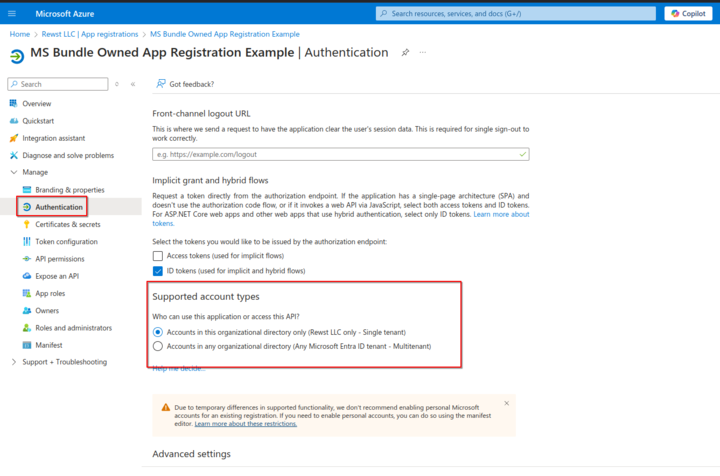
5. Decide the auth subject:
* Choose **common** if your app registration is accessible across multiple tenants.
* Choose **Tenant ID** if your registration is restricted to your own tenant, and ensure this ID is included in the **Tenant ID** field to generate the correct authentication URL.
## **Minimum permissions needed**
### Owned app registration: Microsoft Azure integration
In order to use the Azure Integration, you will need the following at minimum:
{% hint style="danger" %}
Depending on the use-case, you may require the other two shown above.
{% endhint %}
### Owned app registration: Microsoft Graph integration
In order to use the Graph Integration, you'll need the following highlighted in red at minimum to authorize the integration. The following highlighted in yellow are also highly recommended to ensure all expected actions work:
### Owned app registration: Microsoft Graph subscription triggers
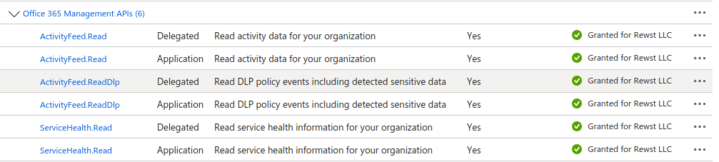
In order to use the Microsoft Graph Subscription Triggers, the following permissions are required:
### Owned app registration: Microsoft CSP integration
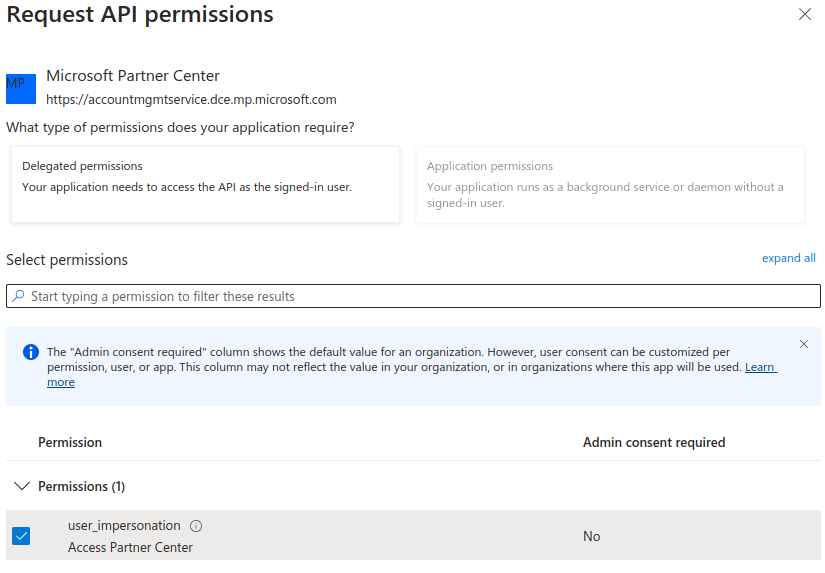
These are the permissions required to use the Microsoft CSP integration:
{% hint style="warning" %}
Make sure to choose the **Microsoft Partner Center** API highlighted below as the duplicates will cause issues with your integration.
{% endhint %}
{% hint style="warning" %}
When choosing the Auth Subject:
* **If you are using a CSP**: Choose **common** as it's the subject used for multi-tenancy when constructing an auth URL. This will install an enterprise app in the CSP customer tenants and you will be able to run actions for customers.
* **If you're not using a CSP**: Select **Tenant ID** so that you are only exposing your app to your own tenant
{% endhint %}
### Owned app registration: Microsoft EXO integration
In order to use the EXO Integration, the highlighted permissions are required:
{% hint style="success" %}
The `full_access_as_app` permission is also recommended in some edge cases.
{% endhint %}
## Troubleshoot owned app registration
### Use of implicit flow, where ID token is not enabled
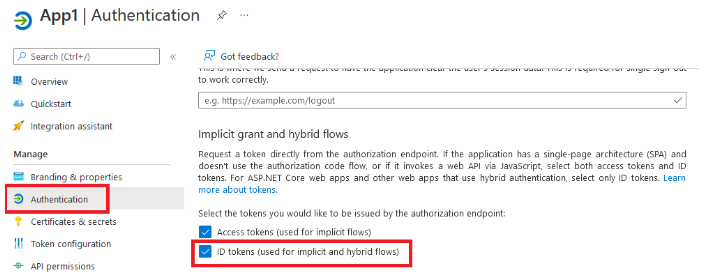
`Error: Error during callback. error='unsupported_response_type' error_description="AADSTS700054: response_type 'id_token' is not enabled for the application. Trace ID: 276a464d-f9cf-42c1-9549-e0e52f510000 Correlation ID: 246df67a-b874-4ef3-aefc-9046fe6d0c5e Timestamp: 2024-11-19 1846Z`
This error is given when you don't have the id token enabled for the application. To resolve this error, you'll need to:
1. Navigate to the app in Azure.
2. Navigate to **Authentication**.
3. Check the **ID tokens** box.
---
# Agent Instructions
This documentation is published with GitBook. GitBook is the documentation platform designed so that both humans and AI agents can read, navigate, and reason over technical content effectively. Learn more at gitbook.com.
## Querying This Documentation
If you need additional information that is not directly available in this page, you can query the documentation by asking a question.
Perform an HTTP GET request on the following URL with the `ask` and `goal` query parameters:
```
GET https://docs.rewst.help/documentation/integrations/integration-guides/microsoft-cloud-integration-bundle/owned-app-registration.md?ask=&goal=
```
`ask` is the immediate question: it should be specific, self-contained, and written in natural language.
`goal` is what the user is ultimately trying to achieve, the reason they need the answer. Sharing it helps GitBook give you a better, more relevant answer. A goal is most helpful when it describes the outcome the user wants rather than restating the question. For example, with `ask=how do I create an API token`, a goal like `automate deployments from our CI pipeline` lets GitBook tailor the answer to that use case.
The response will contain a direct answer to the question and relevant excerpts and sources from the documentation.
Use this mechanism when the answer is not explicitly present in the current page, you need clarification or additional context, or you want to retrieve related documentation sections.