> For the complete documentation index, see [llms.txt](https://docs.rewst.help/llms.txt). Markdown versions of documentation pages are available by appending `.md` to page URLs; this page is available as [Markdown](https://docs.rewst.help/documentation/integrations/integration-guides/database-integration-setup.md).
# SQL Database integration
## What does the SQL Database integration do?
The SQL Database integration in Rewst allows users to connect to their existing Postgres, MySQL, or MSSQL database and perform queries on the database, including those hosted in Azure SQL or AWS RDS.
Our integration works with [versions of MSSQL that are actively supported by Microsoft](https://docs.sqlalchemy.org/en/20/dialects/mssql.html#dialect-mssql).
{% hint style="info" %}
When enabling SQL Database integration and not using[ BYOD](/documentation/integrations/integration-guides/database-integration-setup/byod-for-dattormm.md), the following [completion handlers](broken://pages/fm8eIBTHO3CnDr23CZjX) will still be automatically enabled, and will need to be disabled manually:
* BOYD: Insert Data Into Database
* BYOD: Upsert Cache DB Data Listener
If you’re new to integrations in Rewst, read through our introductory integration documentation [here](https://docs.rewst.help/documentation/integrations).
{% endhint %}
## Set up the integration
Once you've set up the database and have the necessary credentials, follow the below steps to configure a new integration:
1. Navigate to **Marketplace > Integrations** in the left side menu of your Rewst platform.
2. Click or search for `SQL Database`.\
\

3. Click on the integration tile to launch the configuration page.
4. Note the drop-down menu in the top left of the configuration page. You'll need to add each database into Rewst separately. Click **Add Configuration** to add each new database, and follow the rest of these steps each time, for each new database.
5. Complete the fields with your database information.
1. **Database Config Name** - Unique identifier to pick database for action
2. **Database Type** - Supported SQL databases
3. **Hostname** - Hostname for database connection
4. **Port** - Port for database connection
5. **Username** - Database user username
6. **Password** - Database user password
7. **Database Name** - Database name for database connection
8. **SSL Required** - SSL encryption provides end-to-end security of data sent during the session
9. **SSL Hostname Verification** - Verify that the SSL certificate hostname matches the connection hostname. Disable for cloud databases (GCP, AWS, Azure) that use dynamic hostnames or load balancers. SSL certificates are still validated when disabled. SSL Required must be enabled.
10. **Custom Connection Timeout (seconds)** - Default database connection timeout is 5 seconds
11. **Custom SSL Certificate** - Leave this blank if using AWS RDS or Azure SQL, which are supported by default. If your database needs a custom SSL, copy and paste the raw CA certificate here.
6. Click **Save Configuration**.
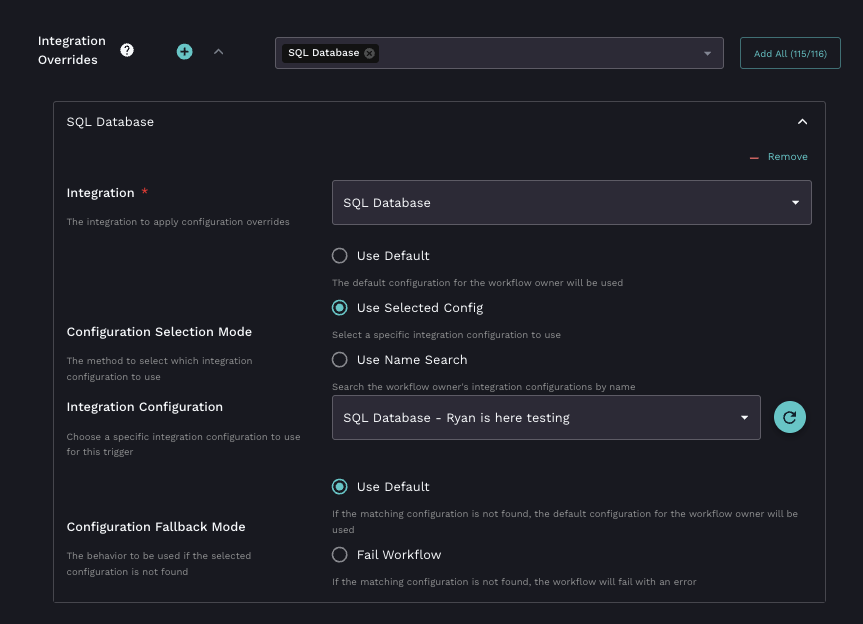
7. In your workflows, be sure to use [integration overrides](https://docs.rewst.help/documentation/automations/workflows/advanced-workflow-operations-menu#integration-overrides) to select which database configuration should be run.
{% hint style="warning" %}
If you are using the database integration to cache information from options generators and speed up the flow of information between Rewst and your RMM, follow the [BYOD For Options Generators](/documentation/integrations/integration-guides/database-integration-setup/byod-for-dattormm.md) document steps after initial integration setup.
{% endhint %}
## Actions and endpoints
| Category | Action | Description |
| -------- | ---------------------------- | --------------------------------------------------------------- |
| Query | Custom Query | Run custom SQL Query on cloud database |
| Query | Query Tables List | Get list of tables from database configuration |
| Query | Query Users List | Get list of users from database configuration |
| Query | Test All Configurations | Test all databases by getting list of tables from each database |
| Query | List Database Configurations | Get list of all set up databases |
---
# Agent Instructions
This documentation is published with GitBook. GitBook is the documentation platform designed so that both humans and AI agents can read, navigate, and reason over technical content effectively. Learn more at gitbook.com.
## Querying This Documentation
If you need additional information that is not directly available in this page, you can query the documentation by asking a question.
Perform an HTTP GET request on the following URL with the `ask` and `goal` query parameters:
```
GET https://docs.rewst.help/documentation/integrations/integration-guides/database-integration-setup.md?ask=&goal=
```
`ask` is the immediate question: it should be specific, self-contained, and written in natural language.
`goal` is what the user is ultimately trying to achieve, the reason they need the answer. Sharing it helps GitBook give you a better, more relevant answer. A goal is most helpful when it describes the outcome the user wants rather than restating the question. For example, with `ask=how do I create an API token`, a goal like `automate deployments from our CI pipeline` lets GitBook tailor the answer to that use case.
The response will contain a direct answer to the question and relevant excerpts and sources from the documentation.
Use this mechanism when the answer is not explicitly present in the current page, you need clarification or additional context, or you want to retrieve related documentation sections.