> For the complete documentation index, see [llms.txt](https://docs.rewst.help/llms.txt). Markdown versions of documentation pages are available by appending `.md` to page URLs; this page is available as [Markdown](https://docs.rewst.help/~/revisions/rxDAlhB2Kg6ymoJpF9WI/documentation/agent-smith/agent-smith-configuration-overview.md).
# Agent Smith configuration overview
{% hint style="info" %}
Agent Smith consists of three main components:
* An open-source agent written in Python in the [Rewst GitHub](https://github.com/RewstApp/agent-smith-go)
* The Microsoft [Azure IoTHub](https://azure.microsoft.com/en-us/products/iot-hub) service
* Rewst Crates to configure the IoTHub and interact with agents
Agent Smith operates as an Azure IoT Hub instance, integrated with Rewst workflows for command communication to endpoint agents. The agent software, running as a Windows Service on devices, registers via a webhook trigger in Rewst, creating an IoT Hub entry and receiving configuration data.
We recommend that anyone who attempts to set up and use Agent Smith be an admin in Microsoft Azure, and well versed in its functionality.
{% endhint %}
## Set up Agent Smith
{% hint style="success" %}
Unpack the Agent Smith setup Crates at the MSP level. Then, set the [organization variable](/~/revisions/rxDAlhB2Kg6ymoJpF9WI/documentation/configuration/organization-variables.md#what-is-an-organization-variable) `default_rmm` at the customer level for the child organizations that you want to use with Agent Smith, or use the form unpacked during setup to apply Agent Smith as your RMM for all organizations.
{% endhint %}
{% hint style="warning" %}
For the Azure integration to work, you’ll need to have an Azure Subscription that includes a Keyvault.
The Rewst integration user setup for the [Microsoft Cloud Integration Bundle](/~/revisions/rxDAlhB2Kg6ymoJpF9WI/documentation/configuration/integrations/integration-guides/microsoft-cloud-integration-bundle.md) may require you to adjust permissions for your Azure subscription. Most commonly, it is recommended to grant the Rewst Service Account with Contributor access to your Azure subscription.
{% endhint %}
1. Install and authorize our Microsoft Cloud Integration Bundle by navigating to **Configuration > Integrations** in the Rewst platform. This bundle contains an integration for Microsoft Azure, which is necessary to set up and use Agent Smith.
2. Navigate to **Crates > Crate Marketplace** in the Rewst platform.\
You'll need to install the below Crates in order for Agent Smith setup to complete. Only unpack the Crates in the indicated order, or setup will fail.
1. Search for and install the `Agent Smith: Device Provisioning` Crate. This will unpack the workflows necessary for registering agents in the Azure IoT Hub. Ensure that the trigger in the **Webhook** accordion menu of the Crate's configuration page is toggled to **Enabled**.\
\

2. Search for and install the `Agent Smith: Service Provisioning` Crate. Unpacking this Crate will configure the Azure IoT Hub as a gateway for sending commands to endpoints. It will also unpack a form named **Agent Smith: Service Configuration.** You'll use this form to set up and execute all of Agent Smith's capabilities.\
\

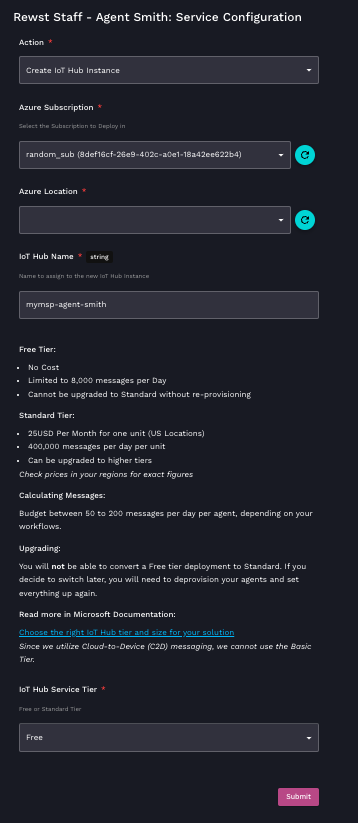
3. Navigate to **Automations > Forms** and search for the `Agent Smith: Service Configuration` form. Click **⋮> View Direct URLs**, then click on the URL of the form.
4. Choose **Action: Create IoT Hub Instance** from the **Action** drop-down menu.
5. Use the relevant drop-down selectors to choose the proper:
1. **Azure Subscription**
2. **Azure Location.**
6. Type in a unique **IoT Hub Name.**
7. Select the desired **IoT Hub Service Tier**. Check prices in your regions for exact figures. Choosing the correct tier is essential to correctly setting up Agent Smith.
1. Free Tier:
1. No Cost
2. Limited to 8,000 messages per day
3. Cannot be upgraded to standard without re-provisioning
2. Standard Tier:
1. $25 Per Month for one unit in US Locations
2. 400,000 messages per day per unit
3. Can be upgraded to higher tiers
{% hint style="info" %}
Budget between 50 to 200 messages per day per agent, depending on your workflows. You won't be able to convert a Free tier deployment to Standard after creation. If you decide to switch later, you will need to deprovision your agents and set Agent Smith up again from the beginning.
Read more about tiers in [Microsoft's own documentation](https://learn.microsoft.com/en-us/azure/iot-hub/iot-hub-scaling). Since Rewst uses Cloud-to-Device (C2D) messaging, we can't use the basic tier.
{% endhint %}
8. **Submit** the form and monitor workflow results for success.
## Display agent configuration instructions: Provision agents
This form option gives information about how you should configure your RMM to allow the flow of information between itself and Agent Smith. It will prefill the correct code, which you then copy and paste into your RMM to allow for the management.
1. Return to the same **Agent Smith: Service Configuration** form and choose **Display Agent Configuration Instructions**.
2. Choose your **Registration Organization**. Operations may fail unless your account is a Rewst Admin. The form will display instructions for using PowerShell to configure the agent for that organization. It also shows how the organization ID is filled in. Note that changing the registration organization will update the organization ID in the code snippets.
3. Copy the code relevant to your operating system.
4. Follow the given instructions produced by the form to complete steps in your RMM to allow Agent Smith's management. \
\

{% hint style="warning" %}
Only up-to-date versions of PowerShell have been tested to work. Make sure your devices are updated! We suggest you provision one or a few agents to test with before doing mass provisioning.
{% endhint %}
## Configure Agent Smith as your RMM
Fill out the form as follows to set Agent Smith-related organization variables in Rewst.
1. Return to the same **Agent Smith: Service Configuration** form and choose **Display Agent Configuration Instructions**.
2. Choose **Configure Agents Smith as RMM** from the **Action** drop-down selector. It may take a moment for the form to register this selection and update the following fields accordingly.
3. Check the **Set Agent Smith as a Possible "RMM Agent"** box. This will set Agent Smith as a fallback option for your company when other options are not available.
4. Optionally:
1. Check the **Set as "Default RMM"** box if you wish to set Agent Smith as the default RMM for your MSP.
2. Check the **Set as Default for Sub-Orgs** box to set your indicated settings for all child organizations, via inheritance.
5. Click **Submit**.
## Deploy to Devices
This option is recommended for users who have an existing RMM, but are unsatisfied with its data transfer speed in Rewst. You can continue using your RMM while taking advantage of Agent Smith to deploy to devices for a customer. Follow the first two sections of the Agent Smith setup process. Then, fill out the form as follows to set the organization variables in Rewst for this particular setup.
Select the **Choose Devices** option to reveal a drop-down selector for all available devices.
## Test Agent Smith
1. Return to the form and choose **Run PowerShell Code on Agent**
2. Type your desired PowerShell code into the **Type your PowerShell Here** field, or use the pre-filled code.
3. Monitor the workflow status to see the agent return data.\

{% hint style="warning" %}
Agent Smith uses the Microsoft Azure integration. You'll need to add that as an integration override to any workflows which will use it. This includes anything that calls the Run PowerShell subworkflows, such as New Employee, etc.
{% endhint %}
## Optional: Unpack the Agent Smith: Track Agent Inventory In Azure Tables Crate
This Crate will add some additional capabilities to your Agent Smith deployments. Using it is optional. See our total Crate setup and user guide [here](#agent-smith-track-agent-inventory-in-azure-tables-crate).
Crate features include:
* Using Azure tables to store additional information about your agent endpoints
* Automatic agent data collection check-ins including installed applications and service, via Task Scheduler
* Automatic restart of the agent if the service stops, via Task Scheduler
## Uninstall Agent Smith
### Windows
Agent Smith installs itself as a service. You can use PowerShell or the SC command to modify or remove the service. Application logs and data are installed in `C:\ProgramData\RewstRemoteAgent` or whatever root path you've overridden in your environment. Application program files are in `%ProgramFiles%\RewstRemoteAgent` folders.
### Linux
Agent Smith installs itself as a service. You can use `systemd` and `bash` to stop and remove the service file. Application logs and data are installed in `/etc/rewst_remote_agent` folders. Application program files are in `/usr/local/bin/rewst_remote_agent` folders.
## Use custom PowerShell scripts with Agent Smith
Agent Smith allows PowerShell scripts to be passed via API. To report the script back to Rewst, you'lll need to add a manual webhook action. We recommend using the run PowerShell script subworkflow to handle this for you. If using custom scripts, you'll need to add the below code to the bottom of your script to ensure that the call back to Rewst is made.
```
$postData = $PS_Results | ConvertTo-Json Invoke-RestMethod -Method 'Post' -Uri $post_url -Body $postData -ContentType 'application/json; charset=utf-8
```
## Troubleshoot Agent Smith
{% hint style="info" %}
In our Discord server, the [#agent-smith ](https://discord.com/channels/936789089703845988/1184866106482110608)channel is a great place for community help with setting up and running Agent Smith. Post your questions and share your successes for how you're using Agent Smith to save time. Or, ask for assistance from Rewst Support in your dedicated Discord support channel.
{% endhint %}
* Ensure admin-level account setup, so the service will install as SYSTEM.
* Verify the recent MS PowerShell version on your devices.
* Ensure that no firewalls are preventing communications with Rewst or your IoT Hub. Check our [Rewst Security Configuration Page](https://docs.rewst.help/security) for details.
* Ensure that endpoint security software is not preventing executions or communications.
* Check device connectivity to Azure IoT Hub via MQTT: `.azure-devices.net:8883`.
* Get packet captures from the agent while workflows are running. This can help us determine if the agent is properly communicating with the IoT Hub and/or the Rewst engine.
### Agent Smith Crate installation bug
We've received rare reports of the setup Crates improperly generating secret keys. If you receive an error during setup, try the following steps.
1. Navigate to **Automations > Workflows**.
2. Search for and open the **Agent Smith: Agent Registration** workflow.
3. Click to open the edit trigger menu.
4. Scroll down to **Trigger Parameters**.
5. Choose **iothub\_registration\_secret** in the **Secret Key** drop-down selector.\
6. Click **Submit**.
## Agent Smith FAQs
* Am I allowed to customize Agent Smith?
* Yes. Agent Smith is open-source. You're free to [fork and modify it](https://github.com/RewstApp/agent-smith-go).
* Will new features be added? Can you add Feature X?
* Our focus for Agent Smith is on simplicity.
* Consider adding additional functionality by writing a PowerShell script and kicking it off with a workflow.
* Does Rewst provide Agent Smith support for older operating systems?
* No, support for outdated OS is not available.
* I want to deploy agents to my endpoints in bulk. How should I prepare?
* View the separate guide for how to do this [here](/~/revisions/rxDAlhB2Kg6ymoJpF9WI/documentation/agent-smith/bulk-onboarding-with-agent-smith.md).
---
# Agent Instructions
This documentation is published with GitBook. GitBook is the documentation platform designed so that both humans and AI agents can read, navigate, and reason over technical content effectively. Learn more at gitbook.com.
## Querying This Documentation
If you need additional information that is not directly available in this page, you can query the documentation dynamically by asking a question.
Perform an HTTP GET request on the current page URL with the `ask` query parameter, and the optional `goal` query parameter:
```
GET https://docs.rewst.help/~/revisions/rxDAlhB2Kg6ymoJpF9WI/documentation/agent-smith/agent-smith-configuration-overview.md?ask=&goal=
```
`ask` is the immediate question: it should be specific, self-contained, and written in natural language.
`goal` is optional and describes the broader end goal you are ultimately trying to accomplish on behalf of the user. GitBook uses it to tailor the answer towards what is most useful for that goal.
The response will contain a direct answer to the question and relevant excerpts and sources from the documentation.
Use this mechanism when the answer is not explicitly present in the current page, you need clarification or additional context, or you want to retrieve related documentation sections.


 to open the edit trigger menu.
4. Scroll down to **Trigger Parameters**.
5. Choose **iothub\_registration\_secret** in the **Secret Key** drop-down selector.\
to open the edit trigger menu.
4. Scroll down to **Trigger Parameters**.
5. Choose **iothub\_registration\_secret** in the **Secret Key** drop-down selector.\ 