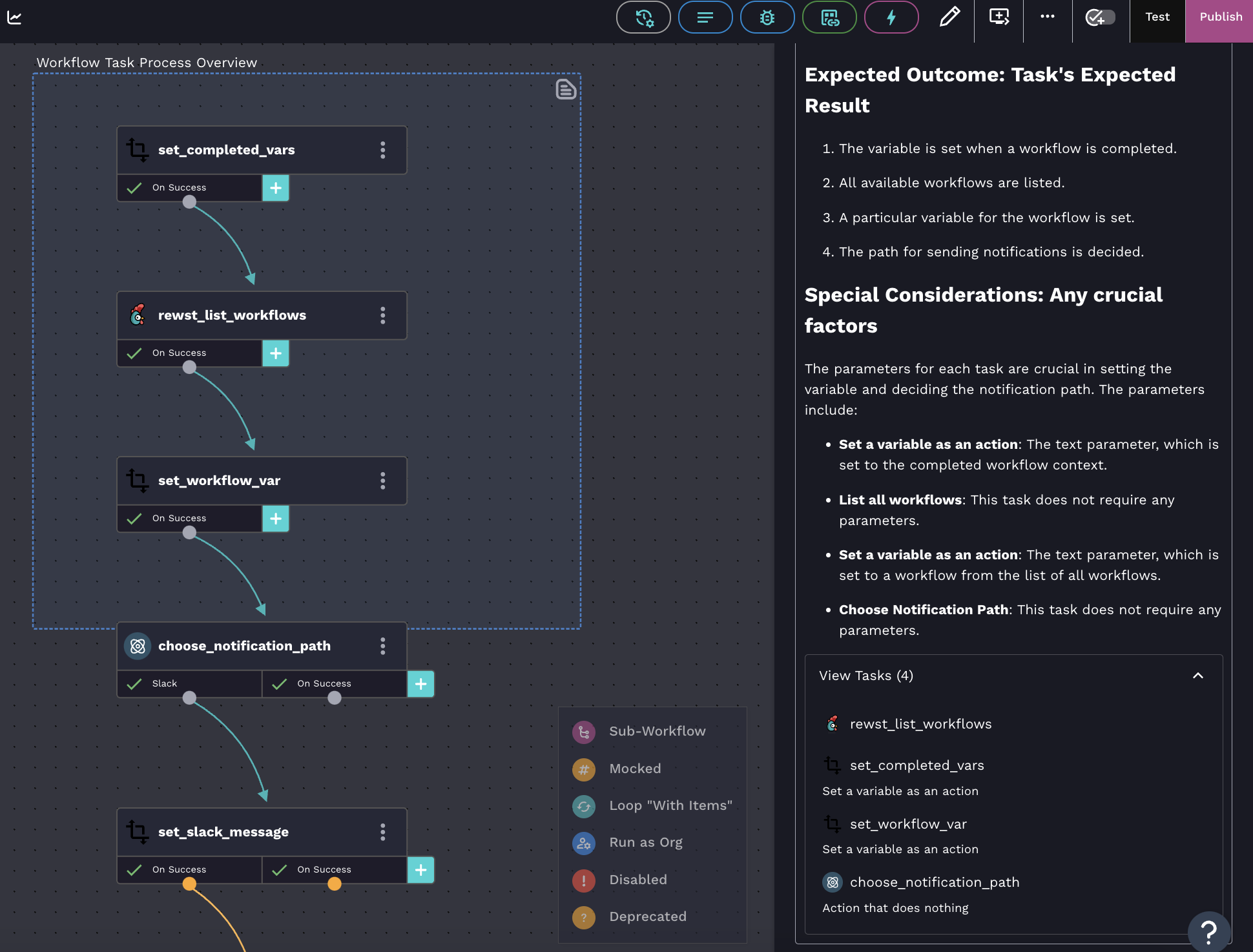
A completed RoboRewsty note
 in the top toolbar of the workflow builder.
4. Hover over the **Notes** note name field to reveal the hidden options for notes.\
\

5. Click
in the top toolbar of the workflow builder.
4. Hover over the **Notes** note name field to reveal the hidden options for notes.\
\

5. Click  . This will launch RoboRewsty. A waiting message will display while it runs on your workflow. This may take a moment, if your request holds a large number of tasks.
6. View the notes generated in your **Notes** menu. Sections will include:
1. **What's Occurring: Task Overview:** Each documentation response begins with a clear and concise overview, providing users with a high-level understanding of the task's purpose and context.
2. **Expected Outcome: Task's Expected Result:** Information about the expected outcome or result of the task or group of tasks is presented. This section helps users anticipate the outcomes when the workflow executes the associated tasks.
3. **Special Considerations: Any Crucial Factors:** Special considerations or crucial factors related to the tasks are included. These details ensure that users have all the necessary information to understand the workflow path successfully.
4. An accordion list of all included tasks
. This will launch RoboRewsty. A waiting message will display while it runs on your workflow. This may take a moment, if your request holds a large number of tasks.
6. View the notes generated in your **Notes** menu. Sections will include:
1. **What's Occurring: Task Overview:** Each documentation response begins with a clear and concise overview, providing users with a high-level understanding of the task's purpose and context.
2. **Expected Outcome: Task's Expected Result:** Information about the expected outcome or result of the task or group of tasks is presented. This section helps users anticipate the outcomes when the workflow executes the associated tasks.
3. **Special Considerations: Any Crucial Factors:** Special considerations or crucial factors related to the tasks are included. These details ensure that users have all the necessary information to understand the workflow path successfully.
4. An accordion list of all included tasks
A completed RoboRewsty note
