# Troubleshoot unpacked Crate forms

{% hint style="info" %}
For more information on unpacking Crates, see our Crate documentation [here](https://docs.rewst.help/prebuilt-automations/crates#unpack-a-crate).&#x20;
{% endhint %}

If a form field of a form unpacked from a Crate isn't populating with information, you have two options.&#x20;

1. Identify the issue by digging into the form.
2. Open a support ticket with Rewst's support team and have them troubleshoot the issue for you.&#x20;

Either option will require you to collect information from the form by completing the following steps. As an example, we're using the **\[Rewst Master v3] User Onboarding Minimalistic** form.

1. Navigate to **Automations > Forms**.
2. Open the form in question.
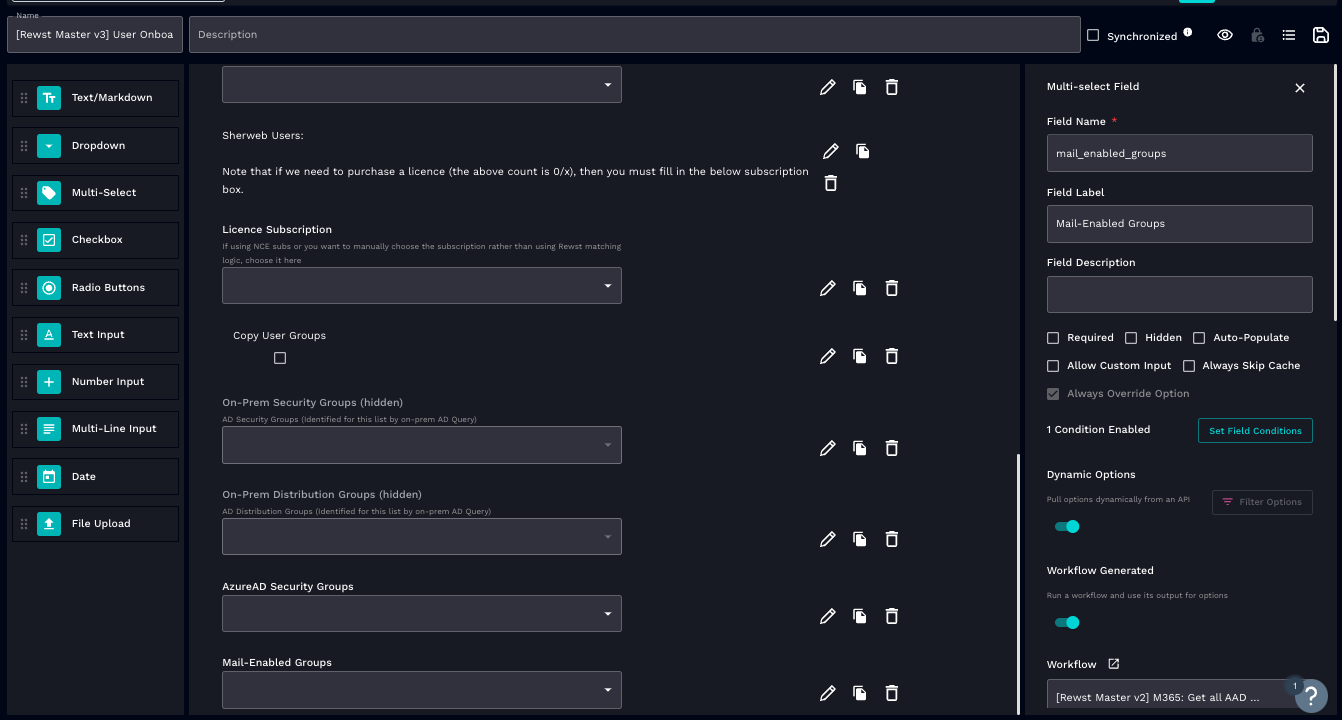
3. Scroll down in the right side menu. Click on any field that's further down in the field list.&#x20;
4. Click on the field. This will open its information in the right side menu.

<figure><img src="https://1835401289-files.gitbook.io/~/files/v0/b/gitbook-x-prod.appspot.com/o/spaces%2FAQQ1EHVcEsGKBPVHmiav%2Fuploads%2FSG0AQG2x2NyaWlh2N5Mg%2FScreenshot%202025-03-18%20at%2012.58.09%E2%80%AFPM.png?alt=media&#x26;token=1267ba70-30a5-4b08-9999-f18eb1b7f96e" alt=""><figcaption><p>The view of an expanded form field, open for editing</p></figcaption></figure>

5. Scroll down to see if the field is a dynamic field. If it is, **Dynamic Options** will be toggled **on**.
6. Confirm if the field has **Workflow Generated** toggled **on**. If so, look at the options generator in the **Workflow** field beneath it.&#x20;
7. Open the options generator by clicking ![](https://1835401289-files.gitbook.io/~/files/v0/b/gitbook-x-prod.appspot.com/o/spaces%2FAQQ1EHVcEsGKBPVHmiav%2Fuploads%2Fl0PBs6fuLIDH4JA1pA52%2FScreenshot%202025-03-18%20at%201.01.39%E2%80%AFPM.png?alt=media\&token=3c69e278-7a05-448d-87f1-81aad300838e).
8. Click **View results for workflow**. \
   \ <img src="https://1835401289-files.gitbook.io/~/files/v0/b/gitbook-x-prod.appspot.com/o/spaces%2FAQQ1EHVcEsGKBPVHmiav%2Fuploads%2Fe5BF9A4znFGriIFdeT1N%2FScreenshot%202025-03-18%20at%201.03.08%E2%80%AFPM.png?alt=media&#x26;token=c2d3ebc4-356b-459d-90ef-65c8610c57f4" alt="" data-size="original">
9. View the list of all times the workflow has run. Errors will be denoted by **Failed**.\ <img src="https://1835401289-files.gitbook.io/~/files/v0/b/gitbook-x-prod.appspot.com/o/spaces%2FAQQ1EHVcEsGKBPVHmiav%2Fuploads%2FTcRwtv3mF8FIEhljB38w%2FScreenshot%202025-03-18%20at%201.05.52%E2%80%AFPM.png?alt=media&#x26;token=0f8d0b9d-f61b-4a2b-9c5c-a60e12f5bc29" alt="" data-size="original">
10. Click on failed execution rows to see more information.
11. Click on any of the failed actions in the list at the bottom of the page to examine its **Workflow Execution** log.&#x20;

    1. If troubleshooting the issue yourself, find the errors in the workflow execution and correct them.&#x20;
    2. If creating a ticket for Rewst support, copy the URL of your browser while viewing this information, and paste it into your support ticket.&#x20;

    <figure><img src="https://1835401289-files.gitbook.io/~/files/v0/b/gitbook-x-prod.appspot.com/o/spaces%2FAQQ1EHVcEsGKBPVHmiav%2Fuploads%2F3YLXGklFUF8ivMLzFU6t%2FScreenshot%202025-03-18%20at%201.08.36%E2%80%AFPM.png?alt=media&#x26;token=c4060936-6ea9-4cac-a525-fcf029fe56f4" alt=""><figcaption><p>Click on ... under errors to expand error information</p></figcaption></figure>
