> For the complete documentation index, see [llms.txt](https://docs.rewst.help/llms.txt). Markdown versions of documentation pages are available by appending `.md` to page URLs; this page is available as [Markdown](https://docs.rewst.help/rewst-documentation/documentation/integrations/integration-guides/hudu-integration-setup.md).
# Hudu integration
{% hint style="info" %}
If you’re new to integrations in Rewst, read through our introductory integration documentation [here](https://docs.rewst.help/documentation/integrations).
{% endhint %}
## What does the Hudu integration do?
Rewst's Hudu integration enables the automation of documentation management. Use the Hudu API within Rewst workflows to perform actions such as managing and documenting assets, websites, passwords, and procedures.
* Document Microsoft environment
* Document Rewst form URLs
* Document Microsoft shared mailboxes
* Document Microsoft user details
* Document Microsoft group details
## Set up the Hudu integration
### Set up steps in Hudu
1. Log in to your Hudu instance.
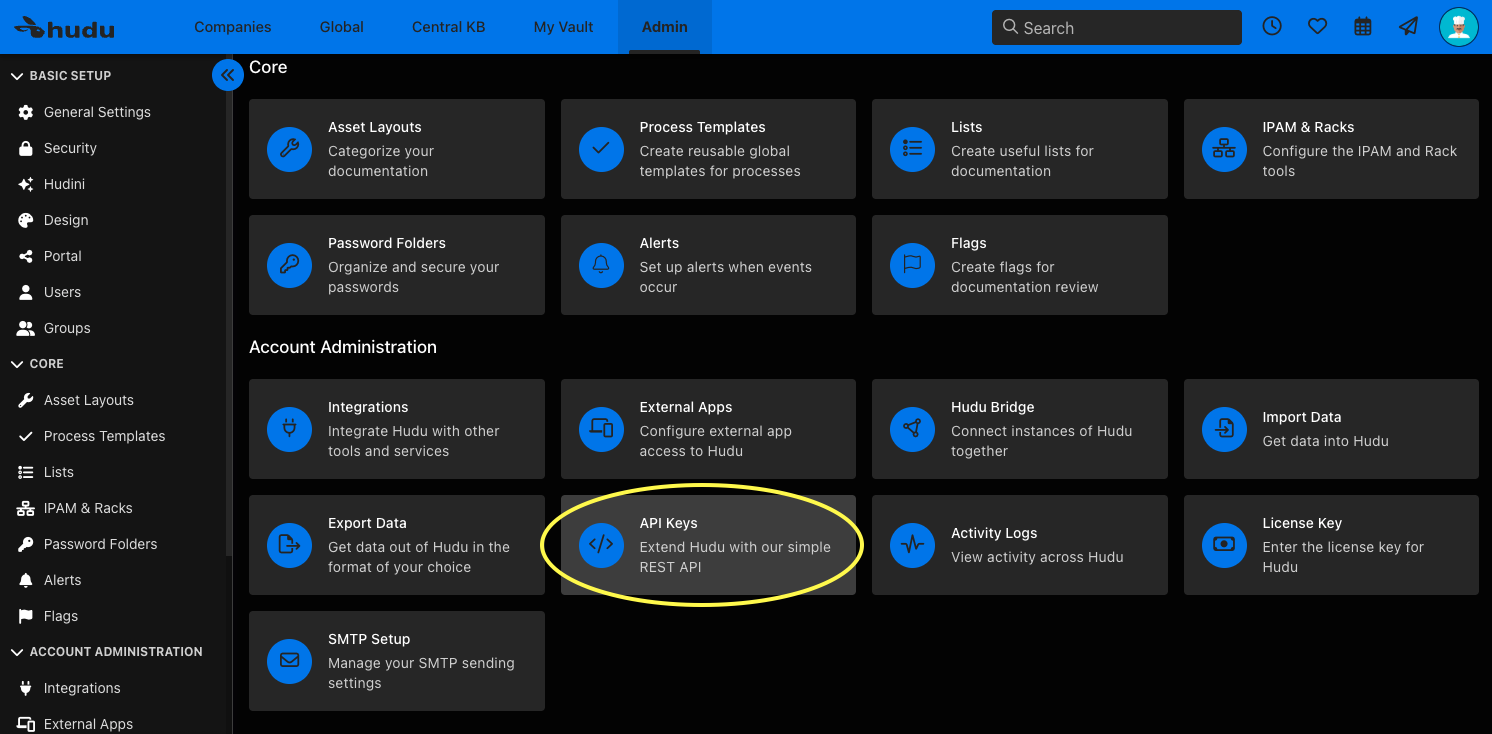
2. Click on the **Admin** tab in the top menu.
3. Scroll down and click **API Keys** under the **Account Administration** menu.\
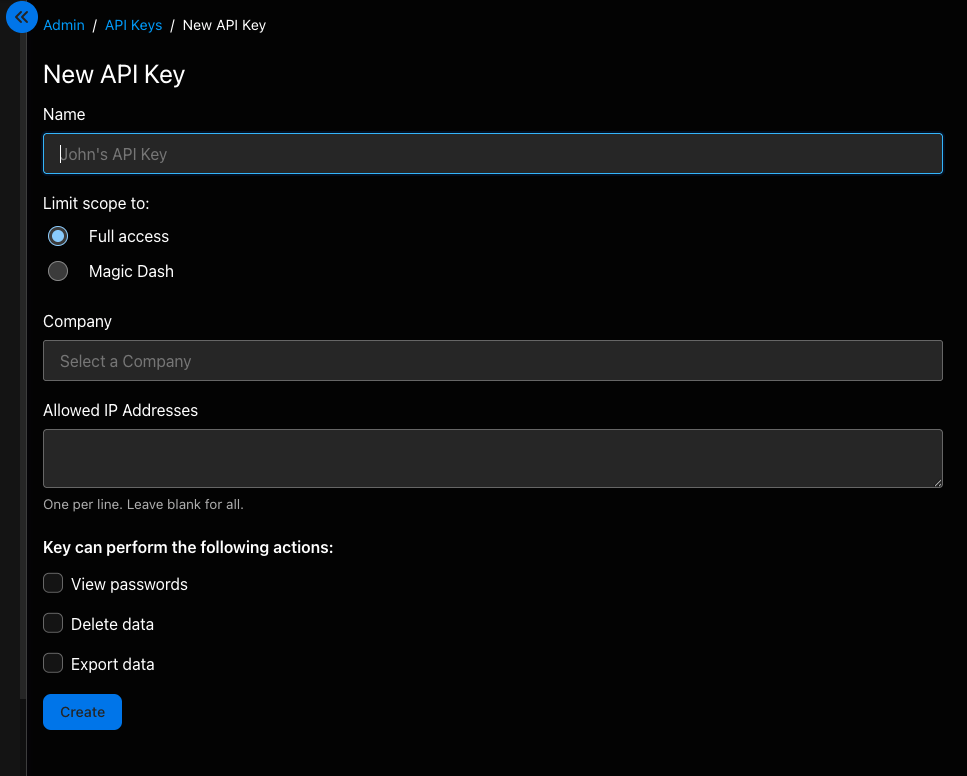
4. Click **+ New API Key** at the upper right of the page.
5. Enter or select the following:
1. **Name:** Rewst
2. **Limit scope to:**
3. **Allowed IP Addresses:** View Rewst IPs [here](/rewst-documentation/security/security-policy.md)
4. Check the box for **View passwords**
5. Check the box for **Delete data**
6. Check the box for **Export data**
6. Click **Create**.
7. Copy and save the API key that is generated and listed at the top of the page under **New API Key**.
## Set up steps in Rewst
1. Navigate to **Integrations** in the left side menu of your Rewst platform.
2. Search for `Hudu` in the integrations page.
3. Click on the integration tile to launch the configuration setup dialog.
4. Choose from either Production or Demo Mode for the setup of your integration:
1. **Production**: Connect with real credentials for live data
2. **Demo Mode**: Explore the integration with simulated mock responses
5. Click **Next: Configure and Authenticate**.
6. Select **+ Create New Credential from the Credential** drop-down selector.
7. Enter the information copied from Hudu into the relevant fields:
1. **Hostname -** for example, `yourinstance.huducloud.com`
2. **API Key**
8. Click **Save Credential**.
9. Click **Next: Confirm**.
10. Click **Install Integration**. The integration will now appear in the top Connected section of your Integrations page.
11. Click on the installed integration. Scroll down to the Org Mappings section of the configuration page and complete organization mapping as needed.
{% hint style="success" %}
Got an idea for a new Integration? Rewst is constantly adding new integrations to our integrations page. Submit your idea or upvote existing ideas here in our [Canny feedback collector](https://rewst.canny.io/integrations).
{% endhint %}
---
# Agent Instructions
This documentation is published with GitBook. GitBook is the documentation platform designed so that both humans and AI agents can read, navigate, and reason over technical content effectively. Learn more at gitbook.com.
## Querying This Documentation
If you need additional information that is not directly available in this page, you can query the documentation by asking a question.
Perform an HTTP GET request on the following URL with the `ask` and `goal` query parameters:
```
GET https://docs.rewst.help/rewst-documentation/documentation/integrations/integration-guides/hudu-integration-setup.md?ask=&goal=
```
`ask` is the immediate question: it should be specific, self-contained, and written in natural language.
`goal` is what the user is ultimately trying to achieve, the reason they need the answer. Sharing it helps GitBook give you a better, more relevant answer. A goal is most helpful when it describes the outcome the user wants rather than restating the question. For example, with `ask=how do I create an API token`, a goal like `automate deployments from our CI pipeline` lets GitBook tailor the answer to that use case.
The response will contain a direct answer to the question and relevant excerpts and sources from the documentation.
Use this mechanism when the answer is not explicitly present in the current page, you need clarification or additional context, or you want to retrieve related documentation sections.