> For the complete documentation index, see [llms.txt](https://docs.rewst.help/llms.txt). Markdown versions of documentation pages are available by appending `.md` to page URLs; this page is available as [Markdown](https://docs.rewst.help/rewst-documentation/documentation/integrations/integration-guides/halo-integration-setup.md).
# HaloPSA integration
{% hint style="info" %}
If you’re new to integrations in Rewst, read through our introductory integration documentation [here](https://docs.rewst.help/documentation/integrations).
{% endhint %}
## What does the HaloPSA integration do?
Our HaloPSA integration provides automation and workflow capabilities by connecting HaloPSA’s IT service management functions with Rewst’s automation platform. This integration allows users to manage and interact with various components of their PSA system directly from Rewst. For example:
* A new support ticket is submitted in HaloPSA. A Rewst workflow can automatically classify the ticket, assign it to the correct team based on predefined criteria, and send an acknowledgment email to the customer.
* When a new asset is assigned to a client, update inventory records. Rewst can capture the asset details and update HaloPSA records, ensuring real-time inventory tracking.
* A new client signs a contract for IT services. Rewst can automatically create the client profile, set up relevant permissions, and initiate onboarding tasks.
## Set up the HaloPSA integration
### Set up steps in HaloPSA
{% hint style="warning" %}
To set up the integration, you must have a Halo administrator account.
{% endhint %}
Before configuring the Rewst integration you must generate an API user. Here is the instruction for the generation of the integration user:
1. Log in to HaloPSA as an Administrator.
2. Navigate to **Configuration > Teams & Agents > Agents .**
3. Click **+New**.\
4. Create an agent for Rewst to use. We suggest naming this user `Rewst API` or similar.
5. Grant the user permissions according to what you would like Rewst to do for you. For optimal functionality and reliability of the Halo integration, assign administrator permissions to the service account. We’ve consistently observed higher success rates and fewer connectivity issues when using admin-level access for this integration. While lower permission levels may work in limited scenarios, they often lead to unexpected failures during automated workflows.
6. Click **Save**.
7. Navigate to **Configuration > Advanced > Integrations > Halo API** \
See [Halo Authorization Docs](https://halo.haloservicedesk.com/apidoc/authorisation) here.
8. Select **View Applications**.
9. Click **+New**.\
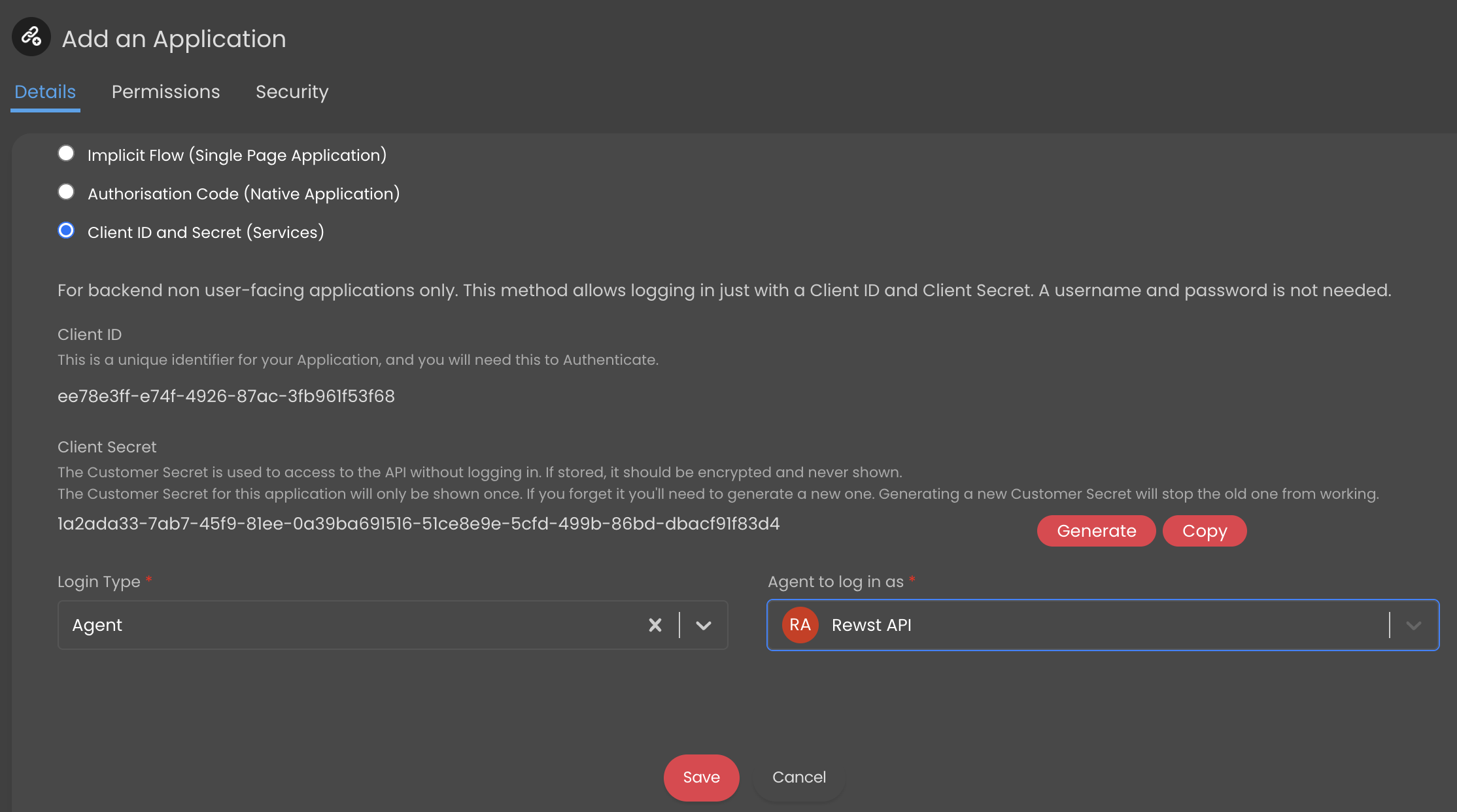
10. Name the application `Rewst` .
11. Choose the authentication method for **Client ID and Secret (Services)**. Note that when you do this, new drop-down selectors will appear beneath the menu.
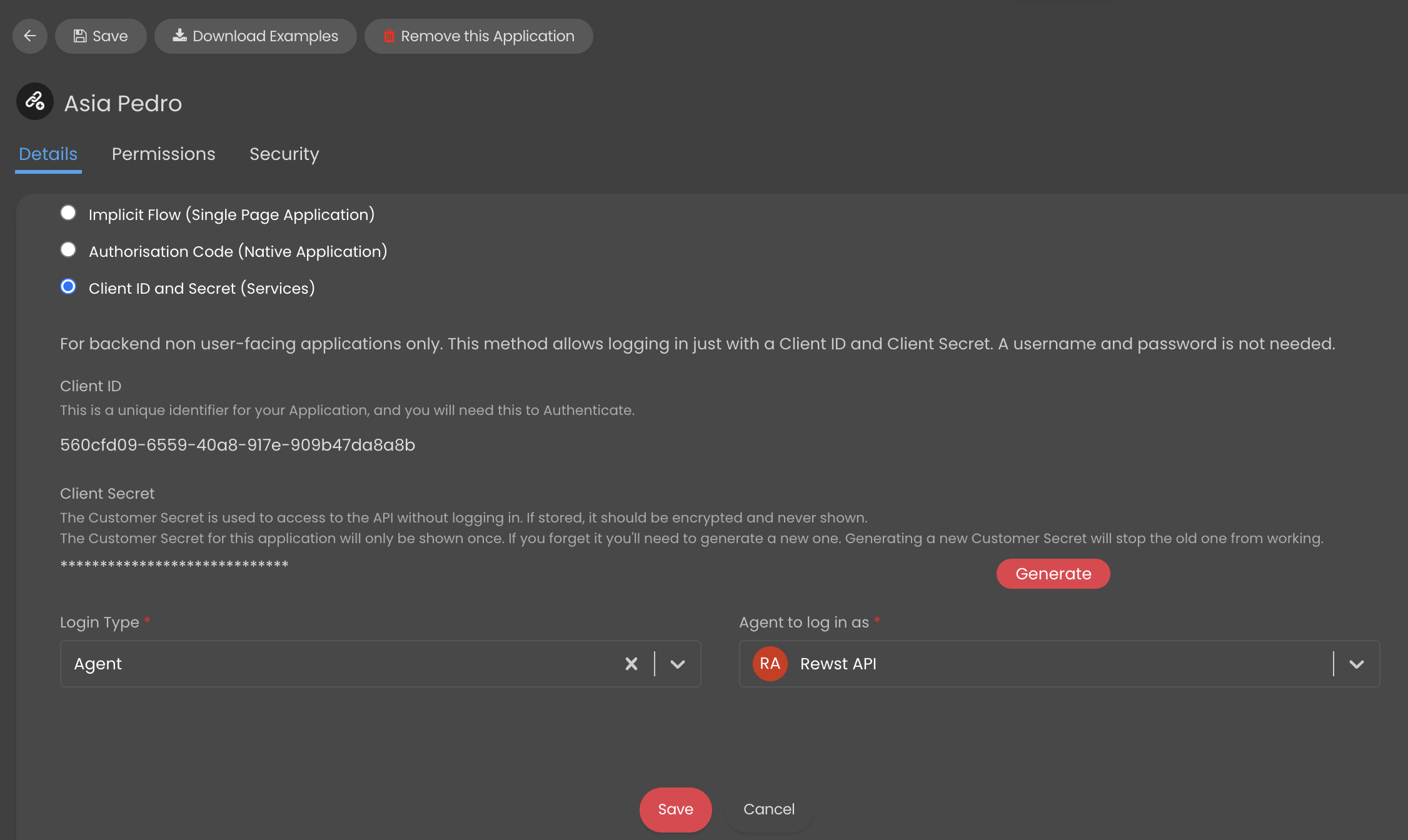
12. Copy the two ID and Secret values and store them somewhere safe. You'll need both for further setup steps in Rewst.
13. Ensure that **Agent to log in as** is set to **Rewst API**.
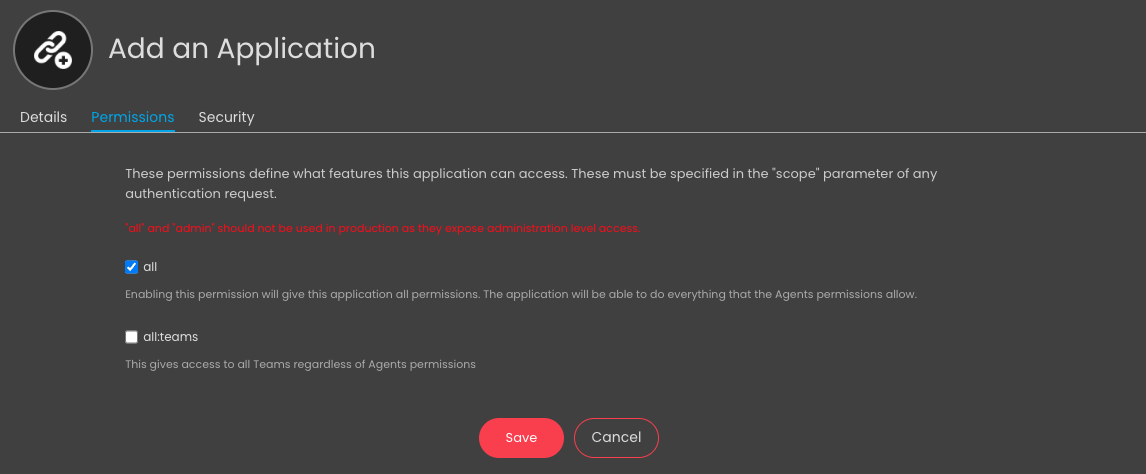
14. Click the **Permissions** tab.
15. Check the **all** checkbox on.\
16. Click **Save**.
16. Navigate to **Configuration > Teams & Agents > Agents**
17. Click on the user you set up for your Rewst integration.
18. Click the **Departments & Teams** tab.
19. Click **Edit** on the top left. Within **Teams**, select **Add**.
20. Add all teams from the **Team** drop-down selector.\
\

21. Click **Save**.
{% hint style="warning" %}
**Required for mapping customers in the Integration**
When creating the API Agent, ensure that the **Allow use of all Customers** Client Restriction setting is set to **Yes** if you want to allow Rewst to interact with your customer records.
{% endhint %}
### Set up steps in Rewst
1. Navigate to **Integrations** in the left side menu of your Rewst platform.
2. Search for `HaloPSA` in the integrations page.
3. Click on the integration tile to launch the configuration setup dialog.
4. Choose from either Production or Demo Mode for the setup of your integration:
1. **Production**: Connect with real credentials for live data
2. **Demo Mode**: Explore the integration with simulated mock responses
5. Click **Next: Configure and Authenticate**.
6. Select **+ Create New Credential from the Credential** drop-down selector.
7. Enter the information copied from HaloPSA into the relevant fields:
1. **Hostname** - This is specifically the resource server hostname
2. **Client ID**
3. **Client Secret**
8. Click **Save Credential**.
9. Click **Next: Confirm**.
10. Click **Install Integration**. The integration will now appear in the top Connected section of your Integrations page.
11. Click on the installed integration. Scroll down to the Org Mappings section of the configuration page and complete organization mapping as needed.
{% hint style="warning" %}
The Hostname must be in the correct format. Incorrect formatting will lead to setup failure.
Note that the links copied from HaloPSA contain https\:// at their start. You'll need to remove this from the link before pasting into fields in Rewst. For the Resource server, you'll also need to remove the end of the link, /api. See the below example.
Resource Server Hostname: `https://sanboxrewst.halopsa.com/api` should be `sandboxrewst.halopsa.com`
{% endhint %}
5. Click **Save Configuration**.
6. Rewst will do a quick validation of your input. Once completed, you'll see a new section beneath the configuration form for[ organization mapping](https://docs.rewst.help/documentation/integrations#what-is-organization-mapping). Complete your mapping as desired.
## Triggers for HaloPSA integration
| Trigger type name | Type | Description |
| ----------------- | ------- | ---------------------------------------------------------------------------------------------- |
| New Ticket Record | Polling | Trigger which returns an object containing the count of tickets, and an array of ticket object |
## Troubleshoot HaloPSA integration setup
{% hint style="info" %}
Click on any of the issues below to expand and view its solution. If your issue isn't included in this list, ask the Rewst Agent to assess your situation.
{% endhint %}
Customers are not showing up when refreshing options
Customers not showing when refreshing options is due to an issue with permissions. Make sure to check that both the user and API user have the following permissions, at minimum:
* View Customers
* View Support Tickets
* Add Time Entries
* Create Support Tickets
{% hint style="warning" %}
You may need to uninstall and reinstall the Halo integration for the new permissions to take place.
{% endhint %}
Boards and teams are not visible in configure organizational variable form
If you can't see boards or teams in the configure organizational variable form, this is due to incorrect permissions. You’ll need to add the API User to the teams that you want to see in the form.
Email, name, department is missing or CAB ID is invalid
If you run into an issue where the Email, Name, Department, or other information is missing, or you see that the CAB ID is either invalid or mandatory, this is due to custom fields used in creating tickets. To use these custom ticket fields:
* The Custom Field IDs need to be added as an organization variable
* The Custom Field should not be marked as mandatory
General workflow issues
When creating custom workflows, you may encounter the error **HaloPSA integration is not installed**. To resolve this, either install the integration or implement integration overrides.
{% hint style="info" %}
To execute workflows at the MSP level across client accounts, you must configure Halo integration overrides to ensure proper functionality in the workflow and form field triggers
{% endhint %}
Error code: Client error '403 Forbidden' for url
* Check what you have given the API user access to within Halo. This is most frequently the result of a permissions issue.
* Are you able to make any API calls to Halo in a workflow? Can you list clients? If so, this also suggests a permissions error on Halo's side.
{% hint style="success" %}
Got an idea for a new Integration? Rewst is constantly adding new integrations to our integrations page. Submit your idea or upvote existing ideas here in our [Canny feedback collector](https://rewst.canny.io/integrations).
{% endhint %}
---
# Agent Instructions
This documentation is published with GitBook. GitBook is the documentation platform designed so that both humans and AI agents can read, navigate, and reason over technical content effectively. Learn more at gitbook.com.
## Querying This Documentation
If you need additional information that is not directly available in this page, you can query the documentation by asking a question.
Perform an HTTP GET request on the following URL with the `ask` and `goal` query parameters:
```
GET https://docs.rewst.help/rewst-documentation/documentation/integrations/integration-guides/halo-integration-setup.md?ask=&goal=
```
`ask` is the immediate question: it should be specific, self-contained, and written in natural language.
`goal` is what the user is ultimately trying to achieve, the reason they need the answer. Sharing it helps GitBook give you a better, more relevant answer. A goal is most helpful when it describes the outcome the user wants rather than restating the question. For example, with `ask=how do I create an API token`, a goal like `automate deployments from our CI pipeline` lets GitBook tailor the answer to that use case.
The response will contain a direct answer to the question and relevant excerpts and sources from the documentation.
Use this mechanism when the answer is not explicitly present in the current page, you need clarification or additional context, or you want to retrieve related documentation sections.