> For the complete documentation index, see [llms.txt](https://docs.rewst.help/llms.txt). Markdown versions of documentation pages are available by appending `.md` to page URLs; this page is available as [Markdown](https://docs.rewst.help/rewst-documentation/documentation/integrations/integration-guides/datto-psa-integration-setup.md).

# Autotask PSA integration

{% hint style="info" %}
If you’re new to integrations in Rewst, read through our introductory integration documentation [here](https://docs.rewst.help/documentation/integrations).
{% endhint %}

## What does the Autotask PSA integration do?

Our Autotask PSA integration enables seamless synchronization of ticketing, client data, and service management workflows between Autotask PSA and Rewst. It allows MSPs to automate repetitive tasks like ticket creation, status updates, and client information syncing, reducing manual effort and improving operational efficiency.

### Why use the Autotask PSA integration?

#### Automate ticket creation

A critical server outage alert is triggered in your RMM tool. Rewst detects the alert, and **creates a high-priority ticket in** Autotask PSA with details like impacted client, server ID, and error logs. It assigns the ticket to the infrastructure Team based on the ticket category, and triggers a Slack or Teams alert to the assigned team with a direct link to the Autotask PSA ticket.

#### Contract renewal automation

A client’s managed services contract is nearing expiration in Autotask PSA. Rewst identifies expiring contracts and triggers a renewal workflow. It generates a quote in Autotask PSA, emails it to the client, schedules a follow-up task for the account manager, and updates the contract status to **Renewal Pending** in Autotask PSA.

#### Client onboarding and offboarding

A new client signs up for managed services. Rewst creates the client’s Autotask PSA account, assigns contracts, and configures service templates. It provisions user accounts in Microsoft 365 or Google Workspace via integrated workflows, then triggers an onboarding checklist for the service team in Autotask PSA.

#### Asset and configuration management

A new firewall is deployed, Rewst **creates a configuration item (CI) in** Autotask PSA with details like serial number, warranty date, and network role, then links the CI to the client’s Autotask PSA profile and updates your documentation platform (eg. IT Glue documentation), and schedules warranty renewal reminders in Autotask PSA.

## Set up the Autotask PSA integration

### Set up steps in Autotask PSA

1. Log into Autotask PSA as an Administrator
2. Navigate to **Admin > Account Settings & Users.**
3. Click to expand the **Resources/Users (HR)** accordion menu.
4. Scroll down the page to the **Security** menu. Click **Security Levels**. Here there should be an API user with the security level of **system.** It has the appropriate administrator privileges to allow for the full functionality of the automations. Datto’s own documentation about this system security level can be found [here](https://ww1.autotask.net/help/content/4_Admin/1CompanySettings_Users/ResourcesUsersHR/Resources/API_User_Add_Edit.htm).
5. Hover over <img src="https://content.gitbook.com/content/h0G0em3PH6aDfPoI5XpN/blobs/F4WYwSmrK3ZsUWLrr77E/Screenshot%202025-03-31%20at%204.34.56%E2%80%AFPM.png" alt="" data-size="line"> to the right of the API user. Click **Copy** in the dialog that appears. This will open a new tab in your browser.
6. Enter a descriptive name which includes Rewst in the text in the **Name** field.
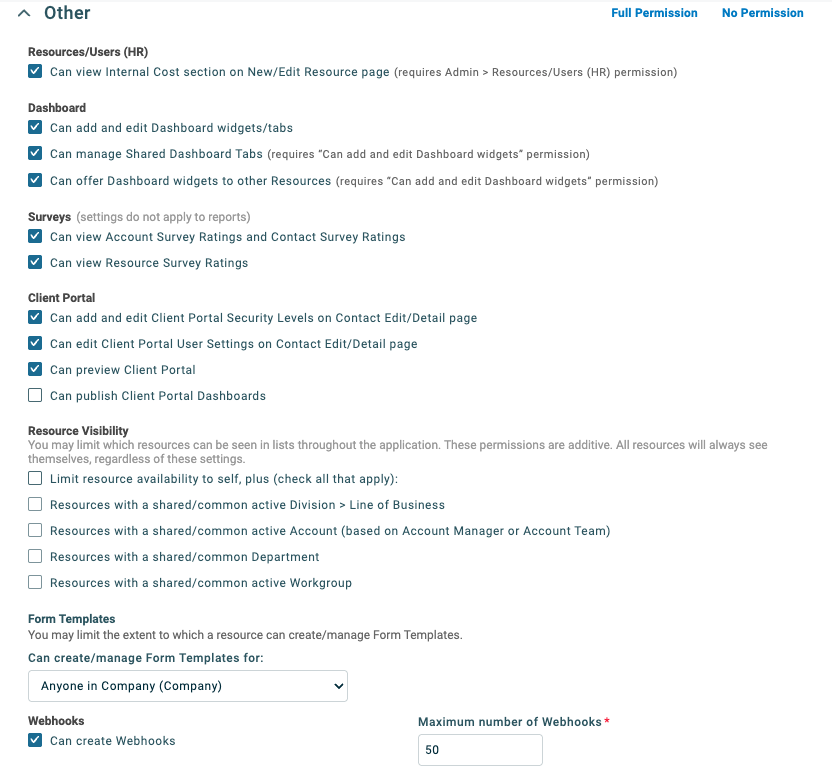
7. Scroll down and expand the **Other** accordion menu. Ensure that the **can create webhooks** box is checked on, and the **maximum number of webhooks** is set to `50`.\ <br>

   <figure><img src="https://content.gitbook.com/content/h0G0em3PH6aDfPoI5XpN/blobs/NyqDEHd3ICnK8KmjvajO/Screenshot%202025-03-31%20at%204.40.22%E2%80%AFPM.png" alt=""><figcaption></figcaption></figure>
8. Click **Save**.
9. Navigate to **Commonly Used >** **Resources (Users)**. Click **⌄** to expand the **+New** drop down selector.&#x20;
10. Click **New API User**. This will open a new browser tab.\
    \
    ![](https://content.gitbook.com/content/h0G0em3PH6aDfPoI5XpN/blobs/0edcE4TBTrht718kArtT/CleanShot%202025-03-18%20at%2013.28.43.jpg)
11. Enter the following information into the relevant fields in the **General** menu:
    1. **First Name**
    2. **Last Name**
    3. **Email Address**
    4. **Security Level**: use the level you created or cloned in step 3
    5. **Primary Internal Location**\
       \
       ![](https://content.gitbook.com/content/h0G0em3PH6aDfPoI5XpN/blobs/L1QG33d0EENEHxrWt1n8/CleanShot%202025-03-18%20at%2013.40.11.jpg)
12. Scroll down to the **Credentials** submenu. Click **Generate Key**. Click **Generate Secret**. Copy both results into a secure location. You’ll need this information for continued setup steps in Rewst.\
    \
    ![](https://content.gitbook.com/content/h0G0em3PH6aDfPoI5XpN/blobs/pQjX18FJf93Y7kEhCc3d/CleanShot%202025-03-18%20at%2013.41.05.jpg)
13. Select **Integration Vendor** under the **API Tracking Identifier** submenu. Select **Rewst - Automation** from the **Integration Vendor** drop down selector.\
    \
    ![](https://content.gitbook.com/content/h0G0em3PH6aDfPoI5XpN/blobs/AO4sTAmp2Q2QqqhzGp6f/CleanShot%202025-03-18%20at%2013.54.48%20\(1\).jpg)
14. Note your API Username with the format `APIUser@example.com`, and API URL: for example, `https://ww2.autotask.net...` .
15. Before saving and closing the API user page, copy the Secret Key and Username . The secret key won't be displayed again, once saved.&#x20;
16. Click **Save & Close**.

### Set up steps in Rewst

1. Navigate to **Integrations** in the left side menu of your Rewst platform.
2. Search for `Autotask PSA` in the integrations page.
3. Click on the integration tile to launch the configuration setup dialog.
4. Choose from either Production or Demo Mode for the setup of your integration:
   1. **Production**: Connect with real credentials for live data
   2. **Demo Mode**: Explore the integration with simulated mock responses
5. Click **Next: Configure and Authenticate**.
6. Select **+ Create New Credential from the Credential** drop-down selector.
7. Chose your server URL where your account is hosted from the **Server / Region** drop-down selector. This can be referenced in your Autotask PSA URL.
8. Enter the API credentials copied from Datto into the relevant fields:
   1. **Username (Key)**: `APIUser@example.com`
   2. **API User Password**: `[Paste Secret Key]`&#x20;
9. Click **Save Credential**.
10. Click **Next: Confirm**.
11. Click **Install Integration**. The integration will now appear in the top Connected section of your Integrations page.&#x20;
12. Click on the installed integration. Scroll down to the Org Mappings section of the configuration page and complete organization mapping as needed.&#x20;

{% hint style="danger" %}
If there are too many customers in the query, you may experience long loading times when refreshing options.
{% endhint %}

## Webhook setup for triggers

By default, the Autotask PSA API User system security level does not have permission to create company webhooks. When you configure a trigger in the Rewst platform, you'll receive an error message stating that the webhook could not be created. To resolve this, you'll need to create a new security level by doing the following:

1. Log in to Autotask PSA.
2. Navigate to **Admin > Account Settings & Users**.
3. Click **Security Levels** on the **Resources / Users (HR)** tab.
4. Find the **API User (system) (API-only)** security level on the context menu.
5. Select **Copy**.
6. Scroll down to the **Other** tab.
7. Check the checkbox for **Create Company Webhooks**.
8. Enter a number. Each trigger will require at least one webhook.
9. Click **Save**.  &#x20;
10. Edit the user you are using to authorize Rewst and set it to this new security level.

{% hint style="success" %}
With this, you should now be able to create webhooks in Rewst. This will happen automatically when you create a trigger such as `Datto - Ticket Record Saved`.
{% endhint %}

## Triggers for the Autotask PSA integration

<table><thead><tr><th width="373">Trigger</th><th>Type</th><th>Description</th></tr></thead><tbody><tr><td>stale_ticket_sensor</td><td>Polling</td><td>Triggers a workflow when a new ticket is created</td></tr><tr><td>Company Webhook</td><td>Webhook</td><td>Creates a webhook enables you to subscribe to notifications for events that take place in Autotask.</td></tr><tr><td>Configuration Item Webhook</td><td>Webhook</td><td>Creates a webhook enables you to subscribe to notifications for events that take place in Autotask.</td></tr><tr><td>Contact Webhook</td><td>Webhook</td><td>Creates a webhook enables you to subscribe to notifications for events that take place in Autotask.</td></tr><tr><td>Ticket Note Webhook</td><td>Webhook</td><td>Creates a webhook enables you to subscribe to notifications for events that take place in Autotask.</td></tr><tr><td>Ticket Webhook</td><td>Webhook</td><td>Creates a webhook enables you to subscribe to notifications for events that take place in Autotask.</td></tr></tbody></table>

## Troubleshoot the Autotask PSA integration

{% hint style="info" %}
Click on any of the issues below to expand and view the solution. If you issue isn’t included below, please contact Rewst support in your dedicated support Discord channel.
{% endhint %}

<details>

<summary>Authentication errors</summary>

* Confirm that your API credentials are entered correctly.
* Ensure that the Autotask PSA user has the **API User** role.

</details>

<details>

<summary>Missing ticket data</summary>

* Verify the ticket exists in Autotask PSA and matches query filters.
* Check API permissions for the resource account.

</details>

<details>

<summary>API rate limits</summary>

Autotask PSA enforces API call limits. Ask the Rewst Agent to retry failed requests.

</details>

{% hint style="success" %}
Got an idea for a new Integration? Rewst is constantly adding new integrations to our integrations page. Submit your idea or upvote existing ideas here in our [Canny feedback collector](https://rewst.canny.io/integrations).
{% endhint %}


---

# Agent Instructions
This documentation is published with GitBook. GitBook is the documentation platform designed so that both humans and AI agents can read, navigate, and reason over technical content effectively. Learn more at gitbook.com.

## Querying This Documentation
If you need additional information that is not directly available in this page, you can query the documentation dynamically by asking a question.

Perform an HTTP GET request on the current page URL with the `ask` query parameter, and the optional `goal` query parameter:

```
GET https://docs.rewst.help/rewst-documentation/documentation/integrations/integration-guides/datto-psa-integration-setup.md?ask=<question>&goal=<endgoal>
```

`ask` is the immediate question: it should be specific, self-contained, and written in natural language.
`goal` is optional and describes the broader end goal you are ultimately trying to accomplish on behalf of the user. GitBook uses it to tailor the answer towards what is most useful for that goal.

The response will contain a direct answer to the question and relevant excerpts and sources from the documentation.

Use this mechanism when the answer is not explicitly present in the current page, you need clarification or additional context, or you want to retrieve related documentation sections.