For the complete documentation index, see llms.txt. This page is also available as Markdown.

ConnectWise Automate integration

If you’re new to integrations in Rewst, read through our introductory integration documentation here.

Why use the ConnectWise Automate integration?

Our ConnectWise Automate integration enables the automation of remote monitoring and management. Use the ConnectWise Automate API within Rewst workflows to perform actions such as endpoint management, remote monitoring, and IT automations.

Set up the ConnectWise Automate integration

Set up steps in ConnectWise Automate

To create a new ConnectWise Automate integration, you'll need to create a system integrator account.

  1. Create a user class in ConnectWise Automate for our Rewst User:

    1. Log in to ConnectWise Automate Control Center using your administrator credentials.

      1. Navigate to Users and Contacts > User Class Manager in the System menu.

      2. Click + at the bottom left corner of the User Class Manager window.

      3. Enter Rewst Automation as the name for the new user class. Click OK.

      4. Set permissions:

        • Core Tab: Select the new user class and configure the necessary permissions on the "Core" tab.

        • Plugin Tab: If applicable, configure permissions for specific plugins on the "Plugin" tab.

      5. Click Save.

  2. Click Settings in the bottom left corner.

  3. Navigate to User Management.

  4. Click Add in the top left.

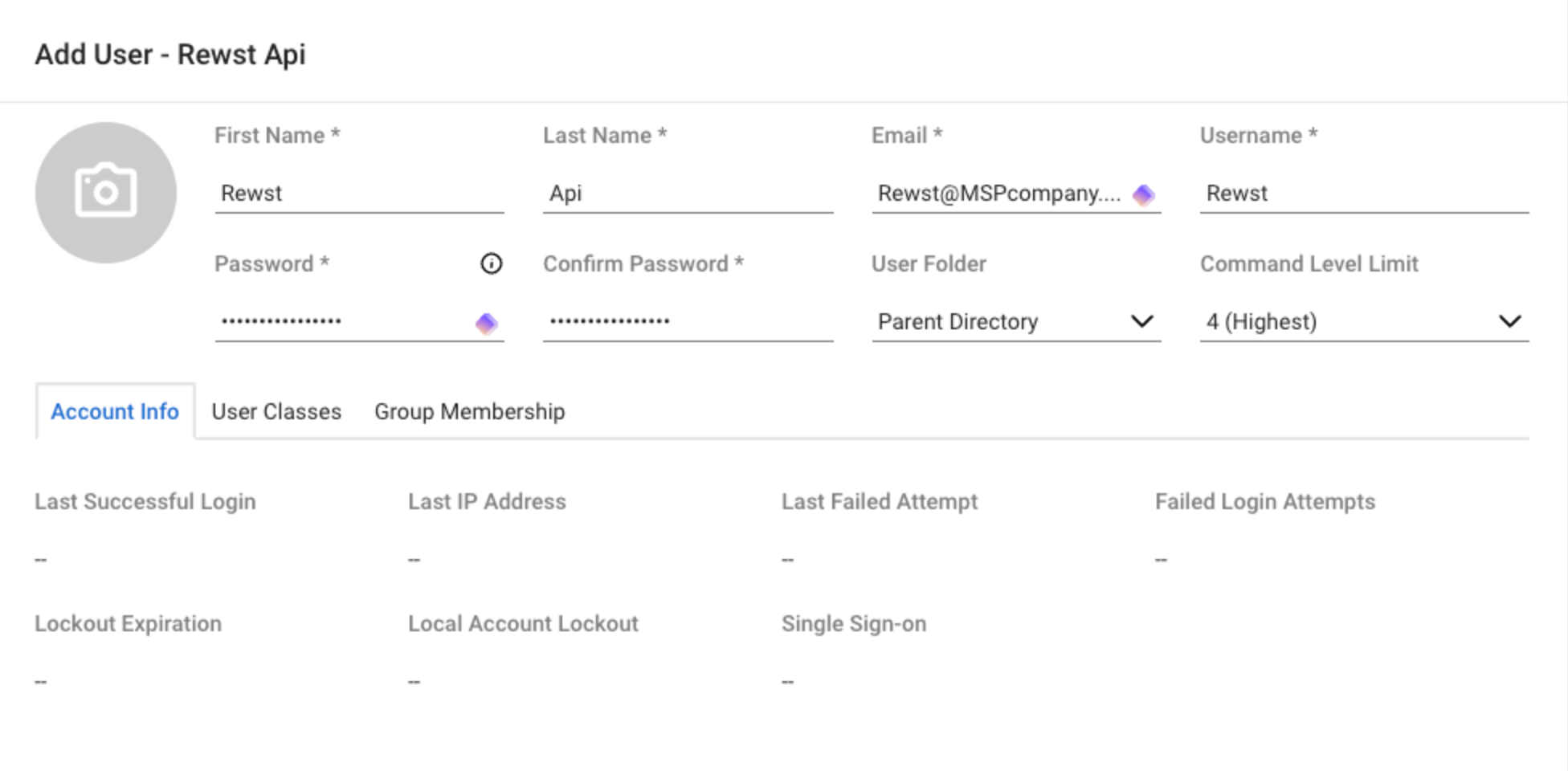
  5. Set the First Name, Last Name, Email, User Name, and Password.

    Our recommended setup information for the user
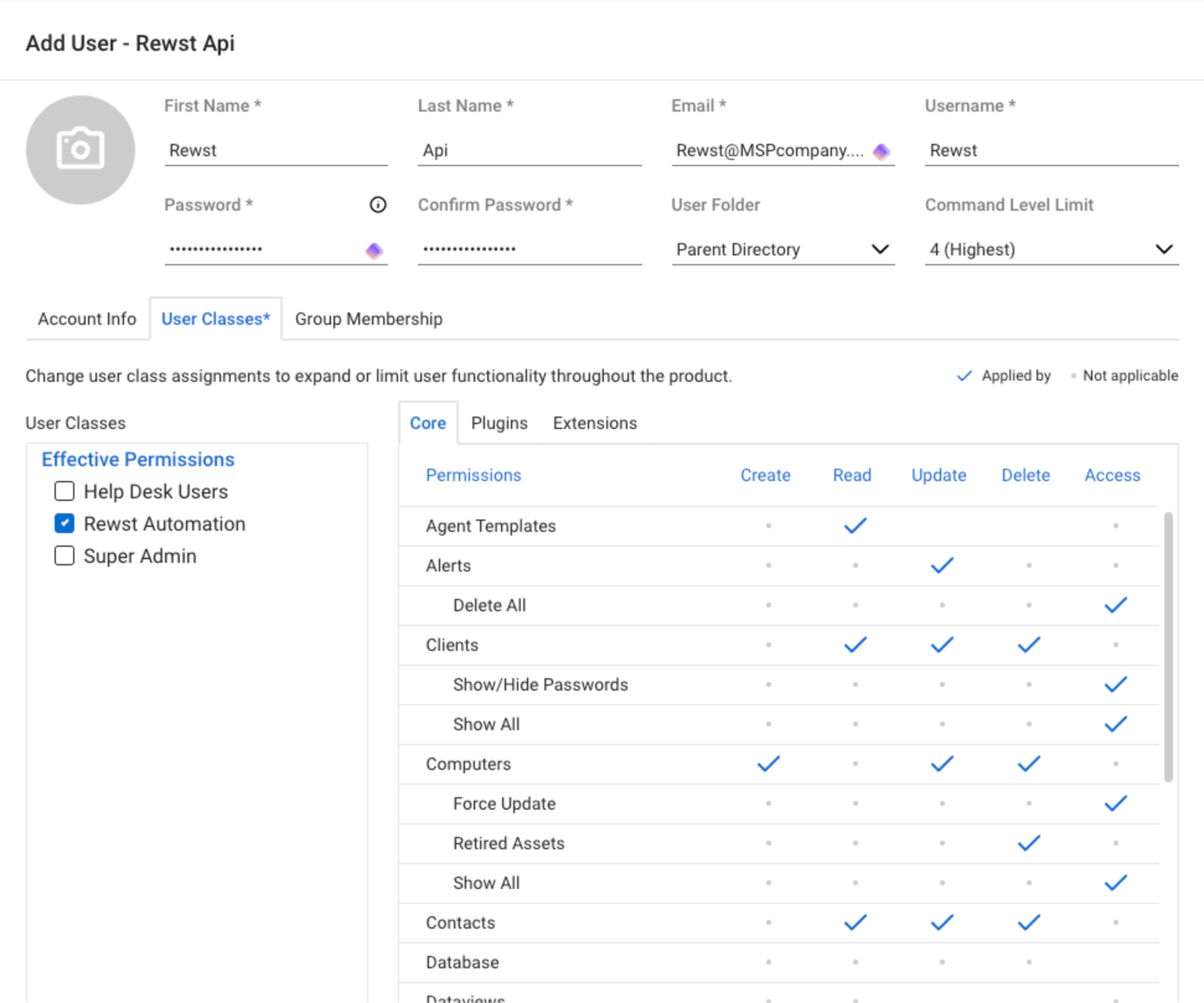
  6. Click the User Classes tab.

  7. Click Edit User Classes.

  8. Select the Rewst Automation user class you configured earlier.

  1. Check the Integrator box at the bottom.

  2. Click Save.

Set up steps in Rewst

  1. Navigate to Integrations in the left side menu of your Rewst platform.

  2. Search for ConnectWise Automate in the integrations page.

  3. Click on the integration tile to launch the configuration setup dialog.

  4. Choose from either Production or Demo Mode for the setup of your integration:

    1. Production: Connect with real credentials for live data

    2. Demo Mode: Explore the integration with simulated mock responses

  5. Click Next: Configure and Authenticate.

  6. Select + Create New Credential from the Credential drop-down selector.

  7. Enter the information copied from ConnectWise Automate into the relevant fields:

    1. Hostname - The ConnectWise Automate hostname, e.g. companyABC.hostedrmm.com

    2. Username - What was created in ConnectWise Automate

    3. Password - What is used to log in to ConnectWise Automate

    4. Client ID - Optional, with Rewst's client ID set as the default if this is not updated

    5. TOTP Secret - Optional, for generating 6-digit MFA codes

  8. Click Save Credential.

  9. Click Next: Confirm.

  10. Click Install Integration. The integration will now appear in the top Connected section of your Integrations page.

  11. Click on the installed integration. Scroll down to the Org Mappings section of the configuration page and complete organization mapping as needed.

Note that if you have IP address restrictions in place, you'll need to add the Rewst IP to your allowed list. The US IP for Rewst is 3.139.170.31. For other regional IP information, see our security policy here.

Least privilege access guide for ConnectWise Automate integration

It is assumed that you do not have conflicting permissions on the script level or group level. Additional work may be required if this is the case and Automate documentation should be referenced.

For more information on how to set up user classes and client permissions please visit Connectwise Automate documentation.

Configure user class permissions

To be able to utilize Rewst with least privilege you will need to configure a new user class named Rewst Automation. The class should then be configured with the following permissions.

User class permission

Actions
Permission

Agent Templates

Read

Alerts

Update

Clients

Read, Update, Delete

Clients → Show/Hide Passwords

Access

Clients → Show All

Access

Computers → Force Update

Access

Computers → Retired Assets

Delete

Computers → Show All

Access

Contacts

Read, Update, Delete

Groups

Create, Update, Delete

Groups → Scheduled Scripts

Update

Locations → Show All

Access

Patch Manager

Read, Update

Scripts

Read, Update, Delete

Scripts → Schedule Scripts

Update

Searches → Send Commands

Access

Tickets

Create, Read, Update, Delete

Tickets → Ticket Requests

Access

Configure client level permissions

Client level permissions

Actions
Permission

Locations

Read, Edit, Delete

Projects

Read

Product Keys

Read

Documents

Read

Passwords

Read

Default computer permissions: Enabled if listed

Actions
Permission

Command Prompt

Access

Software and Tools

Install

History

Access

Commands

View, Send

Scripts

Schedule

Information

Edit

Alerts

Clear

Scheduled Scripts

Delete

Triggers for ConnectWise Automate integration

Trigger type name
Type
Description

Detect Script Execution

Polling

Triggers when a script is running

New Computer

Polling

Triggers when a new computer is added

New Event Log

Polling

Triggers when a new event log is detected

New Running Script

Polling

Triggers when a script is running

Last updated

Was this helpful?
