Organizations and organization variables
What is an organization?
A group or entity within the Rewst platform that may have its own variables, forms, workflows, and users, organizations enable management and customization of the platform according to specific customer needs. You'll see us refer to an organization as an org for short.
Rewst uses a two-tier system to manage organizations, with your MSP as the parent org and your customers as child orgs. To make automations work for your managed clients or customers, set them up as child orgs. Each time you bring on a new customer account, you'll need to add a corresponding child org in Rewst to enable automations for them.

What is an organization variable?
Organization variables, referred to as org variables for short, serve as the foundational elements for setting and managing configurations across different organizational levels within Rewst. They ensure consistency and control within workflows, and facilitate efficient management across the organizational hierarchy.
View all organization variables in Rewst
Organization variables can manually be managed by navigating to Automations > Org Variables in the left side menu of your Rewst platform. In this page, view a total list of all org variables for your selected organization. Note that org variables are visible only one level deep - you'll see them for a child org of a parent org, but not the child org of that child org, for example.
When unpacking Crates, you may be prompted to fill out forms within those Crates to set up your organization variables. Once the form is submitted, the variables will appear in this total list. Likewise, and org variables created by the Rewst Agent on your behalf will be listed here.
Filter the list by using the Search field or Categories drop-down filter, to specify your criteria by General or Secret org variable statuses.

Org variable setup
The Rewst Agent will create org variables for you as it builds your workflows and automations. The below guidance and steps are for when you wish to create your own org variables.
Org variable naming conventions
Employ descriptive and straightforward wording using
snake_casefor clarity.Prefix integration-specific variables appropriately, like
psa_for PSA-related variables.
Manually add a new organization variable
Click + New Variable.
Enter the information for your variable into the relevant fields in the dialog that appears.
Name - Enter the name for your org variable, which should be unique and follow Rewst's naming conventions
Value - Enter the value for the org variable
Description - Give a brief explanation for what the org variable does
Category - Choose from General for a normal org variable, or Secret to ensure that whatever text you enter into the Value field will be its secret
Click Create to save your org variable when done. Alternatively, click
to cancel the creation of the org variable.

Edit or delete existing organization variables
Click on the name of any org variable to open its dialog and edit its properties.
Click
to the right of an individual org variable to delete it.Clicl
to the right of an individual org variable to revert it to its inherited value.
Inheritance and overrides
Inheritance: Values set at the parent organization level cascade down, providing a default setup for all child organizations.
Overrides: Child organizations can establish their own variables, prioritizing local settings over defaults inherited from their parent organization. Overrides don't cascade down to suborganizations of child organizations. They exist just for that one child org where they are set.
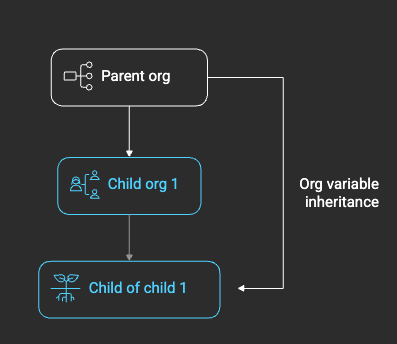
For example, consider a scenario where you have three layers of organizations:
Parent > Child 1 > Child of Child 1.
If you create a workflow at the parent level and run the workflow via trigger as Child of Child 1, the organization variable value will come from the parent, not the Child 1 organization.
Use custom org variables to standardize client workflows
Creating your own org variables enables you to build logic into your custom workflows so that you don't need to hardcode values within workflows.
For example, instead of hardcoding a client's service tier as gold directly in a workflow, you can create a service_tier org variable, reference that variable wherever the tier is needed across automations, and update the org variable in one place if the names of service tiers change.
Once you've set your org variables, your workflows can reference them to run automation selectively — for example, only triggering managed-client workflows where is_managed is true.
Use as default feature
The use as default feature allows managing organizations to set a universal default value for an org variable. This default is applied to child organizations unless they specify their own value.
How use as default works
Set a default: When you set a variable as default at the top parent level, it becomes the fallback for child organizations without a specified value.
Workflow execution context:
The default value is only used if the workflow is initiated from the managing organization.
To apply the default value to Client A, the workflow must start from the top parent MSP organization, even if it operates within Client A’s context.
Triggers and context:
Implementing triggers in the workflow ensures that the execution context is recognized. This facilitates the use of parent-level defaults in child workflows.
Last updated
Was this helpful?
