> For the complete documentation index, see [llms.txt](https://docs.rewst.help/llms.txt). Markdown versions of documentation pages are available by appending `.md` to page URLs; this page is available as [Markdown](https://docs.rewst.help/documentation/integrations/multi-instance-integration/multi-instance-integration-setup.md).
# Multi-instance integration setup
## What is multiple instance integration?
Also known as muti-tenancy, *multiple instance integration* refers to connecting **multiple, separate instances of a given app or system** to Rewst Classic, where they're managed via one Rewst instance. Most MSPs manage multiple clients, each with their own environments. You can’t run one integration to Autotask and expect it to cover every client, because each client has its own instance.
Multi-instance integration enables you to designate one instance as the default, and expands integration overrides to support the additional configurations. This is done as an advanced option at the workflow task level, allowing you to specify a configuration on a per-task basis.
### Set up a multi-instance integration
1. Navigate to the integration settings page for the integration that requires multiple configurations.
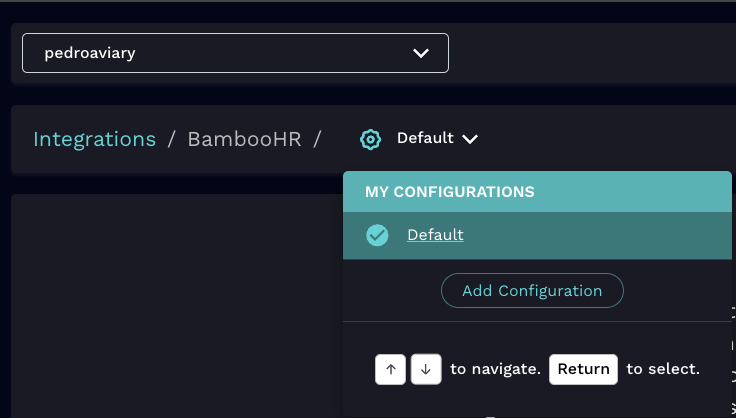
2. Click  in the top left of your screen.
3. Click **Add Configuration**. A new configuration form will appear.\
4. Enter descriptive title into the **Name** field of the **Add Configuration** dialog.
5. Click **Submit.** This will create a new Configuration form to fill out on the center of your screen, as well as a new option for this configuration under the  drop-down selector. In future, you'll click in this list to determine which configuration you'd like to view at any given time.\
\

6. Fill out the configuration form with a second set of valid credentials.
7. Click **Save Configuration**. An org variable options list will appear below the form, showing what configuration your organizations have been assigned to.
{% hint style="warning" %}
Organizations that are assigned to another configuration should be blocked from editing until you navigate to that configuration page. Ensure any existing workflows using the integration continue to run normally with the correct configuration.
{% endhint %}
### Trigger a workflow with a non-default integration configuration
A workflow trigger can be set up to use a secondary integration configuration. Setting up the integration override will cause all actions in the workflow to use the override configuration.
1. Click on the trigger in the workflow to open its settings in the right side menu.
2. Click **Overrides > + Add Integration Override**.
3. Select the integration you have set up with multiple configurations that you would like to override.
4. Use the **Configuration Selection Mode** radio buttons to generate a drop-down with available configurations:
1. **Use Default** - The default configuration for the workflow owner will be used
2. **Use Selected Config** - Select a specific integration configuration to use
3. **Use** **Name Search** - Type in the name of the configuration to select the new configuration for this action
4. **Use Org Mapping** - Use the mapping defined on the integration settings page
5. Select the fallback mode radio button to either use the default integration configuration when the override configuration is unavailable, or fail the workflow when the override configuration is unavailable.
6. Click **Submit**.
### Configure an action to use a non-default integration configuration
Actions can be set on an action-by-action basis to use a non-default or secondary integration. If you have already set an override on the trigger for the workflow, the actions will use the same configuration as the trigger.
1. Add the action to a workflow.
2. Click on action to open the its settings in the right side menu.
3. Click **Advanced > + Add New Integration Override**.
4. Use the **Configuration Selection Mode** radio buttons:
1. **Use Default** - The default configuration will be used
2. **Use Select Config** - Choose a specific integration configuration to use for this task from a list of available configurations
3. **Use Name Search** - Type in the name of the configuration to select the new configuration for this action
4. **Use Org Mapping** - Use the mapping defined on the integration settings page
5. Select the fallback mode radio button to either use the default integration configuration when the override configuration is unavailable, or fail the workflow when the override configuration is unavailable.
### Limitations and future enhancements to multi-instance integrations
* Workflow-level and form-level integration overrides are not currently available without setting a trigger.
* Selecting the Use Org Mapping configuration instructs the override to utilize the org variable mappings defined on the relevant integration settings page to determine the pack config to use. This means that the organization must have a `pack_config_id` set.
* If an org variable does not have the `pack_config_id` field set and the Use Org Mapping config mode is utilized for that organization then no pack config will be found, causing the workflow to revert to the designated fallback behavior. This can be resolved in the UI at the MSP level by going to the integration settings page and clicking the Save Mappings button.
* When mapping organizations to a specific configuration in a workflow, The Rewst - Create Org Variable and Rewst - Bulk Upsert Org Variables actions can also accept an optional `pack_config_id`.
{% hint style="warning" %}
Currently, Rewst doesn't support multitenancy for the following integrations:
* ImmyBot
* Microsoft CSP
* Microsoft EXO
* Microsoft Graph
* SQL Database
For directions for how to handle multiple instances of these integrated apps, see our documentation [here](/documentation/integrations/multi-instance-integration/integrate-multiple-instances-of-the-same-integration.md).
{% endhint %}
---
# Agent Instructions
This documentation is published with GitBook. GitBook is the documentation platform designed so that both humans and AI agents can read, navigate, and reason over technical content effectively. Learn more at gitbook.com.
## Querying This Documentation
If you need additional information that is not directly available in this page, you can query the documentation by asking a question.
Perform an HTTP GET request on the following URL with the `ask` and `goal` query parameters:
```
GET https://docs.rewst.help/documentation/integrations/multi-instance-integration/multi-instance-integration-setup.md?ask=&goal=
```
`ask` is the immediate question: it should be specific, self-contained, and written in natural language.
`goal` is what the user is ultimately trying to achieve, the reason they need the answer. Sharing it helps GitBook give you a better, more relevant answer. A goal is most helpful when it describes the outcome the user wants rather than restating the question. For example, with `ask=how do I create an API token`, a goal like `automate deployments from our CI pipeline` lets GitBook tailor the answer to that use case.
The response will contain a direct answer to the question and relevant excerpts and sources from the documentation.
Use this mechanism when the answer is not explicitly present in the current page, you need clarification or additional context, or you want to retrieve related documentation sections.