> For the complete documentation index, see [llms.txt](https://docs.rewst.help/llms.txt). Markdown versions of documentation pages are available by appending `.md` to page URLs; this page is available as [Markdown](https://docs.rewst.help/documentation/integrations/integration-guides/openai/azure-openai-integration-setup.md).
# Azure OpenAI integration setup
{% hint style="info" %}
If you’re new to integrations in Rewst, read through our introductory integration documentation [here](https://docs.rewst.help/documentation/integrations).
For our general OpenAI integration, see [this documentation](/documentation/integrations/integration-guides/openai/openai-integration-setup.md).
{% endhint %}
### Azure OpenAI set up Steps in Microsoft Azure
1. Navigate to your [Microsoft Azure Portal](https://portal.azure.com).
2. Click **+Create a Resource**.
3. Search for `Azure OpenAI`.
4. Click the tile for **Azure OpenAI**.\
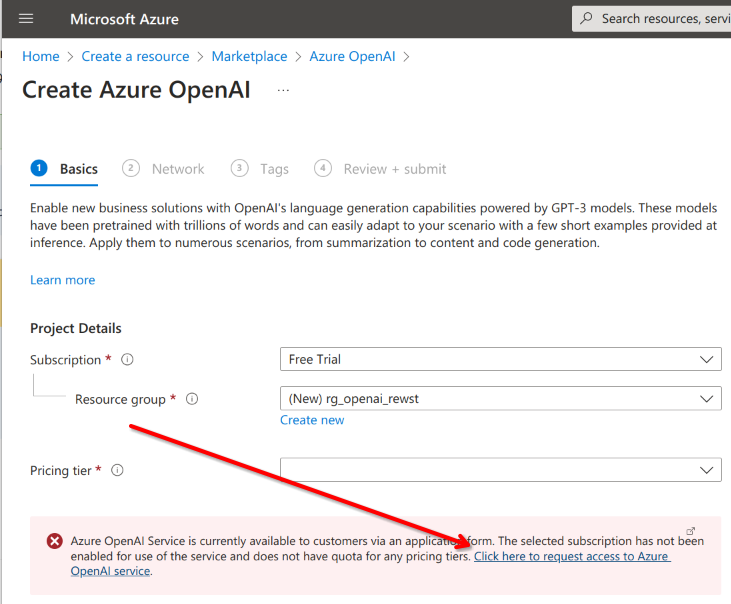
5. Request access to the Azure OpenAI service.
{% hint style="info" %}
You must fill out a form to request access to the Azure OpenAI service
{% endhint %}
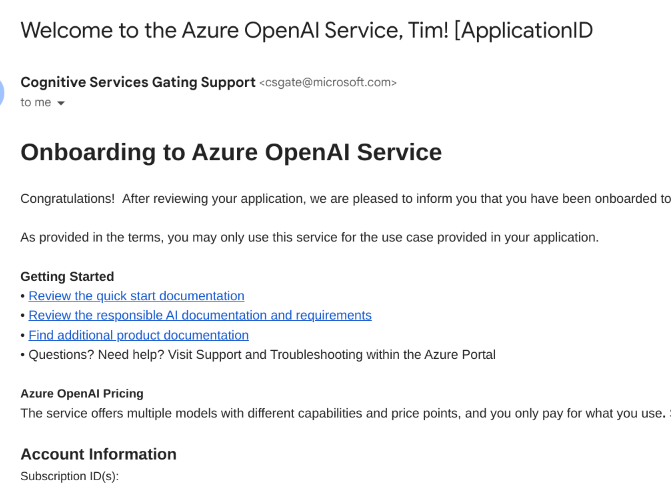
6. Wait for the welcome email.
{% hint style="warning" %}
Note that activation of the service can take up to 48 hours, based on Microsoft's timelines.
{% endhint %}
7. Return to the Azure Portal upon receiving the approval email.
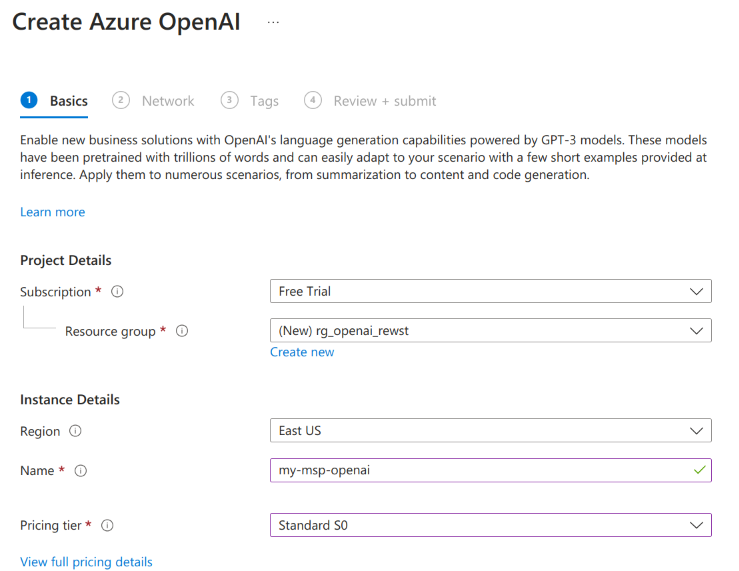
8. Create the OpenAI Service in your Azure subscription.
9. Complete the steps **Network > Tags > Review + Submit**
10. Click **Go to resource** after submitting and confirming that deployment has finished.
11. Click **Go to Foundry Portal**.
12. Navigate to the **Deployments** tab on Azure AI Foundry.
13. You can now deploy a desired OpenAI model. The below example deploys a `gpt-5-mini` model. Click **Deploy Model** **>** **Deploy base model**.
14. Search for `gpt-5-mini` and select `gpt-5-mini`. Click **Confirm**.
15. Important: When creating an Azure OpenAI deployment, ensure the deployment name does not contain periods. If the model name includes periods, for example gpt-5.4, use a deployment name with hyphens instead. For example, gpt-5-4. Rewst uses the deployment name when constructing Azure OpenAI deployment URLs. Click **Deploy** once you check your deployment name format.
9. You'll be redirected to the deployed model page that contains the **Key** and the **Target URI**. Copy both values and store them somewhere secure. These will be needed for further setup steps in Rewst.
### **Set up steps in Rewst**
If you have not yet set up the OpenAI integration in Rewst, follow our integration setup steps in Rewst in our general [OpenAI integration setup guide](/documentation/integrations/integration-guides/openai/openai-integration-setup.md).
### Configure Azure OpenAI with existing OpenAI integrations
If you already have an OpenAI integration configured, you can add an instance for Azure.
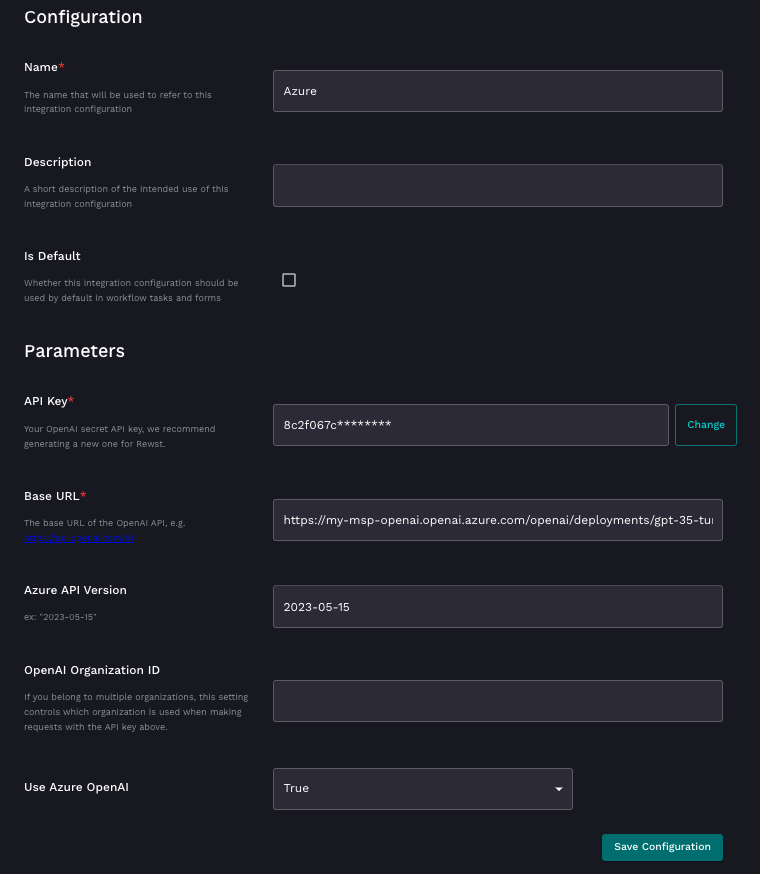
1. Navigate to the integration's configuration page by navigating to **Marketplace > Integrations > OpenAI**.
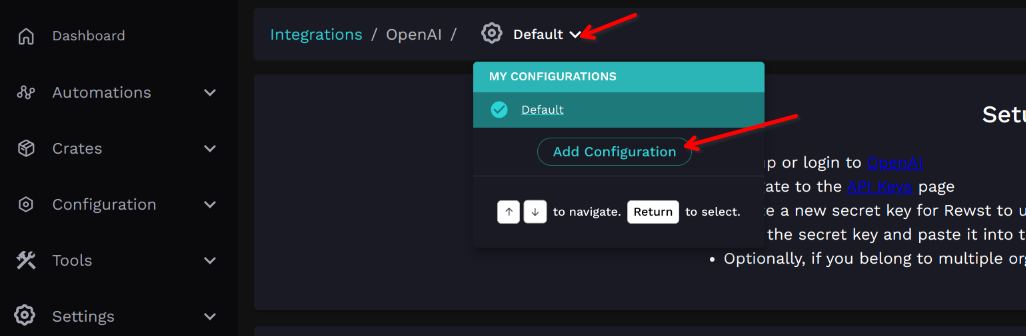
2. Click **Default** **> Add Configuration**.
2. Name the configuration `Azure`.
3. Confirm that your Base URL reflects the accurate resource and region collected from Azure. Incorrect URLs will prevent Rewst from accessing the OpenAI service.
4. Enter the **Azure API Version**.
{% hint style="warning" %}
#### Crafting the Base URL
The Base URL is what directs Rewst to communicate with the correct Azure OpenAI instance. Here’s how to construct it:
**Anatomy of the Base URL**: The standard structure of the Base URL provided by Azure typically looks like this: `https://.openai.azure.com/openai/deployments/`
* If you are using GPT 3.5 Turbo, for example, you will append it to the URL like so: `https://.openai.azure.com/openai/deployments/gpt-35-turbo`
**Customize Your Base URL**: Depending on your service instance or specific requirements, you may need to alter the base URL. For example:
* If you have a custom deployment named `custom-model`, you might append it to the URL like so: `https://.openai.azure.com/openai/deployments/`
* Ensure you replace `, , and/or` `` with the actual information from your Azure OpenAI service.
{% endhint %}
{% hint style="warning" %}
You must complete the Azure API Version field, otherwise, the integration will fail.
{% endhint %}
### Configure workflow triggers to use Azure OpenAI
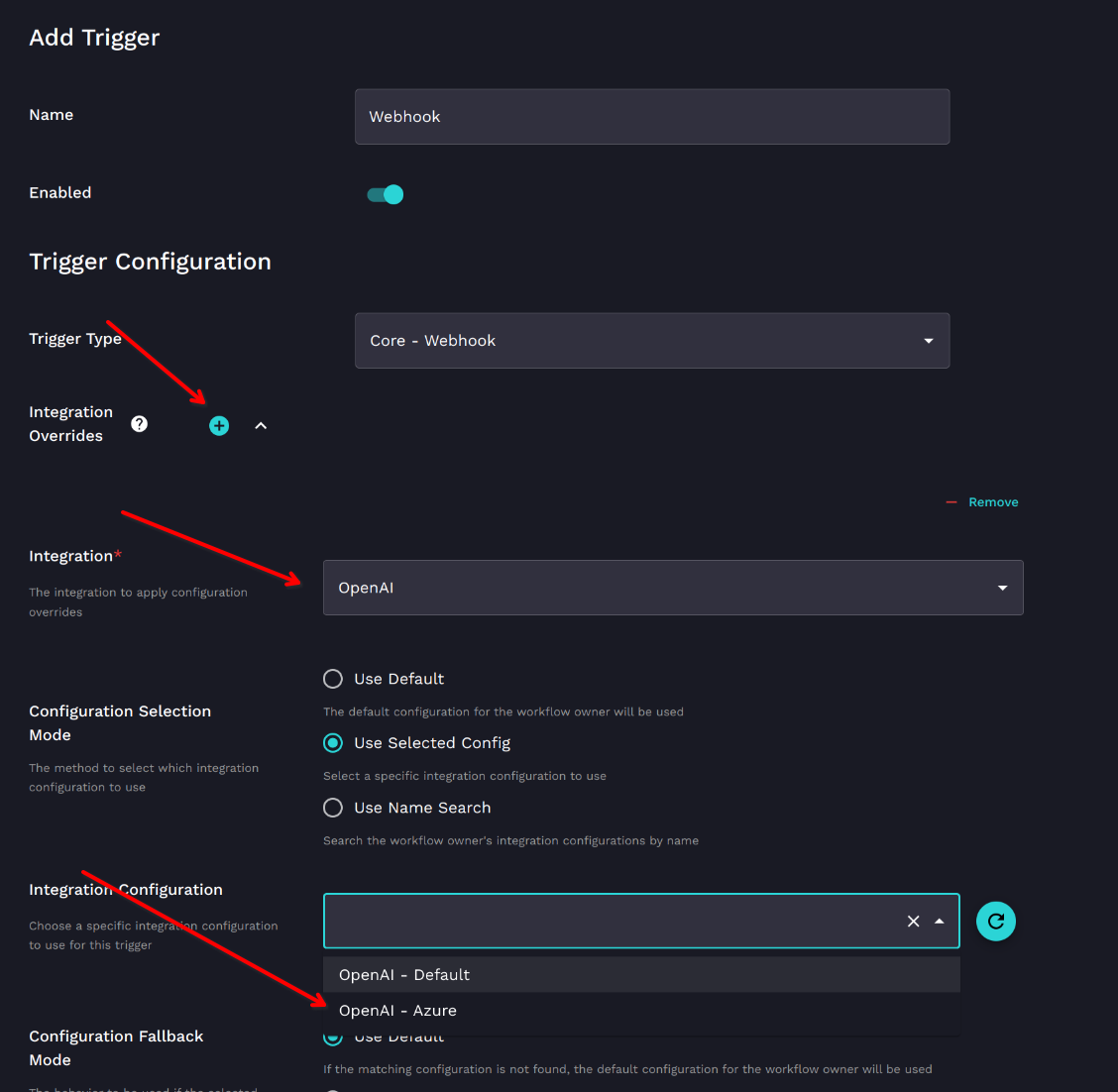
If this is your second instance of OpenAI, meaning you configured the direct OpenAI integration before, then you may adjust your workflow triggers to choose which version of the integration you want to use in your workflows.
1. Navigate to the integration's configuration page by navigating to **Marketplace > Integrations > OpenAI**.
2. Find **Integration Overrides** under **Trigger Configuration**.
3. **Click** .
4. Choose **OpenAI** in the **Integration** drop-down selector.
5. Choose which of your your OpenAI integration instances to use in the **Integration Configuration** drop-down selector.
### Use Azure OpenAI actions in Rewst
---
# Agent Instructions
This documentation is published with GitBook. GitBook is the documentation platform designed so that both humans and AI agents can read, navigate, and reason over technical content effectively. Learn more at gitbook.com.
## Querying This Documentation
If you need additional information that is not directly available in this page, you can query the documentation by asking a question.
Perform an HTTP GET request on the following URL with the `ask` and `goal` query parameters:
```
GET https://docs.rewst.help/documentation/integrations/integration-guides/openai/azure-openai-integration-setup.md?ask=&goal=
```
`ask` is the immediate question: it should be specific, self-contained, and written in natural language.
`goal` is what the user is ultimately trying to achieve, the reason they need the answer. Sharing it helps GitBook give you a better, more relevant answer. A goal is most helpful when it describes the outcome the user wants rather than restating the question. For example, with `ask=how do I create an API token`, a goal like `automate deployments from our CI pipeline` lets GitBook tailor the answer to that use case.
The response will contain a direct answer to the question and relevant excerpts and sources from the documentation.
Use this mechanism when the answer is not explicitly present in the current page, you need clarification or additional context, or you want to retrieve related documentation sections.
.png?alt=media)