> For the complete documentation index, see [llms.txt](https://docs.rewst.help/llms.txt). Markdown versions of documentation pages are available by appending `.md` to page URLs; this page is available as [Markdown](https://docs.rewst.help/documentation/integrations/integration-guides/microsoft-cloud-integration-bundle/navigating-the-microsoft-led-transition-to-gdap.md).
# Navigating the Microsoft-led transition to GDAP (2023)
Step-by-step instructions for identifying if you've been migrated, why it's happening, and how to restore full functionality to your environment.
{% hint style="info" %}
As of November 1, 2023, all migrations to GDAP were required to be completed, and migration tools are no longer available. This is a legacy article geared towards helping customers through the Microsoft-Led Transition. This page remains to serve as a reference for anyone who may not have been aware of these happenings at the time.
{% endhint %}
## Forced GDAP Migration
Transitioning to Granular Delegated Admin Privileges (GDAP) is crucial as Microsoft phases out Delegated Admin Privileges (DAP) by the end of the October 2023. This change is necessary for ensuring uninterrupted functionality within your Rewst environment.
### What's Happening
As Microsoft progresses in its shift from DAP to GDAP, tenants may find themselves automatically converted to GDAP in a restricted, nearly read-only state.
### Signs You've Been Moved
If you encounter error messages implying insufficient permissions, or no access, you may have been forcefully migrated to GDAP. An example error message might look something like:
```json
"error": {
"response": {
"code": 400,
"message": "Insufficient privileges to complete the operation.",
"errorName": "BadRequest",
"isRetryable": false
}
}
```
### Why It's Happening
The Microsoft-led transition automatically establishes a GDAP relationship with eight default roles and assigns them to predefined CSP security groups. After 30 days, DAP is terminated. For more details, consult the [Microsoft GDAP Microsoft-led Transition Guide](https://learn.microsoft.com/en-us/partner-center/gdap-microsoft-led-transition).
### How to Confirm
To confirm this is in fact the issue you are experiencing you can perform the following steps:
1. Open the [Partner Center](https://partner.microsoft.com/en-us/dashboard/commerce2/granularadminaccess/list).
2. Navigate to the admin relationship section.
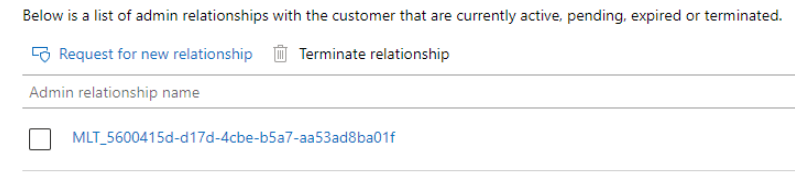
3. Check for an admin relationship prefixed with **MLT\_** followed by a GUID.
Indication: The "MLT_" prefix indicates a read-only state due to forced migration.
### How to Fix It
1. You'll need to redo your migration to GDAP.
2. You can use available migration tools like the [CIPP Migration Wizard](https://docs.cipp.app/user-documentation/index) during Microsoft's transitionary phase. After that, you will need to manually move your tenants one by one.
3. Ensure that [appropriate roles](https://docs.rewst.help/documentation/integrations/cloud/authorization-best-practices#recommended-roles-for-gdap) are assigned during this process.
{% hint style="info" %}
Automated GDAP migration is only available until **November 1st**. Post-deadline, manual setup will take **approximately 15-20 minutes per tenant**, where the process will involve opening a customized URL as the global administrator for each client.
{% endhint %}
## Post-Migration Adjustments: Handling Missing Roles
### **Scenario: Experiencing Errors Post-Migration**
If Rewst was functioning correctly post-GDAP migration but is now experiencing errors, the likely cause is the retirement of your DAP relationships by Microsoft.
{% hint style="info" %}
**To diagnose missing roles,** run the [CSP/CPV Permission Checker ](/documentation/crates/existing-crate-documentation/m365-csp-gdap-permission-checker-crate.md)crate against one of the clients experiencing issues.
{% endhint %}
### Modifying GDAP Relationships: Migration Wizard vs. Manual Methods
If your GDAP migration was done automatically using something like the [CIPP Migration Wizard](https://docs.cipp.app/setup/gdap/index), your environment is likely set up following best practices, including unique security groups with role-specific permissions. In the CIPP example, these groups would all follow a naming convention like **M365 GDAP {Role Name}**. However, if you migrated using a different method but still have security groups organized per permission set, you can adopt this to your necessary groups.
#### Steps to Modify GDAP Relationships
1. **Navigate to Admin Portal**: Open your [Microsoft Admin Portal Groups Management](https://entra.microsoft.com/#view/Microsoft_AAD_IAM/GroupsManagementMenuBlade/~/AllGroups/menuId/AllGroups).
2. **Search for Groups**: If you used CIPP, type **M365** to find groups named **M365 GDAP {Role Name}**. (For manual setups, locate the relevant security group by its custom name.)
3. **Modify Group Members**: Click on the desired group, go to **Members**, then click **Add a Member**. Select the Rewst Service Account and confirm changes.
#### Post-Modification Behavior
* **Propagation Time**: Changes may take up to an hour to become active in the Rewst environment.
* **Quick Refresh**: Click the blue shield icon next to the client's name on the Graph/CSP/Exchange Integration page in Rewst to expedite propagation.
***
## **Tools & Additional Resources**
* [CIPP GDAP Migration Wizard](https://docs.cipp.app/setup/gdap/index)
* [Microsoft Documentation: GDAP Microsoft-led Transition](https://learn.microsoft.com/en-us/partner-center/gdap-microsoft-led-transition)
* [GDAP Bulk Migration Demo](https://www.youtube.com/watch?v=GP0WywBEPgU)
* [Microsoft Authorization & Conditional Access Best Practices](https://docs.rewst.help/documentation/integrations/cloud/authorization-best-practices)
* [Other Common CSP Error Troubleshooting](https://docs.rewst.help/documentation/integrations/cloud/common-issues-with-microsoft-csp)
---
# Agent Instructions
This documentation is published with GitBook. GitBook is the documentation platform designed so that both humans and AI agents can read, navigate, and reason over technical content effectively. Learn more at gitbook.com.
## Querying This Documentation
If you need additional information that is not directly available in this page, you can query the documentation dynamically by asking a question.
Perform an HTTP GET request on the current page URL with the `ask` query parameter, and the optional `goal` query parameter:
```
GET https://docs.rewst.help/documentation/integrations/integration-guides/microsoft-cloud-integration-bundle/navigating-the-microsoft-led-transition-to-gdap.md?ask=&goal=
```
`ask` is the immediate question: it should be specific, self-contained, and written in natural language.
`goal` is optional and describes the broader end goal you are ultimately trying to accomplish on behalf of the user. GitBook uses it to tailor the answer towards what is most useful for that goal.
The response will contain a direct answer to the question and relevant excerpts and sources from the documentation.
Use this mechanism when the answer is not explicitly present in the current page, you need clarification or additional context, or you want to retrieve related documentation sections.